
Summary
GibbsCAM saves preference and configuration changes when the last instance of GibbsCAM is closed.
If multiple instances of GibbsCAM are open, closing one instance does not save the settings. The settings are saved when the final instance of GibbsCAM is closed.
Table of Contents
Before You Begin
Before changing settings:
Make sure you know which GibbsCAM preferences you want to change.
Close any other instances of GibbsCAM before making and saving preference changes.
Use Windows Task Manager to verify that no other GibbsCAM instances are running.
Cause
GibbsCAM saves settings when the last instance of GibbsCAM is closed.
If multiple instances or windows of GibbsCAM are open, the settings are not saved until the final instance is closed.
GibbsCAM instances appear as Virtual.exe in Windows Task Manager.
Procedure
Step 1 – Close Other GibbsCAM Instances
Save your current GibbsCAM work.
Close any other open GibbsCAM windows or instances.
Open Windows Task Manager.
Look for any remaining Virtual.exe processes.
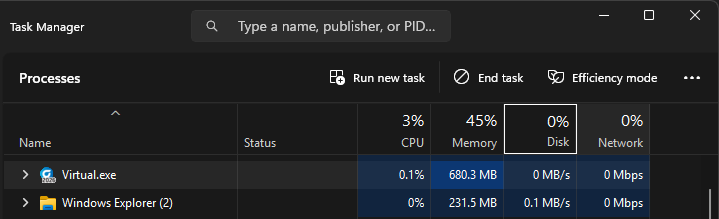
Make sure there are no other GibbsCAM instances running.
Step 2 – Change Your GibbsCAM Settings
Launch GibbsCAM if it is not already running.
Change the desired preferences or settings.
Verify that the settings are configured as desired.
Step 3 – Close GibbsCAM
Close GibbsCAM.
Make sure this is the last running instance of GibbsCAM.
If necessary, open Windows Task Manager and verify that no Virtual.exe processes remain.
Expected Result
GibbsCAM saves the settings when the last instance closes.
Step 4 – Verify the Settings
Relaunch GibbsCAM.
Check the settings or preferences that were changed.
Verify that the changes remain in place.
Expected Result
The settings remain configured as expected after GibbsCAM is relaunched.
Additional Information
Multiple GibbsCAM Instances
When multiple GibbsCAM instances are open, settings are saved only when the last instance is closed.
This is important when troubleshooting settings that appear to revert after GibbsCAM is restarted.
Virtual.exe
GibbsCAM instances appear as Virtual.exe in Windows Task Manager.
If settings do not appear to save, check Task Manager for additional Virtual.exe processes before closing GibbsCAM.
Best Practices
Close other GibbsCAM instances before changing settings that need to be saved.
Check Windows Task Manager for additional Virtual.exe processes.
Close the final GibbsCAM instance after making preference changes.
Relaunch GibbsCAM to verify that the settings were saved.
Troubleshooting
Problem: My GibbsCAM settings revert after restarting the software.
Possible Cause
Another GibbsCAM instance was still running when the settings were changed or when GibbsCAM was closed.
Resolution
Close all other GibbsCAM instances, verify that no additional Virtual.exe processes are running, change the settings again, and close the final GibbsCAM instance.
Problem: I closed a GibbsCAM window, but my settings were not saved.
Possible Cause
Another GibbsCAM instance was still running.
Resolution
Settings are saved when the last GibbsCAM instance is closed. Check Task Manager for additional Virtual.exe processes and close the remaining GibbsCAM instances.
Related Articles
Explore More from CAMCO
Visit the CAMCO website to learn more about:
Keywords
Save Settings, GibbsCAM Settings, GibbsCAM Preferences, Save Preferences, Preference Changes, Virtual.exe, Multiple GibbsCAM Instances, GibbsCAM Instance, Settings Not Saving, Preferences Not Saving