
Summary
This article explains how to add the Operation Summary command to the GibbsCAM interface and use it to create a concise Excel summary of the current part's operations. If Microsoft Excel is unavailable or an Excel report is not needed, the Operation Manager can display a customizable operation list within GibbsCAM.
Table of Contents
Before You Begin
Open the GibbsCAM part that contains the operations to summarize and confirm that its tools, processes, and operations are current.
Microsoft Excel must be available to open the Operation Summary output. Use the Operation Manager alternative when Excel is unavailable or an Excel workbook is not desired.
Note: Operation Summary and Operation Report are different commands. Operation Summary does not simulate toolpaths before producing its Excel output.
Procedure
Step 1 - Add Operation Summary to the Interface
Right-click an empty gray area at the top of the GibbsCAM window near the toolbars or large command buttons.
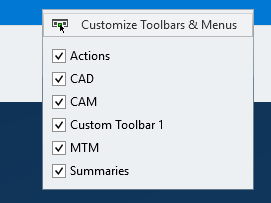
Select Customize Toolbars & Menus. In some GibbsCAM versions, this command is labeled Customize.
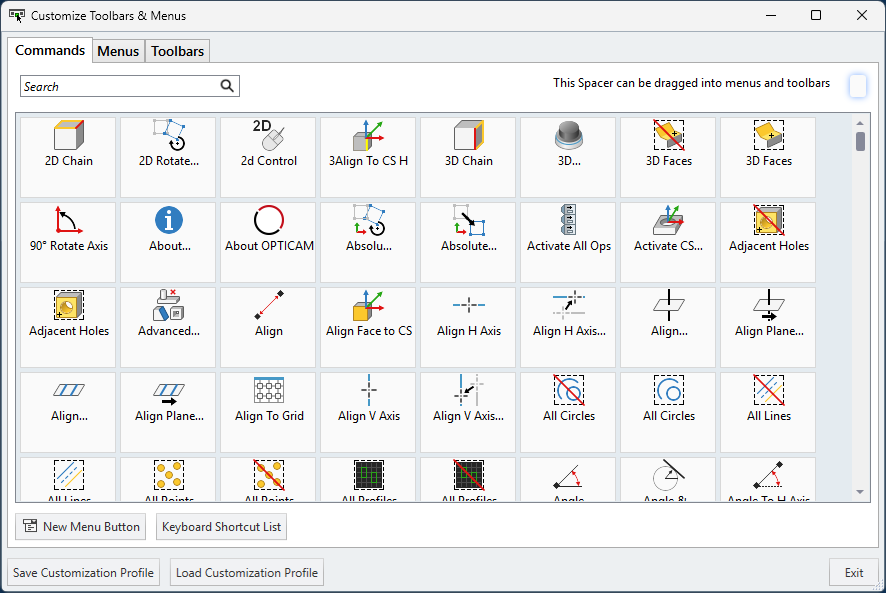
Use the command search field to search for Operation Summary.
Drag Operation Summary from the search results to the toolbar or menu where you want the command to appear. The orange line indicates where it will drop.
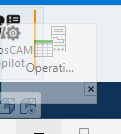
Close the customization window when the command is in the desired location.
Step 2 - Generate the Operation Summary
Open the part to summarize and confirm that the operations contain the information you want to report.
Select the Operation Summary command that you added to the interface.
Wait for Microsoft Excel to open and populate the Operation Summary workbook.
Review the operation information for completeness and accuracy.
Save the workbook with the required filename and location. Review Excel's print preview before printing so only pages containing report data are included.
Step 3 - Use Operation Manager Without Excel
Open the Operation Manager in GibbsCAM.
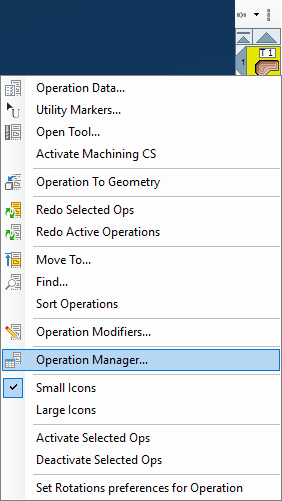
Right-click a column header and select Customize Headers.
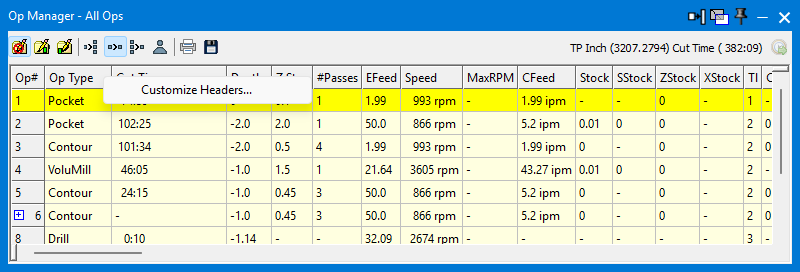
Add, remove, or reorder the headers needed for the operation information you want to review.
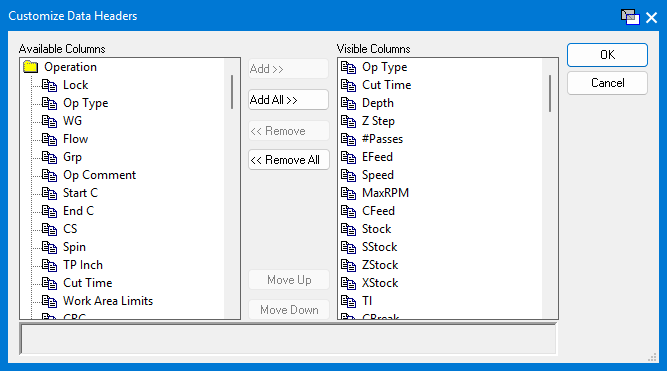
Apply the header changes and review the customized operation list in Operation Manager.
Note: Operation Manager provides an in-application alternative; it does not create the same Excel workbook as Operation Summary.
Expected Result
The Operation Summary command is available from the selected toolbar or menu and opens a concise Excel workbook containing the current part's operation information. When Excel is not used, Operation Manager displays the selected information through customized headers.
Troubleshooting
Problem: The command begins rendering or simulating toolpaths and takes much longer than expected.
Possible Causes
Operation Report was selected instead of Operation Summary.
Resolution
Cancel the report if appropriate, then run the Operation Summary command that was added through the customization window. Operation Summary does not simulate toolpaths before creating its Excel output.
Problem: Operation Summary does not open or create its Excel output.
Possible Causes
Microsoft Excel is not installed or is unavailable on the workstation.
The Excel installation cannot open normally or GibbsCAM cannot start it.
Resolution
Confirm that Excel opens independently. If Excel is required, repair the Excel installation or contact the workstation administrator. If Excel is not available or not desired, use Operation Manager and customize its headers instead.
Related Articles
Explore More from CAMCO
Visit the CAMCO website to learn more about:
Keywords
GibbsCAM Operation Summary, Excel Operation Summary, Customize Toolbars and Menus, Operation Report, Operation Manager, Customize Headers, Operation List, Cycle Time