
Summary
If GibbsCAM pauses or freezes for approximately 2–5 seconds every 2–5 minutes, the issue is often caused by communication delays between the workstation and the RLM license server.
This behavior is most commonly observed when using RLM network licenses and is typically related to network latency, firewall inspection, VPN connections, endpoint security software, or network infrastructure. Increasing the RLM communication timeout has resolved this issue for multiple customers.
This article explains how to adjust the RLM communication timeout and identify potential network-related causes.
Table of Contents
Applies To
License Type:
RLM Network License
Important: This article applies only to RLM network licenses. Standalone licenses and hardware key licenses are not affected by RLM communication timeouts.
Symptoms
You may experience one or more of the following:
GibbsCAM freezes every few minutes.
Each freeze lasts approximately 2–5 seconds.
The application resumes normally after the pause.
No error messages are displayed.
The issue only occurs while using a network license.
Procedure
Step 1 – Verify That the Issue Is Related to Network Licensing
Determine whether:
The workstation is using an RLM network license.
The pauses occur at regular intervals.
Other users connected to the same license server experience similar behavior.
If the issue only affects one workstation, continue with the following steps.
Expected Result
You have confirmed the issue is likely related to communication with the license server.
Step 2 – Increase the RLM Communication Timeout
Increasing the RLM communication timeout has resolved this issue for multiple customer environments.
Create or edit the following Windows environment variable:
Variable Name
RLM_COMM_TIMEOUT
Suggested Value
7000
RLM_COMM_TIMEOUT = 7000
The value is specified in milliseconds.
A value of 7000 provides a 7-second communication timeout.
To create the variable:
Open Control Panel.
Select System.
Select Advanced system settings.
Select Environment Variables.
Create the variable under User Variables.
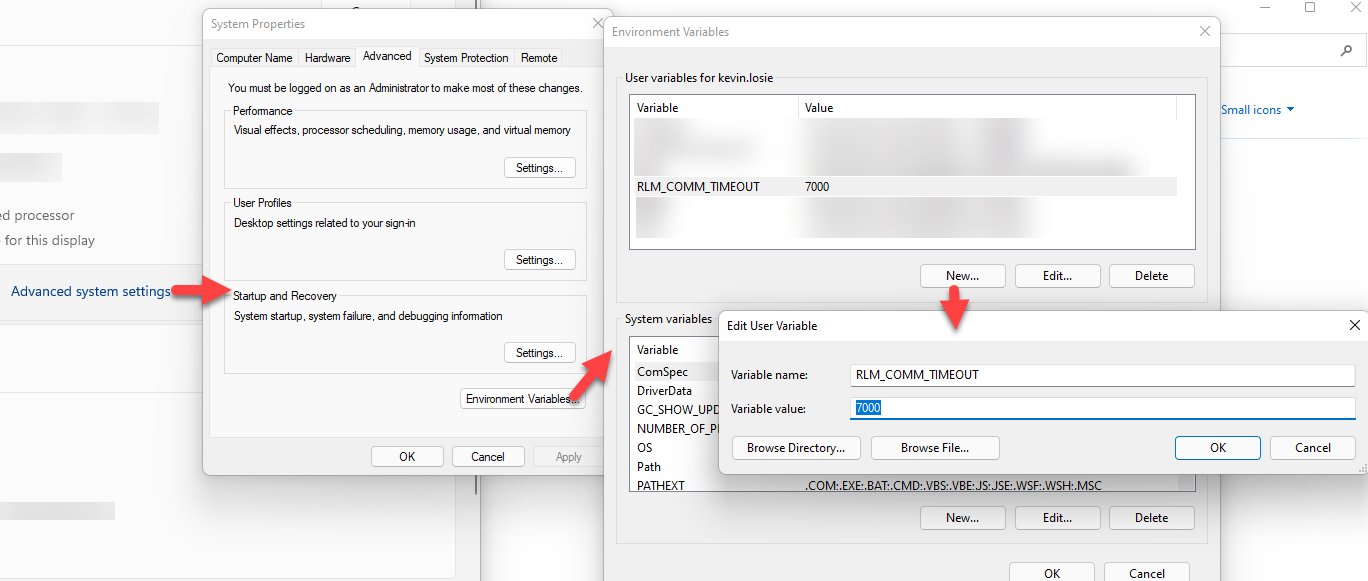
Optionally create the same variable under System Variables.
Restart GibbsCAM.
Note: Some customers have reported improved reliability by defining the variable in both the User and System environment variable sections.
Expected Result
Communication delays between the workstation and the license server are reduced or eliminated.
Step 3 – Test the Results
Operate GibbsCAM normally for several minutes.
Observe:
Whether the freezes disappear.
Whether the pauses become longer or shorter.
Whether the frequency changes.
These observations can help determine whether the issue is related to network communication.
Expected Result
The application operates without periodic pauses.
Step 4 – Adjust Additional RLM Timeouts (Optional)
If increasing RLM_COMM_TIMEOUT does not fully resolve the issue, the RLM connection timeout may also be increased.
Create the following environment variable:
Variable Name
RLM_CONNECT_TIMEOUT
Specify a value (in seconds) greater than the default if recommended during troubleshooting.
This increases the amount of time the workstation waits while establishing a connection to the license server.
Expected Result
Network connection establishment becomes more tolerant of latency.
Step 5 – Review the RLM Options File (Advanced)
In environments with persistent network latency, additional timeout settings can be configured using the RLM Options File (rlm.opt).
These settings allow administrators to adjust connection and communication behavior for the license server.
Refer to your organization's RLM administration procedures before modifying the Options File.
Expected Result
The license server is configured appropriately for the network environment.
Step 6 – Investigate the Network
If increasing the timeout resolves or improves the issue, the underlying cause is likely environmental rather than a defect in GibbsCAM.
Possible areas to investigate include:
Firewall inspection.
Endpoint security software.
VPN connections.
Network switches.
Wireless networking.
High network latency.
Packet loss.
Coordinate with your IT department to identify any network devices or security software that may be delaying communication with the license server.
Expected Result
Underlying network latency is identified and corrected.
Expected Result
GibbsCAM operates normally without recurring freezes while maintaining communication with the RLM license server.
Additional Information
Why This Happens
GibbsCAM periodically communicates with the RLM license server to verify license availability.
If responses are delayed beyond the configured timeout, the workstation may pause while waiting for the server to respond.
Increasing the timeout allows more time for communication before the application considers the request delayed.
Common Causes
High network latency.
Firewall inspection.
Endpoint security software.
VPN connections.
Wireless network instability.
Busy or overloaded network infrastructure.
Slow communication with the license server.
Troubleshooting
Problem: Periodic freezes continue after increasing RLM_COMM_TIMEOUT.
Possible Causes
Connection timeout is too short.
Ongoing network latency.
Firewall or endpoint security delays.
Resolution
Increase RLM_CONNECT_TIMEOUT if appropriate and investigate the network infrastructure.
Problem: Only one workstation experiences the issue.
Possible Causes
Local firewall.
Endpoint security software.
Network adapter configuration.
Resolution
Compare the affected workstation with another client connected to the same license server.
Problem: Multiple users experience identical freezes.
Possible Causes
License server communication delays.
Network infrastructure issues.
Resolution
Review the network path between clients and the RLM server and evaluate server performance.
Related Articles
- How to Track NLO Usage
- How to Kick Inactive Users with RLM
- RLM Options File Reference NLO
- How to Change the NLO Server Ports
- Virtual Server Support for GibbsCAM Network Licenses (NLO)
Explore More from CAMCO
Visit the CAMCO website to learn more about:
Technical & Post Support
- Downloads & Helpful Resources
Keywords
RLM, RLM_COMM_TIMEOUT, RLM_CONNECT_TIMEOUT, Network License, License Server, Freezing, Pausing, Performance, Latency, Timeout, Intermittent Freeze, Network Delay