
Summary
If GibbsCAM displays the error:
Check Permissions on Target Drive
while saving a part, Windows has prevented GibbsCAM from writing to the selected location. This usually indicates that the destination folder or existing file cannot be modified because of insufficient permissions, a read-only file, or security software preventing access.
This article explains how to verify permissions and resolve the most common causes of this error.
Table of Contents
Symptoms
You may experience one or more of the following:
GibbsCAM displays Check Permissions on Target Drive while saving.
Existing part files cannot be overwritten.
Saving succeeds in some folders but fails in others.
The error occurs only on a network drive or shared folder.
Procedure
Step 1 – Verify Folder Permissions
Confirm that your Windows account has permission to modify files in the destination folder.
Right-click the destination folder.
Select Properties.
Open the Security tab.
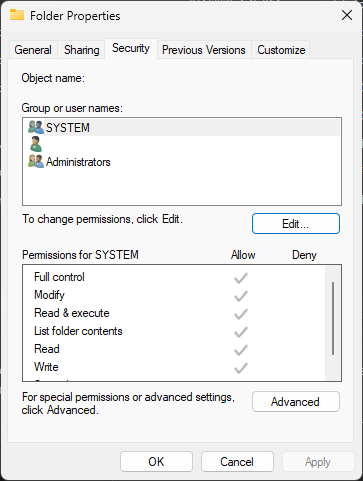
Verify that your account has the following permissions:
Read
Write
Modify
If necessary, contact your system administrator to obtain the required permissions.
Step 2 – Check Whether the Existing File Is Read-Only
If the file already exists:
Right-click the file.
Select Properties.
Verify that the Read-only attribute is not enabled.
If it is enabled, clear the checkbox and apply the change.
Step 3 – Test Saving to a Local Folder
Determine whether the issue is specific to the destination folder.
Save the part to a local folder such as:
C:\Users\<username>\Documents
If the save succeeds locally, the issue is likely related to permissions or the original storage location.
Step 4 – Verify Network Access (If Applicable)
If saving to a network location:
Confirm that the network drive is connected.
Verify that the shared folder is accessible.
Ensure you have write access to the share.
Try creating a simple text file in the same folder using Windows Explorer.
Step 5 – Review Antivirus or Endpoint Security Software
Security software can prevent applications from modifying files.
If permitted by your organization's IT policies:
Temporarily disable antivirus or endpoint protection.
Attempt to save the file again.
Re-enable protection immediately after testing.
If this resolves the issue, configure exclusions for:
GibbsCAM
.VNC files
.ZOOB temporary files
Step 6 – Run GibbsCAM as Administrator (Testing Only)
If saving to a protected folder, Windows User Account Control (UAC) may be preventing file access.
Close GibbsCAM.
Right-click the GibbsCAM shortcut.
Select Run as administrator.
Attempt to save the file again.
Note: This step is intended for troubleshooting. Running GibbsCAM as Administrator should only be used when appropriate for your environment.
If the save succeeds, the issue is likely related to Windows permissions.
Expected Result
GibbsCAM saves the part successfully without displaying the Check Permissions on Target Drive message.
Additional Information
Common Causes
This error is commonly caused by:
Insufficient Windows folder permissions.
Read-only files or folders.
Network share permission restrictions.
Endpoint security software blocking file creation.
Controlled Folder Access or ransomware protection.
Attempting to save to a disconnected network location.
Best Practices
Save files to locations where you have full read and write permissions.
Verify network connectivity before working from shared folders.
Configure antivirus exclusions for GibbsCAM if recommended by your IT department.
Avoid saving directly to protected Windows system folders.
Note: Similar permission-related errors can also occur during license deployment by the GibbsCAM Registration Tool. In those cases, running the Registration Tool as Administrator or removing an existing license file from the deployment destination may resolve the issue.
Troubleshooting
Problem: The error occurs only when saving to a network drive.
Possible Causes
Insufficient share permissions.
Network connectivity issues.
Resolution
Verify both Windows folder permissions and network share permissions.
Problem: The error occurs only when overwriting an existing file.
Possible Causes
Read-only file.
File locked by another application.
Resolution
Verify the file is not read-only and ensure it is not open in another application.
Problem: Running GibbsCAM as Administrator resolves the issue.
Possible Causes
Windows User Account Control (UAC).
Restricted folder permissions.
Resolution
Review the destination folder's permissions and adjust them if appropriate rather than routinely running the application as Administrator.
Related Articles
- Error: Couldn't Save File to Specified Location
- GibbsCAM Crashes When Saving a Part
- Troubleshooting Slow File Load Times
- What Is a .ZOOB File?
- How to Recover a Corrupted GibbsCAM Part File
Explore More from CAMCO
Visit the CAMCO website to learn more about:
Technical & Post Support
- Downloads & Helpful Resources
Keywords
Check Permissions on Target Drive, Save Error, Cannot Save, Permission Denied, Write Access, Folder Permissions, Read-only, Network Drive, VNC, ZOOB, File Access