
Summary
If the Rotation fields are missing from the Rotate tab of a Roughing, Contour, or similar machining process, the most common cause is a non-zero Part Offset in the Document Control Dialog (DCD).
These fields control rotation around the axis of rotation. When the Part Offset is not zero for the rotation axis, GibbsCAM disables the rotation controls because the part is no longer centered on the axis of rotation.
Table of Contents
Before You Begin
Before performing the troubleshooting steps:
Open the part in GibbsCAM.
Verify that the machining process supports the Rotate tab (such as Roughing or Contour).
Ensure you understand whether a Part Offset is required for your setup before making changes.
Note: A Part Offset on an axis that does not affect the rotation axis will not prevent these controls from appearing.
Symptoms
You may experience one or more of the following:
The Rotate tab is displayed, but the rotation fields are missing.
Polar Milling or Cylindrical Milling options are unavailable.
Rotation controls are disabled for Roughing or Contour operations.
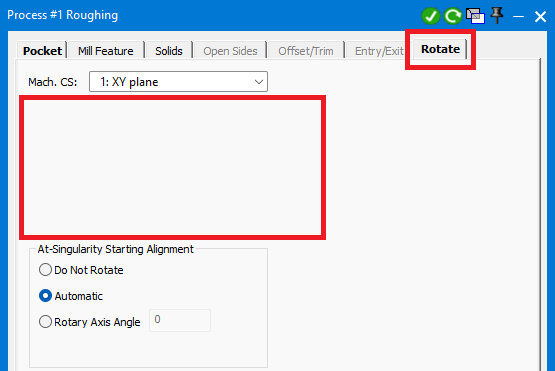
The issue occurs after changing the Part Offset in the Document Control Dialog.
Procedure
Step 1 – Open the Document Control Dialog (DCD)
Open the part in GibbsCAM.
Open the Document Control Dialog (DCD).
Locate the Part Offset settings.
Step 2 – Check the Part Offset
Review the Part Offset values.
If the value is anything other than 0, GibbsCAM disables the rotation controls on the Rotate tab.
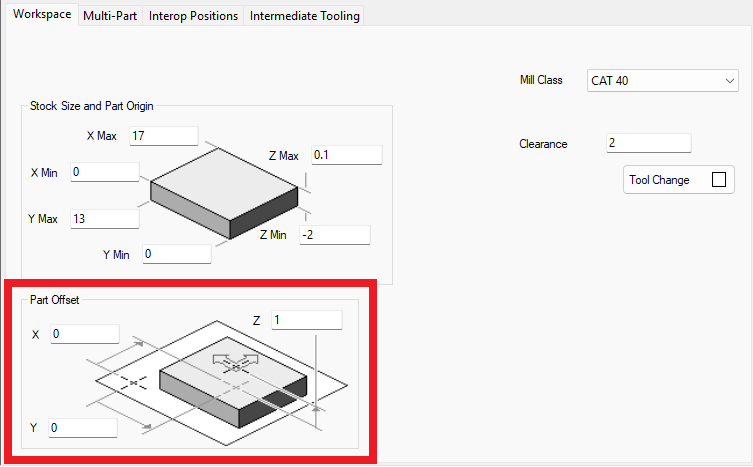
Step 3 – Set the Part Offset to Zero
If your machining setup allows it:
Change the Part Offset to 0.
Apply the change.
Return to the machining process and open the Rotate tab.
Step 4 – Verify Rotation Controls
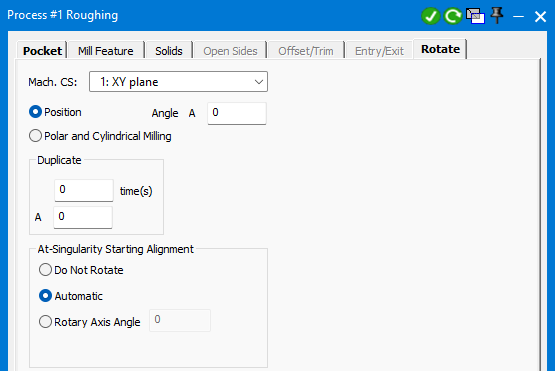
Reopen the Rotate tab and confirm it now contains the expected rotation options.
Expected Result
The Rotate tab displays the rotation fields after the Part Offset has been returned to 0.
Additional Information
Why Does This Happen?
The Rotate tab controls machining that rotates about the machine's centerline, such as:
Position
Polar & Cylindrical Milling
When a Part Offset is applied, the part is no longer centered. Because rotating an off-center part would produce incorrect toolpaths, GibbsCAM disables the rotation controls.
A Part Offset on an axis that does not affect the rotation axis will not prevent these controls from appearing.
Common Causes
This behavior typically occurs when:
A non-zero Part Offset has been entered for the rotation axis.
The part has been intentionally shifted away from the centerline.
The machine setup is incompatible with centerline rotation.
Best Practices
Use an Part Offset of 0 when programming Polar or Cylindrical Milling operations.
Verify Part Offset values before troubleshooting missing Rotate tab options.
If an X offset is required for your machining setup, understand that rotation around the machine centerline is not supported.
Troubleshooting
Problem: The Part Offset cannot be changed.
Possible Cause
The machining setup requires the part to remain offset from center.
Resolution
The Rotate tab fields will remain unavailable because rotation about the machine centerline is not supported when the part is offset.
Related Articles
- Duplicate MDD Error or Duplicate VMM Error
- Error: "The Following Op Has an Ambiguous Positive Side"
- Error: "The MDD Selected Does Not Match Your Security Options"
Explore More from CAMCO
Visit the CAMCO website to learn more about:
Keywords
Rotate Tab, Rotation Fields Missing, Polar Milling, Cylindrical Milling, Part Offset, Document Control Dialog, DCD, X Offset, Rotate Tab Missing