
Summary
GibbsCAM can import CAD files from a variety of industry-standard CAD formats and applications.
CAD files can be opened as a new GibbsCAM file or imported into an existing GibbsCAM file. The available import formats can be viewed by selecting File > Import.
Some CAD formats require specific license options or additional software before they can be imported.
Parasolid is the most native format in relation to GibbsCAM.
Table of Contents
- Before importing a CAD file:
- Importable File Types
- CAD Import Requirements
- Option 1 – Open the CAD File as a New File
- Option 2 – Import a CAD File into an Existing File
- Best Practices
- Troubleshooting
- Related Articles
Before importing a CAD file:
Verify the file format.
Confirm that any required CAD import option is included on your GibbsCAM license.
If the file contains solid models, verify that the Solids Import option is included on your license.
For Autodesk Inventor files, verify that Autodesk Inventor or Inventor Read-only Mode is installed on the same computer.
Note: The Solids Import option is included in the Go Solids software bundles.
Importable File Types
The GibbsCAM is able to import the following file types:
ACIS-SAT (*.sat; *.sab; *.asat; *.asab)
DXF (*.dxf)
IGES (*.igs; *.iges)
Parasolid (*.x_t; *.xmt_txt)
Point List (*.txt)
Post Package (*.zip)
PTC Creo Parametric Part (Spatial) (*.PRT; .PRT)
PTC Creo Parametric Assembly (Spatial) (*.ASM; .ASM)
VDA-FS (Spatial) (*.vda)
STEP (Spatial) (AP203/AP214/AP242) (*.STEP; *.STP)
Autodesk Inventor (Spatial) (*.ipt; *.iam)
CATIA V4 (Spatial) (*.DLV; *.model; *.exp)
SolidWorks (Spatial) (*.sldprt; *.sldasm)
UGS/NX part file (Spatial) (*.prt)
CATIA V5 (Spatial) (*.CATPart; *.CATProduct)
Solid Edge Part (*.PAR)
Solid Edge Assembly (*.ASM)
Rhinoceros Open Nurbs (*.3DM)
KeyCreator (*.CKD)
Autodesk RealDWG (*.dwg; *.dxf)
STL (*.stl)
GibbsCAM Facet Body (*.fb)
GibbsCAM Facet Body (v2) (*.fb2)
SOLIDWORKS File (*.SLDPRT)
SOLIDWORKS Assembly (*.SLDASM)
Parasolid Binary File (*.x_b)
Parasolid Partition File (*.p_b)
CAD Import Requirements
The availability of a format in the File > Import menu does not necessarily mean that the corresponding import capability is available on every GibbsCAM license.
The following formats require a specific option on the GibbsCAM license:
STEP
UGS/NX
Autodesk Inventor
SolidWorks
PTC Creo
CATIA V4
CATIA V5
VDA-FS
If one of these formats cannot be imported, verify that the required option is included on the license.
Autodesk Inventor
Autodesk Inventor files require the ACIS Import option and Autodesk Inventor to be installed on the GibbsCAM computer. Inventor Read-only Mode can be used without an Inventor license.
Option 1 – Open the CAD File as a New File
To open a CAD file as a new GibbsCAM file:
Launch GibbsCAM.
Select File > Open.
Browse to the CAD file.
Select the file and click Open.
Expected Result
The CAD file opens as a new GibbsCAM file.
Option 2 – Import a CAD File into an Existing File
To import CAD geometry into an existing GibbsCAM file:
Open the GibbsCAM file into which you want to import the CAD data.
Select File > Import.
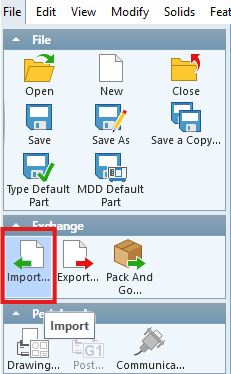
Select the appropriate file type.
Browse to the CAD file.
Select the file and import it.
Best Practices
Confirm the CAD file format before importing.
Verify required license options before troubleshooting an import failure.
Use Parasolid when it is available as an export option.
For solid models, confirm that the required Solids Import capability is available.
When importing Autodesk Inventor files, install Autodesk Inventor or Inventor Read-only Mode directly on the GibbsCAM computer.
Troubleshooting
Problem: The CAD file will not import.
Possible Causes
The required import option is not included on the license.
The file format requires an additional dependency.
The file contains solids and the required solids import capability is unavailable.
Resolution
Verify the CAD format and confirm that the required license option is available.
Problem: An Autodesk Inventor file will not import.
Possible Causes
The ACIS Import option is not included on the license.
Autodesk Inventor is not installed on the GibbsCAM computer.
Resolution
Verify the ACIS Import option and install Autodesk Inventor or Inventor Read-only Mode on the same computer.
Problem: A CAD file opens but the solid models cannot be imported.
Possible Cause
The required Solids Import option is not available on the GibbsCAM license.
Resolution
Verify that the Solids Import option is included on the license. This option is included with the Go Solids software bundles.
Related Articles
- How to Identify Your GibbsCAM License Type
- Solid Model Looks Distorted
- Geometry Does Not Connect or Disconnect Properly
- How to Recover a Corrupted GibbsCAM Part File
Explore More from CAMCO
Visit the CAMCO website to learn more about:
Keywords
CAD Import, CAD Compatibility, Import CAD Files, Open CAD Files, File Import, Parasolid, ACIS-SAT, DXF, IGES, Point List, PTC Creo, VDA-FS, STEP, Autodesk Inventor, CATIA V4, CATIA V5, SolidWorks, UGS/NX, Solid Edge, Rhinoceros, KeyCreator, Autodesk RealDWG, STL, GibbsCAM Facet Body, Parasolid Binary, Parasolid Partition, Solids Import, ACIS Import