
Summary
GibbsCAM can import Solid Edge .par files when the Solids Import option is available on the license or checked out through NLO.
If the Solids Import option is available and a Solid Edge file still cannot be imported, there are several possible causes involving the Solid Edge import plug-in.
Note: Cut features from Solid Edge files, such as slots, are not recognized as features in GibbsCAM.
Table of Contents
Before You Begin
Before troubleshooting:
Verify that the Solids Import option is on the GibbsCAM license or checked out through NLO.
Have the Solid Edge .par file available.
Make sure GibbsCAM is closed before replacing any plug-in files.
Cause
If the required Solids Import option is available, the issue may be caused by one of the following:
The Solid Edge import plug-in has been disabled through the Plug-In Manager.
The Solid Edge import DLL was removed by antivirus or other security software.
The Solid Edge import DLL is corrupted.
Procedure
Step 1 – Verify the Solids Import Option
Verify that the Solids Import option is either:
Included on the GibbsCAM license, or
Checked out through NLO.
Step 2 – Verify the Solid Edge Plug-In Is Enabled
Open GibbsCAM.
Open the Plug-In Manager.
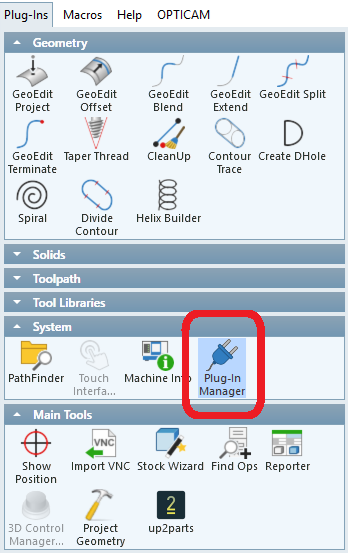
Locate Read Solid Edge (ReadSEAsm.dll).
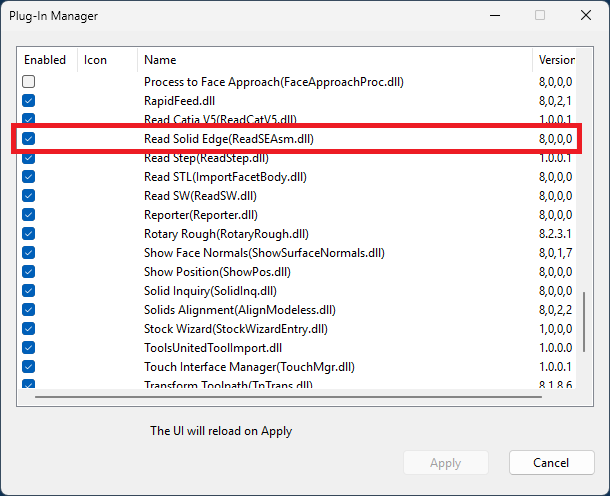
Verify that the plug-in is activated.
Step 3 – Check for a Missing DLL
If the plug-in is enabled but Solid Edge files still cannot be imported, the DLL may have been removed by antivirus or other security software.
Check the following folder:
C:\Program Files\Gibbs\GibbsCAM\<version>\PlugIns\Misc
Look for:
ReadSEAsm.dll
If the file is missing, check your antivirus or security software to determine whether it removed or quarantined the file.
Step 4 – Replace a Corrupted DLL
If ReadSEAsm.dll is present but the Solid Edge file still cannot be imported, the DLL may be corrupted.
Replace the ReadSEAsm.dll file in:
C:\Program Files\Gibbs\GibbsCAM\<version>\PlugIns\Misc
After replacing the file, relaunch GibbsCAM and try importing the Solid Edge file again.
Expected Result
The Solid Edge .par file imports successfully when the Solids Import option is available and the Read Solid Edge (ReadSEAsm.dll) plug-in is enabled and functioning correctly.
Additional Information
Solid Edge Cut Features
Cut features from Solid Edge files, such as slots, are not recognized as features when imported into GibbsCAM.
The imported geometry may therefore not retain the same feature information that was present in the original Solid Edge file.
Best Practices
Verify the Solids Import option before troubleshooting the Solid Edge importer.
Keep the Read Solid Edge (ReadSEAsm.dll) plug-in enabled.
Check antivirus and other security software if the DLL is missing.
Keep a known-good copy of the required DLL available when troubleshooting a potentially corrupted plug-in.
Troubleshooting
Problem: The Solid Edge file will not import and the Solids Import option is unavailable.
Possible Cause
The required license option is not available.
Resolution
Verify that the Solids Import option is included on the license or can be checked out through NLO.
Problem: The Solids Import option is available, but Solid Edge files will not import.
Possible Cause
The Read Solid Edge (ReadSEAsm.dll) plug-in is disabled.
Resolution
Open the Plug-In Manager and activate Read Solid Edge (ReadSEAsm.dll).
Problem: The Solid Edge plug-in is enabled, but the file still will not import.
Possible Cause
ReadSEAsm.dll may have been removed by antivirus or other security software.
Resolution
Check the PlugIns\Misc folder and verify that ReadSEAsm.dll is present. Check security software quarantine or logs if the file is missing.
Problem: ReadSEAsm.dll is present, but Solid Edge files still will not import.
Possible Cause
The DLL may be corrupted.
Resolution
Replace ReadSEAsm.dll in the GibbsCAM PlugIns\Misc folder and try the import again.
Related Articles
- How to Import CAD Files and CAD Compatibilities
- SolidWorks File Not Opening
- PMI Data
- Geometry Does Not Connect or Disconnect Properly
Explore More from CAMCO
Visit the CAMCO website to learn more about:
Keywords
Solid Edge, Solid Edge Import, Solid Edge File, PAR File, .PAR, Read Solid Edge, ReadSEAsm.dll, Solids Import, Plug-In Manager, Solid Edge Plug-In, CAD Import, Solid Edge Troubleshooting