
Summary
A GibbsCAM Pack and Go (.gcpkg) file is effectively a ZIP file that packages the files and settings associated with a GibbsCAM part and temporarily loads the selected files when opened.
Pack and Go is the preferred method for sending a GibbsCAM file to Technical Support because it can include the supporting files involved with the part and allows Support to review the files as the user sees them.
A Pack and Go package can contain:
Part File
Machine Sim Assembly
Custom Drill Cycle Macros
Intermediate Tooling
Probe Process Macros
Post Processor
Utility Op Templates
User Interface
Table of Contents
Before You Begin
Before creating a Pack and Go file:
Open the GibbsCAM part you want to send.
Determine whether you want to package all available files or only specific files.
If sending the package to Technical Support, All Files is generally the preferred option.
Procedure
Step 1 – Open Pack and Go
Open the GibbsCAM part.
Select File > Pack and Go.
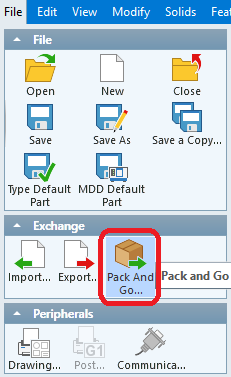
Step 2 – Select the Files to Include
Choose one of the available options:
All Files – Includes all available files associated with the part.
Selected File – Allows you to choose specific items to include in the package.
When sending a package to Technical Support, All Files is recommended whenever possible.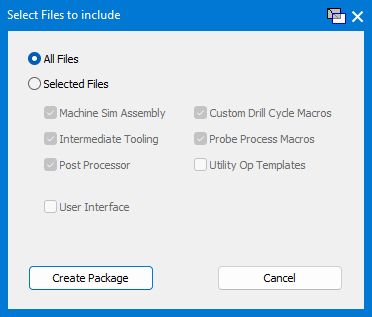
Step 3 – Create the Package
Review the selected files.
Click Create Package.
Choose the location where the Pack and Go file should be saved, if prompted.
Expected Result
GibbsCAM creates a .gcpkg Pack and Go file containing the selected files.
Step 4 – Send the Pack and Go File
When working with Technical Support, provide the resulting .gcpkg file with your support request.
The package allows Support to review the part together with the associated files that affect how the part is displayed and processed.
Expected Result
A GibbsCAM .gcpkg file is created containing the selected part and supporting files.
For Technical Support requests, using All Files provides the most complete package and is the preferred method for sending a GibbsCAM part.
Related Video
Additional Information
What Is a .gcpkg File?
A GibbsCAM .gcpkg file is effectively a ZIP file that packages GibbsCAM files together. It temporarily loads the selected files when opened. Converting the .gcpkg files to a .zip file will load them permanently.
Depending on the selected options, the package can contain the:
Part File
Machine Sim Assembly
Custom Drill Cycle Macros
Intermediate Tooling
Probe Process Macros
Post Processor
Utility Op Templates
User Interface
Why Use Pack and Go?
Pack and Go is preferred when sending files to Technical Support because it can include the files involved with the GibbsCAM part.
This allows Support to view and troubleshoot the part using the same supporting files and configuration that the user has.
Best Practices
Use File > Pack and Go when sending a GibbsCAM part to Technical Support.
Select All Files whenever possible when submitting a support case.
Use Selected File when only specific items need to be packaged.
Send the resulting .gcpkg file rather than sending individual files separately whenever possible.
Troubleshooting
Problem: Technical Support cannot reproduce the issue using only the part file.
Possible Cause
The part depends on additional files that were not included with the submission.
Resolution
Create a new Pack and Go package using File > Pack and Go and select All Files before sending it to Support.
Problem: You only want to send specific supporting files.
Resolution
Select Selected File in the Pack and Go dialog and choose the specific items that should be included.
Related Articles
Explore More from CAMCO
Visit the CAMCO website to learn more about:
Keywords
Pack and Go, Pack and Go File, GCPKG, .gcpkg, Create Pack and Go, GibbsCAM Pack and Go, Package GibbsCAM Files, Send Files to Support, Technical Support, Part File, Machine Sim Assembly, Custom Drill Cycle Macros, Intermediate Tooling, Probe Process Macros, Post Processor, Utility Op Templates, User Interface