
Summary
This article explains how to use Operation Manager to review operation data in a configurable table inside GibbsCAM. It covers opening the manager, choosing and arranging columns, sorting the displayed information, safely editing supported fields, and printing or saving the manager data.
Table of Contents
Before You Begin
Open the GibbsCAM part that contains the operations you want to review.
Save a backup copy of the part before editing operation fields, applying values to multiple operations, or changing operation order.
Important: The order of operations in the Operation List controls the machining order in the posted NC program. Some sort and move commands can change that order, and Manager edits may not be undoable. Review the operation sequence and regenerate or repost the program after making changes.
Procedure
Step 1 - Open Operation Manager
Open the GibbsCAM part and display its Operation List.
From the GibbsCAM main menu, select Window > Operation Manager.
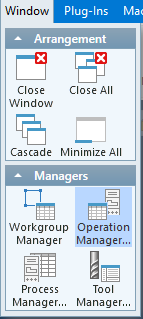
Alternatively, right-click an Operation tile and select Operation Manager.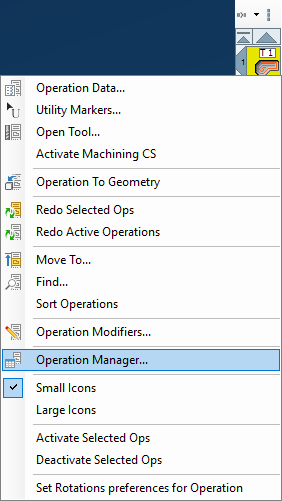
Confirm that each required operation appears as a row in the manager.
Step 2 - Customize the Displayed Columns
Right-click the column-title row and select Customize Headers.
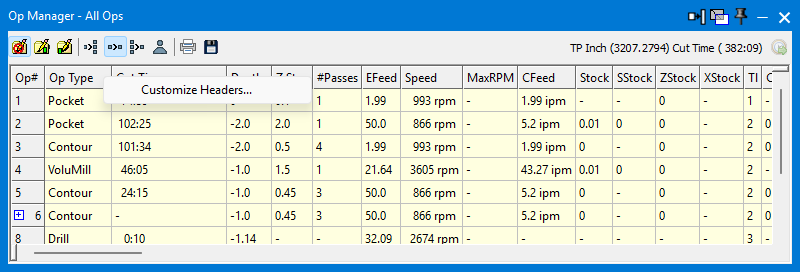
Under Available Columns, select a field and add it to the Visible Columns list.
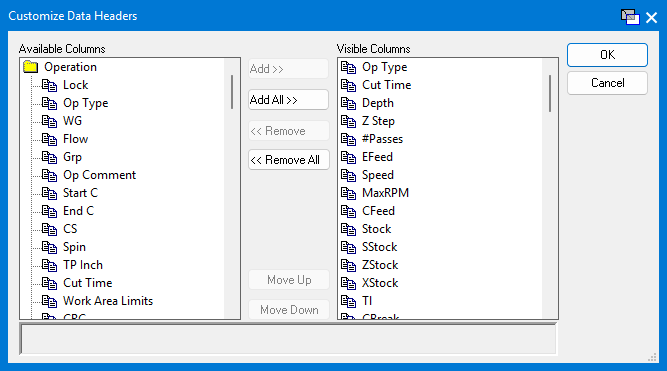
To hide a field, select it in Visible Columns and remove it.
Use Move Up or Move Down to place the visible columns in the required left-to-right order.
Select a field to review its description, then apply the changes when the column list is complete.
Step 3 - Review and Organize the Display
Click a column heading to sort the manager display by that field. Click it again to reverse the direction; the triangle in the heading indicates the current direction.
Select one or more rows to highlight the corresponding operations in the Operation List.
If only a subset is displayed, right-click the title bar and select Show Selected or Show All as needed.
Caution: A simple column sort helps organize the manager display. Commands such as Multi-Level Sort, Sort Operations, or Move To can change the actual Operation List order. Use them only when you intend to change the machining sequence.
Step 4 - Edit Supported Operation Fields (Optional)
Select the Allow Editing of Operation Fields control and acknowledge the warning. Editable cells are highlighted.
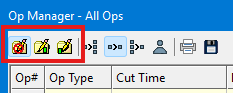
Double-click an editable cell, enter the required value, and confirm the change.
To copy one value to several compatible operations, select the required rows, right-click the source cell, and select Apply Value to Selected Operations when that command is available.
Disable editing when the changes are complete, then review every affected operation before regenerating toolpaths or posting the program.
Step 5 - Print or Save the Manager Data
Arrange the headers and displayed rows so the manager contains the information required for the report.
Use the Print or Save control in the Operation Manager header.
Review the output and confirm that the required operations and columns are included.
Expected Result
Operation Manager displays the required operations using the selected columns and column order. The user can review the data in GibbsCAM, safely update supported fields when needed, and print or save the configured manager information without creating an Excel-based Operation Summary.
Troubleshooting
Problem: Only some operations appear in Operation Manager.
Possible Causes
The manager is showing a selected or isolated subset.
Resolution
Right-click the title bar and select Show All. Confirm that any still-missing operations exist in the active part and Operation List.
Problem: An operation field cannot be edited.
Possible Causes
Editing is disabled, the field is read-only, or the selected operations are incompatible.
Resolution
Enable Allow Editing of Operation Fields and use a highlighted cell. If Apply Value to Selected Operations remains unavailable, select only compatible operations or edit them individually.
Related Articles
Explore More from CAMCO
Visit the CAMCO website to learn more about:
Keywords
GibbsCAM Operation Manager, Customize Headers, Operation List, edit operations, print or save data