
Summary
If you have forgotten the administrator password for the Reprise License Manager (RLM) Web Administration interface, you can reset it by removing the stored password file and restarting the RLM server.
After the server restarts, you can create a new administrator password the next time you log in.
Important: You must have administrator access to the license server to perform this procedure.
Table of Contents
Before You Begin
Before resetting the password:
Ensure you have local Administrator access to the license server.
Notify users that the license service will be restarted.
Close the RLM Web Administration page.
Procedure
Step 1 – Stop the RLM License Server
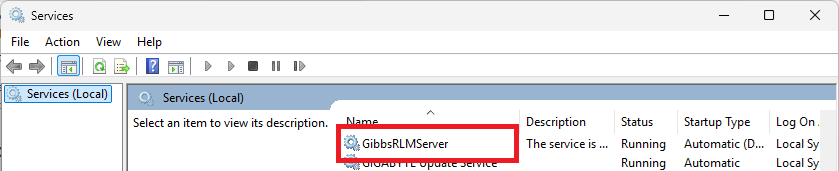
Stop the GibbsCAM RLM service using either:
Windows Services, or

The RLM service management utility.
Wait until the license server has completely stopped.
Step 2 – Locate the Password File
Navigate to the folder containing the RLM server executable and license files.
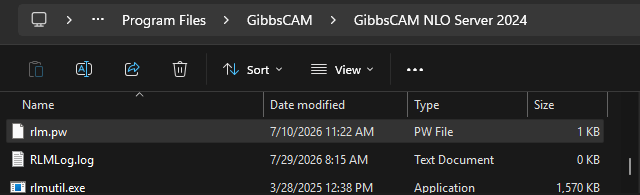
Locate the RLM administrator password file:
rlm.pw
Located in:
C:\Program Files\GibbsCAM\GibbsCAM NLO Server 2024
Step 3 – Remove the Password File
Rename the file (recommended) or delete it.
For example:
rlm.pw.old
Renaming the file preserves a backup in case it is needed later.
Or
Remove the password from the file directly via a text editor.
Note: The password is encrypted and cannot be changed in the rlm.pw file, only deleted. To change the password you must go through the webpage.
The format is:
username:password:list-of-permissions
Into:
username::list-of-permissions
Step 4 – Restart the RLM Service
Start the GibbsCAM RLM service.
The server will start normally without the previous administrator password.
Step 5 – Create a New Administrator Password
Open the RLM Web Administration page.
Log in.
Click Change Password on the right
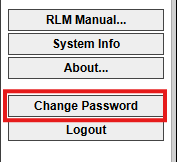
Create a new administrator password.
Store the password in a secure location.
Expected Result
The previous administrator password is removed, allowing a new password to be created for the RLM Web Administration interface.
Troubleshooting
Problem: The Password Still Does Not Reset
Cause
The RLM service may not have been completely stopped before the password file was renamed or removed.
Resolution
Verify that the service is stopped, confirm that the password file has been removed, and restart the service.
Problem: I Cannot Find the Password File
Cause
The file may be located in the directory from which the RLM server is running.
Resolution
Search the RLM installation directory for:
rlm.pw
If the file cannot be located, verify the server installation path.
Problem: I Cannot Access the Server
Cause
Administrator access to the server is required to reset the password.
Resolution
Contact your organization's IT administrator or the person responsible for managing the license server.
Best Practices
Store the administrator password in your organization's password manager.
Limit administrative access to authorized personnel.
Keep a secure backup of the RLM server configuration and license files.
Document password changes for future administrators.
Related Articles
Network License (NLO) Server Setup
RLM Web Administration Shows "Logins Disabled"
RLM Options File Reference NLO
Enabling HTTPS for the RLM Web Server
Keywords
RLM Password, Reset Password, Forgot Password, Reprise License Manager, RLM Web Administration, rlm.pw, Administrator Password, Network License, NLO, License Server