
Summary
Reprise License Manager (RLM) is designed to support licenses from multiple software vendors on a single license server. This allows organizations to consolidate administration by running one RLM server that serves licenses for multiple applications.
This article explains how multiple RLM software providers can coexist on the same server and outlines GibbsCAM’s support recommendations.
Table of Contents
- GibbsCAM Support Policy
- How Multiple Providers Work
- Version Compatibility
- License Files
- Installation Recommendations
- Verify the Configuration
- Best Practices
- Troubleshooting
- Related Articles
Overview
Unlike some license managers, Reprise License Manager (RLM) can host licenses for multiple independent software vendors using a single RLM server installation.
Each software vendor supplies:
Its own license file (.lic)
Its own ISV server component
Its own licensed features
The RLM server manages all configured ISV servers simultaneously.
For organizations using multiple RLM-based applications, this can simplify server administration by eliminating the need to maintain separate RLM installations.
GibbsCAM Support Policy
GibbsCAM supports only the installation and operation of the GibbsCAM Network License (NLO) components. GibbsCAM does not support or test running multiple licenses from different software on the same RLM server.
If multiple software vendors share the same RLM server:
GibbsCAM can assist with GibbsCAM licensing issues.
Configuration or licensing issues involving third-party ISV servers must be addressed with the appropriate software vendor.
GibbsCAM cannot guarantee compatibility between GibbsCAM and other vendors' licensing components beyond the capabilities documented by Reprise Software.
How Multiple Providers Work
A single RLM server can load multiple license files.
For example:
C:\Program Files\RLM\
rlm.exe
GibbsCAM.lic
VendorA.lic
VendorB.lic
When the RLM service starts, it loads each license file and launches the corresponding ISV server for each software provider.
Each application continues to obtain licenses from its own ISV server even though they share the same RLM server process.
Version Compatibility
When multiple software vendors use different versions of RLM, the RLM server executable should be the newest version required by any installed software provider.
For example:
In this example, the RLM v16 server executable should be used.
The newer RLM server is generally backward compatible with ISV servers built for earlier RLM releases.
License Files
Each software provider must have its own license file.
Do not combine multiple vendors into a single license file unless specifically instructed by those vendors.
For example:
GibbsCAM.lic
VendorA.lic
VendorB.lic
Each license file remains independent and is managed by its respective ISV server.
Installation Recommendations
When deploying multiple RLM software providers:
Install the newest required version of the RLM server.
Place each vendor's license file in the configured license directory.
Verify that each vendor's ISV server starts successfully.
Restart the RLM service.
Open the RLM Web Administration interface to confirm that all ISV servers are running.
Verify the Configuration
Open the RLM Web Administration interface:
http://localhost:5054
Verify that:
The RLM server is running.
The GibbsCAM ISV server is listed.
Other vendor ISV servers are listed.
No license file errors are reported.
Client applications can successfully obtain licenses.
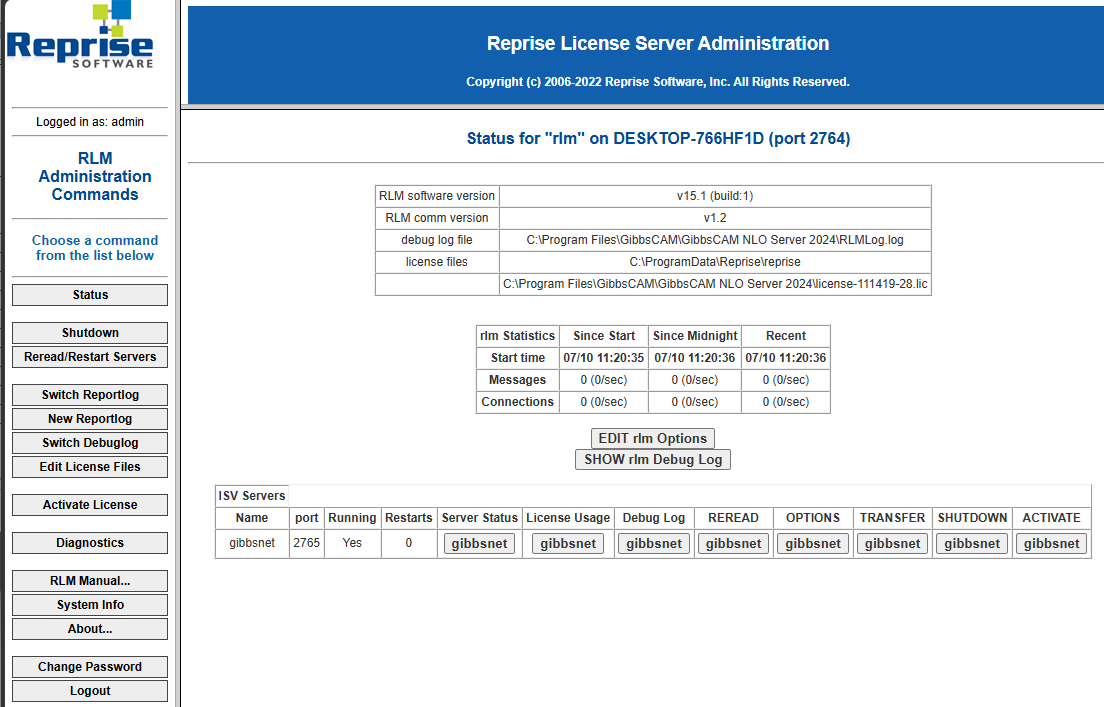
Expected Result
A single RLM server successfully hosts multiple software vendors, allowing GibbsCAM and other RLM-based applications to obtain licenses from the same license server while maintaining separate license files and ISV servers.
Best Practices
Use the newest RLM server version required by any installed software provider.
Maintain separate license files for each software vendor.
Back up all license files before making changes.
Restart the RLM service after adding or updating license files.
Periodically verify that each ISV server starts without errors.
Document the source and version of each vendor's license files.
Troubleshooting
Problem: One Software Can Obtain Licenses but Another Cannot
Possible Causes
The affected software's license file is missing.
The corresponding ISV server failed to start.
The license file contains errors.
Resolution
Review the RLM Web Administration interface and server log to identify which ISV server failed to load.
Problem: RLM Reports License File Errors
Possible Causes
Invalid license file.
Duplicate license file.
Incorrect file location.
Resolution
Verify that each software provider has its own valid license file and that the files are stored in the correct directory.
Problem: The RLM Service Fails After Adding Another Vendor
Possible Causes
Incompatible RLM server version.
Corrupted license file.
Configuration error.
Resolution
Confirm that the RLM server executable is the newest version required by all installed software providers and review the server log for startup errors.
Related Articles
- Network License (NLO) Server Setup
- RLM Options File Reference NLO
- How to Track NLO Usage
- How to Change the NLO Server Ports
- Virtual Server Support for GibbsCAM Network Licenses (NLO)
Keywords
RLM, Reprise License Manager, Multiple Providers, Multiple Vendors, ISV Server, License File, Floating License, Network License, NLO, GibbsCAM, License Server, Shared RLM Server