
Summary
If GibbsCAM displays the error:
Couldn't Save File to Specified Location
the software was unable to write the part file to the selected location. This typically indicates that the destination folder could not be found or that Windows prevented GibbsCAM from creating or modifying files in that location.
Common causes include insufficient folder permissions, disconnected network drives, antivirus or endpoint security software blocking file operations, or attempting to save to a location that is no longer available.
This article explains how to identify and resolve the most common causes of this error.
Table of Contents
- Before You Begin
- Procedure
- Why GibbsCAM Creates a .ZOOB File
- Common Causes
- Best Practices
- Troubleshooting
- Related Articles
Before You Begin
Important: During the save process, GibbsCAM creates a temporary .ZOOB file before writing the final .VNC file. If Windows or security software blocks creation of the temporary file, the save operation will fail.
Symptoms
You may experience one or more of the following:
GibbsCAM displays Couldn't Save File to Specified Location.
The part cannot be saved.
The file saves successfully to some folders but not others.
Saving to a network location fails.
The error began after installing new security software.
Procedure
Step 1 – Verify the Save Location Exists
Confirm that the destination folder is still available.
If saving to:
A network share
A mapped network drive
A removable drive
verify that the location is connected and accessible.
Try creating a new text file in the same folder using Windows Explorer.
Expected Result
The destination folder is accessible and allows files to be created.
Step 2 – Verify Folder Permissions
Ensure your Windows account has permission to write to the destination folder.
Right-click the folder.
Select Properties.
Open the Security tab.
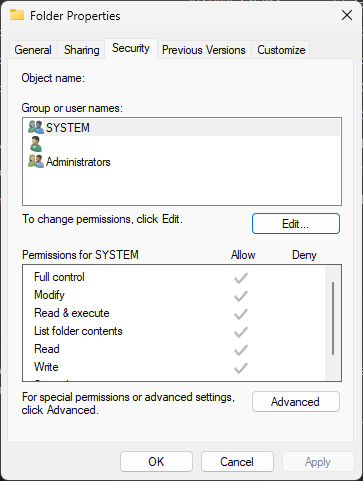
Verify that your account has permissions to:
Read
Write
Modify
If necessary, contact your system administrator.
Expected Result
Your Windows account has permission to create and modify files.
Step 3 – Test Saving to a Local Folder
Determine whether the problem is specific to one location.
Try saving the part to a local folder such as:
C:\Users\<username>\Documents
If the save succeeds locally, the issue is likely related to the original destination rather than GibbsCAM.
Expected Result
The file saves successfully to a local folder.
Step 4 – Check Antivirus or Endpoint Security Software
Security software may prevent GibbsCAM from creating files.
If permitted by your organization's IT policies:
Temporarily disable antivirus or endpoint protection.
Test the save operation.
Re-enable protection immediately after testing.
If the issue is resolved, configure exclusions for:
GibbsCAM
.VNC files
.ZOOB files
Note: The .ZOOB file is a temporary file created during the save process and is normally deleted after a successful save.
Expected Result
The save operation completes successfully.
Step 5 – Verify Available Disk Space
Ensure the destination drive has sufficient free space.
Low disk space can prevent temporary files from being created during the save process.
Expected Result
Adequate free space is available.
Step 6 – Repair the GibbsCAM Installation (If Necessary)
If the error occurs when saving to any location:
Open Apps & Features or Programs and Features.
Select GibbsCAM.

Choose Modify > Repair.
If the problem persists, uninstall GibbsCAM.
Restart the computer.
Install the latest supported version of GibbsCAM.
If the issue persists after reinstalling, investigate Windows permissions and endpoint security software.
Expected Result
GibbsCAM saves files normally.
Expected Result
The part saves successfully, and the temporary .ZOOB file is automatically removed after the final .VNC file is written.
Additional Information
Why GibbsCAM Creates a .ZOOB File
During the save process, GibbsCAM first creates a temporary .ZOOB file.
Once the save completes successfully, the temporary file is renamed or replaced with the final .VNC file, and the .ZOOB file is automatically deleted.
If the save process is interrupted or blocked, the temporary file may remain on disk.
Common Causes
Insufficient folder permissions.
Destination folder no longer exists.
Disconnected network drive.
Antivirus or endpoint security software blocking file creation.
Insufficient disk space.
Read-only folders.
Network connectivity issues.
Best Practices
Save work to reliable local or network storage.
Verify write permissions before saving to shared folders.
Configure antivirus exclusions for GibbsCAM if recommended by your IT department.
Keep regular backups of important part files.
Investigate any remaining .ZOOB files, as they may indicate interrupted save operations.
Troubleshooting
Problem: The error only occurs when saving to a network drive.
Possible Causes
Network share unavailable.
Insufficient network permissions.
Network interruption.
Resolution
Verify connectivity, permissions, and network availability.
Problem: The error occurs in every folder.
Possible Causes
Endpoint security software.
Windows permissions.
Damaged installation.
Resolution
Test with antivirus temporarily disabled (if permitted), verify permissions, and repair the GibbsCAM installation.
Problem: A .ZOOB file remains after the failed save.
Possible Causes
Save operation was interrupted.
Security software blocked completion of the save.
Resolution
Verify folder permissions and security software settings. If appropriate, see What Is a .ZOOB File? for additional recovery information.
Related Articles
- What Is a .ZOOB File?
- How to Recover a Corrupted GibbsCAM Part File
- GibbsCAM Crashes When Saving a Part
- Run Windows System File Checker (SFC) and DISM Repair
Explore More from CAMCO
Visit the CAMCO website to learn more about:
Technical & Post Support
- Downloads & Helpful Resources
Keywords
Couldn't Save File to Specified Location, Save Error, Cannot Save, VNC, ZOOB, File Permissions, Read Write Access, Network Drive, Antivirus, Endpoint Security, File Save Failed