
Summary
If GibbsCAM, the Registration Tool, the Activation Check utility, or other Windows applications crash unexpectedly, the issue may be caused by corrupted Windows system files.
Microsoft provides two built-in utilities to detect and repair these problems:
Deployment Image Servicing and Management (DISM)
System File Checker (SFC)
Running these utilities can repair Windows components that GibbsCAM depends on without reinstalling Windows.
Table of Contents
When Should I Run These Tools?
Run these tools if you experience problems such as:
GibbsCAM crashes unexpectedly.
The Registration Tool crashes or closes immediately.
The Activation Check utility will not start.
Installation or update failures.
Windows reports missing or corrupted system files.
Other Windows applications are also experiencing stability issues.
Before You Begin
Save any open work.
Close GibbsCAM and other applications.
Ensure you are signed in with an account that has Administrator privileges.
Connect to the Internet. DISM may download replacement files from Windows Update if necessary.
Procedure
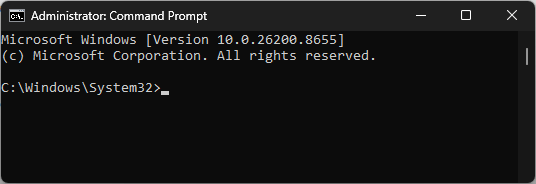
Step 1 – Open an Elevated Command Prompt
Open the Windows Start menu.
Type Command Prompt.
Right-click Command Prompt.
Select Run as administrator.
If prompted by User Account Control (UAC), select Yes.
Step 2 – Run DISM
Run the following command:
DISM /Online /Cleanup-Image /RestoreHealth
Press Enter and allow the process to complete.
Note: This scan may take several minutes. It is normal for the progress indicator to pause at certain percentages while Windows performs repairs.
Step 3 – Run System File Checker
After DISM finishes successfully, run:
sfc /scannow
Press Enter.
System File Checker will scan protected Windows system files and automatically replace any corrupted files it finds.
Step 4 – Restart the Computer
Once both scans have completed:
Close the Command Prompt.
Restart Windows.
Launch GibbsCAM and verify that the original problem has been resolved.
Understanding the Results
Windows Resource Protection Did Not Find Any Integrity Violations
No corrupted Windows system files were detected.
The problem is likely caused by something other than Windows system file corruption.
Windows Resource Protection Found Corrupt Files and Successfully Repaired Them
Corrupted system files were detected and repaired.
Restart the computer and test GibbsCAM again.
Windows Resource Protection Found Corrupt Files but Was Unable to Fix Some of Them
Some files could not be repaired automatically.
Run the DISM command again, restart the computer, and then rerun:
sfc /scannow
If the problem persists, additional Windows repair or operating system recovery may be required.
Expected Result
Windows repairs any corrupted system files, allowing GibbsCAM and related utilities to run normally.
Troubleshooting
DISM Reports an Error
Verify that:
The computer has an Internet connection.
Windows Update is functioning correctly.
The command was run from an Administrator Command Prompt.
SFC Stops Before Reaching 100%
Restart the computer and run the scan again using an elevated Command Prompt.
The Problem Persists After Both Scans Complete
If GibbsCAM continues to experience crashes or installation issues after Windows has been repaired, continue troubleshooting using the appropriate GibbsCAM knowledge base article or contact CAMCO Support.
Best Practices
Install Windows updates regularly.
Keep graphics drivers up to date.
Restart Windows after completing the repair.
Run these tools before performing a complete reinstall of GibbsCAM.
Related Articles
- Troubleshooting GibbsCAM Crashes, Freezes, or Unexpected Closures
- Error: "Installation Ended Prematurely"
- Unable to Connect to the GibbsCAM Activation Server
- Using the Activation Check Utility
- Error: "General License Error"
- Hardware and System Requirements
Keywords
SFC, System File Checker, DISM, RestoreHealth, Windows Repair, Corrupt System Files, Registration Tool Crash, Activation Tool Crash, Windows Scan, Windows Repair, Command Prompt, Administrator