
Summary
The Activation Check utility verifies that your computer can communicate with the GibbsCAM Activation Service.
If you are unable to register your license, update your license, or receive activation errors, this utility can quickly determine whether the workstation can reach the activation servers.
Using the Activation Check utility before contacting CAMCO Support can help identify firewall, proxy, DNS, or Internet connectivity issues.
Table of Contents
- When to Use the Activation Check Utility
- Locate the Utility
- Running the Utility
- Understanding the Results
- Troubleshooting Failed Connections
- Best Practices
- Related Articles
When to Use the Activation Check Utility
Use this utility if you experience any of the following:
Registration Tool cannot connect.
License Update fails.
Online Registration does not complete.
Activation timeout errors.
Unable to contact the GibbsCAM Activation Service.
Firewall or proxy server concerns.
What the Activation Check Utility Does
The Activation Check utility performs a communication test between your computer and the GibbsCAM Activation Service.
It verifies that the workstation can successfully establish the network connection required for:
Online Registration
License Updates
License Activation
The utility does not:
Modify your license
Register your software
Update your license
Make changes to your computer
It is a diagnostic tool only.
Locate the Utility
The Activation Check utility is installed with GibbsCAM.
You can locate it in one of the following ways:
Option 1
Search Windows for:
ActivationCheck.exe
Option 2
Browse to the GibbsCAM installation folder:
C:\Program Files\Gibbs\GibbsCAM\<version>\Bin\
Then run:
ActivationCheck.exe
Tip: Running the utility as Administrator may provide the most reliable results in managed IT environments.
Running the Utility
Step 1
Close GibbsCAM if it is currently running.
Step 2
Launch ActivationCheck.exe.
Step 3
Allow the utility a few moments to perform the connectivity test.
No configuration is required.
Step 4
Review the results displayed by the utility.
The results indicate whether the workstation can successfully communicate with the GibbsCAM Activation Service.
Understanding the Results
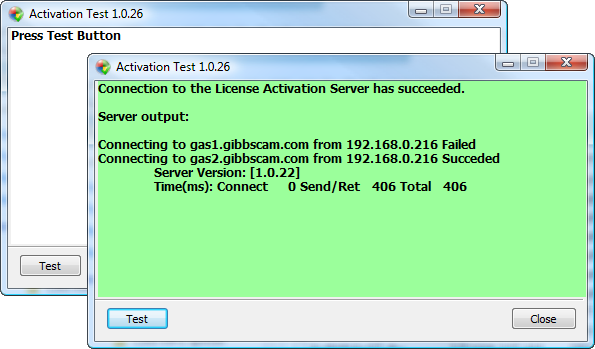
Connection Successful
If the utility reports a successful connection:
Internet connectivity is working.
The activation servers are reachable.
Licensing problems are likely unrelated to network connectivity.
If registration still fails, verify:
Product Code
License file
Registration information
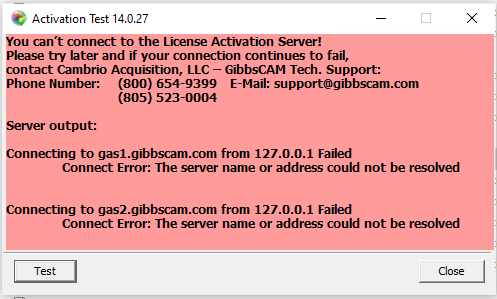
Connection Failed
If the utility reports a failed connection, possible causes include:
No Internet connection
Firewall restrictions
Proxy server configuration
Antivirus software blocking communication
Corporate security policies
DNS resolution issues
Troubleshooting Failed Connections
If the Activation Check fails:
Verify Internet Access
Open a web browser and confirm that Internet access is available.
Check Firewall Settings
Verify that Windows Firewall or third-party security software is not blocking GibbsCAM licensing utilities.
If necessary, temporarily disable security software for testing.
Verify Proxy Settings
If your organization uses a proxy server, confirm that outbound HTTPS connections are permitted.
Consult your IT department if necessary.
Verify DNS Resolution
Corporate DNS configuration can occasionally prevent access to external activation services.
Testing on another network can help isolate the issue.
Retry Registration
After correcting any connectivity issues:
Launch GibbsCAM.
Run the Registration Tool again.
Complete Online Registration or License Update.
Expected Result
The Activation Check utility successfully connects to the GibbsCAM Activation Service, confirming that the workstation is able to perform online registration and license updates.
When to Contact CAMCO Support
If the Activation Check utility reports a successful connection but registration or license updates still fail, collect the following information before contacting support:
GibbsCAM version
Product Code
Screenshot of the Activation Check results
Screenshot of any registration error message
Windows version
Whether the license is Hardware-Locked or Network License (NLO)
Providing this information helps reduce troubleshooting time.
Best Practices
Run the Activation Check utility before troubleshooting registration issues.
Verify connectivity before reinstalling GibbsCAM.
Save screenshots of any reported errors.
Coordinate with your IT department if firewall or proxy restrictions are suspected.
Related Articles
Online Registration Guide (Hardware-Locked Licenses)
Offline Registration Guide (Hardware-Locked Licenses)
Network License (NLO) Server Setup
How to Update Your GibbsCAM License
Installing Hardware Key Drivers
Keywords
Activation Check, ActivationCheck.exe, Activation Tool, Registration Tool, License Update, Activation Server, Activation Service, Cannot Connect, License Activation, Firewall, Proxy, Internet Registration, Licensing Troubleshooting