
Summary
This article explains how to register a hardware-locked GibbsCAM license using the Registration Tool. During online registration, the Registration Tool securely connects to the Gibbs Activation Service, retrieves your license, and installs the resulting Reprise License Manager (RLM) license file (.lic).
Online registration is the fastest and recommended method for activating a new GibbsCAM installation.
- Before You Begin
- Procedure
- Updating an Existing License
- Related Videos
- Troubleshooting
- Best Practices
- Related Articles
Before You Begin
Before registering GibbsCAM, verify that:
GibbsCAM has been installed successfully.
You have your Product Code available.
The computer has an active Internet connection.
If using a removable hardware key, it is connected before beginning registration.
When Registration Is Required
The first time GibbsCAM starts after a new installation, it searches for a valid license.
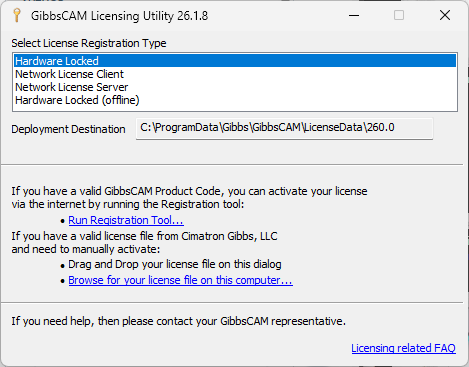
If no license is found, the License Installation or License Update dialog is displayed.
From this dialog you can:
Run the Registration Tool
Browse for an existing .lic license file
Drag and drop a .lic license file onto the dialog
Note: GibbsCAM 2026 uses Reprise License Manager (RLM) license files (.lic). Legacy Cimatron License Server (.cml) files are not supported.
Procedure
Step 1 – Launch the Registration Tool
Launch GibbsCAM
Alternatively, you can start the Registration Tool directly from:
Start Menu → GibbsCAM → Registration Tool
or run:
RegistrationTool.exeWhen the License Installation dialog appears, select Run Registration Tool....
Step 2 – Enter Your Product Code
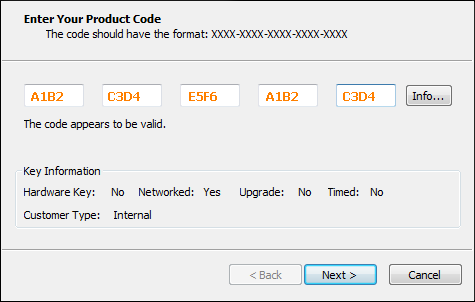
Enter the Product Code supplied with your GibbsCAM order.
Select Next.
Step 3 – Enter Customer Information
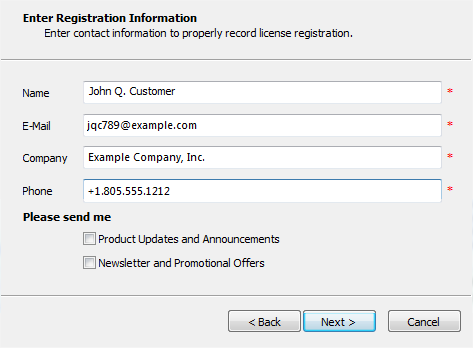
Complete the requested customer information.
Select Next.
Note
Ensure the email address is valid and the phone number follows the format 222-333-4444 to be able to proceed (no extensions).
Step 4 – Select Finish
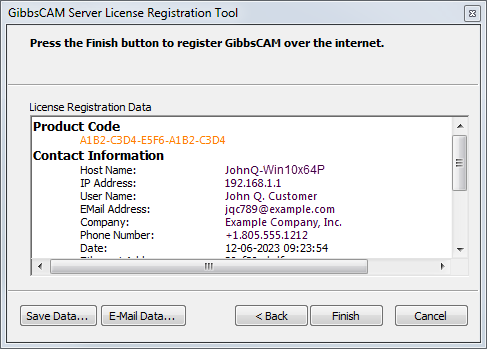
Select Finish.
If the computer can communicate with the Gibbs Activation Service, the Registration Tool automatically connects to the activation server.
Step 5 – Deploy License
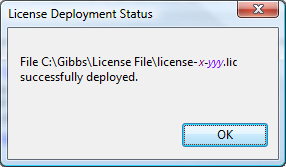
The Registration Tool contacts the Gibbs Activation Service and downloads the appropriate RLM license file. The license is automatically installed, and no manual license file handling is normally required during Internet Registration.
If the license is installed correctly it will show “License Successfully Deployed”.
Step 6 – Launch GibbsCAM
After registration completes successfully, launch GibbsCAM.
The application should open normally using the newly installed license.
Verify Registration
After GibbsCAM starts:
Confirm the application opens without licensing errors.
Verify the licensed modules are available.
Review the license information from within GibbsCAM, if required.
Alternative Registration Methods
If Internet Registration cannot be completed, the Registration Tool also supports:
E-Mail Registration for systems with e-mail access but restricted Internet connectivity.
Offline Registration for systems with no Internet access.
See the related articles for detailed procedures.
Updating an Existing License
If you purchase additional modules or modify your license:
Open File > Preferences.
Select the Interface tab.
Click License Update.
Run the Registration Tool and complete the update process.
Restart GibbsCAM.
Related Videos
Troubleshooting
Problem: Registration Tool Cannot Connect
Verify:
Internet connectivity
Firewall settings
Proxy server configuration
If connectivity cannot be established, use the ActivationCheck.exe utility to verify communication with the Gibbs Activation Service.
Problem: Product Code Not Accepted
Verify that the Product Code was entered exactly as supplied.
If necessary, contact CAMCO Support.
Problem: License File Cannot Be Installed
Verify that the file has the .lic extension and was generated for your installation.
Legacy .cml license files are not compatible with GibbsCAM 2026 and later.
Best Practices
Keep a copy of your Product Code in a secure location.
Use Internet Registration whenever possible.
Retain a backup of the generated .lic file if your organization's procedures require it.
Run ActivationCheck.exe when troubleshooting connectivity issues before contacting support.
Related Articles
- Offline Registration Guide (Hardware-Locked Licenses)
- Installing Hardware Key Drivers
- How to Update Your GibbsCAM License
- Using the Activation Check Utility
- Error: No Hardware Key Detected
Keywords
Online Registration, Registration Tool, RegistrationTool.exe, Hardware-Locked License, RLM, License File, License Installation, Product Code, Internet Registration, ActivationCheck, Gibbs Activation Service