
Summary
This article explains how to troubleshoot missing modules or options in your GibbsCAM license.
If you recently purchased additional functionality or expected a feature to be available but cannot access it, this guide will help determine whether the issue is related to licensing, registration, or software configuration.
Table of Contents
Symptoms
You may experience one or more of the following:
A purchased module is unavailable.
Menu items or commands are disabled.
Features previously available no longer appear.
GibbsCAM reports that an option is not licensed.
A different computer has more licensed features than your workstation.
Before You Begin
Verify the following:
You are using the correct GibbsCAM installation.
Your Product Code is available.
If using a hardware key license, the correct USB hardware key is connected.
If using a Network License (NLO), verify that you are connected to the correct license server.
Procedure
Step 1 – Verify Your Licensed Options
Open the License Information within GibbsCAM and review the modules currently licensed.
See What Options are on my GibbsCAM License?Compare the displayed features with your purchase documentation or software order.
If the expected feature is listed, the issue is likely unrelated to licensing.
Step 2 – Perform a License Update
If you recently purchased new modules or renewed your maintenance:
Network License (NLO):
On your server computer open the Registration Tool.
Start Menu → Registration ToolRun the Registration Tool.
See:
Network License (NLO) Server SetupComplete the update process and restart the RLM service.
Verify the missing Options are added on the Reprise License Server Administration page.
See:
What Options are on my GibbsCAM License?Verify seats are available to check out of the required Options.
Restart GibbsCAM on the workstation after the update finishes.
Check out the required options via the License Check Out window.
Hardware Locked:
Open File > Preferences.
Select the Interface tab.
Click License Update.
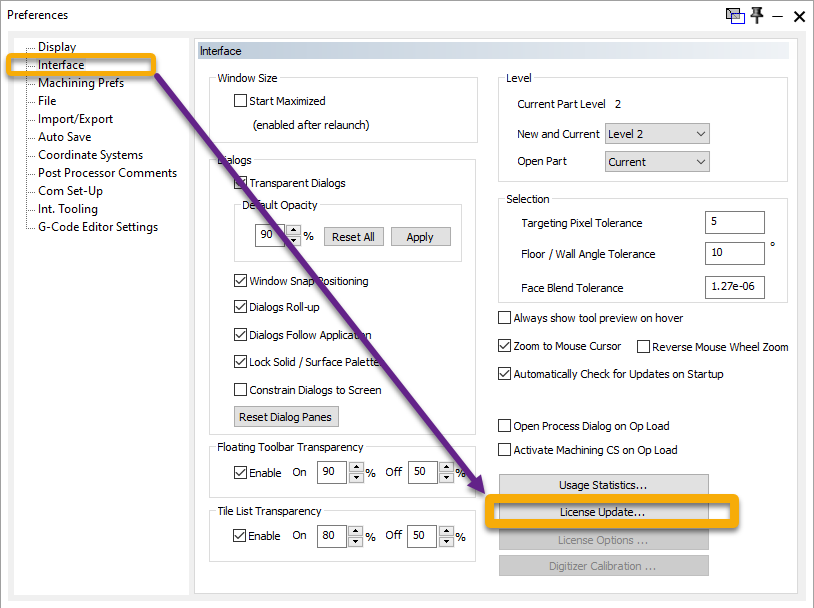
Run the Registration Tool.
See:
Online Registration Guide (Hardware-Locked Licenses)
Offline Registration Guide (Hardware-Locked Licenses)Complete the update process.
Restart GibbsCAM after the update finishes.
Step 3 – Verify the Correct License Is Being Used
Check for multiple licenses:
Confirm the correct hardware key is connected.
Verify that the correct .lic file has been installed.
Ensure you are launching the intended GibbsCAM installation.
If multiple license (.lic) files are installed, remove all but the intended file and launch GibbsCAM.
Step 4 – Verify Network Licensing (NLO)
If you use a Network License:
Confirm you are connected to the correct license server.
Verify the desired option exists within the network license.
Check whether all available seats for that option are currently in use.
Contact your license administrator if necessary.
Step 5 – Confirm the Feature Was Purchased
Some GibbsCAM functionality is licensed as optional modules.
Examples include:
4-Axis Machining
5-Axis Machining
MTM (Multi-Task Machining)
Probing
Wire EDM
VoluMill
CAD Import Translators
Additional specialized machining modules
If the feature does not appear in your license information, verify that it was included with your software order.
Step 6 – Verify Software Versions Compatibility
Occasionally, a newly issued license may require a newer GibbsCAM release.
Verify that you are running a supported version of GibbsCAM.
If necessary, install the latest available release before updating the license.
Expected Result
The purchased modules and options appear in the License Information and are available for use within GibbsCAM.
Troubleshooting
Problem: License Update Completes but Features Are Still Missing
Possible Causes
Incorrect Product Code
Wrong license file
License was issued before the order was processed
Resolution
Run the License Update again and verify your Product Code. If the issue persists, contact CAMCO Support.
Problem: One Computer Has More Features Than Another
Possible Causes
Different hardware keys
Different network license pools
Different license files
Resolution
Compare the active licenses on each workstation and confirm that each computer is using the intended license.
Problem: New Options Were Purchased Today
Possible Causes
License update has not yet been completed.
The updated license has not yet been generated.
Resolution
Wait until your order has been processed, then run the Registration Tool again.
Problem: Network License Users See Different Features
Possible Causes
Users are connected to different license servers.
Network license options are assigned differently.
All seats for a licensed option are currently in use.
Resolution
Verify the active license server and consult your Network License administrator.
Best Practices
Perform a License Update whenever additional modules are purchased.
Keep a record of your Product Code.
Restart GibbsCAM after updating your license.
Verify licensed features after renewing maintenance or modifying your license.
For network environments, periodically review available license options and seat usage.
Related Articles
Online Registration Guide (Hardware-Locked Licenses)
Offline Registration Guide (Hardware-Locked Licenses)
Network License (NLO) Server Setup
How to Update Your GibbsCAM License
Keywords
Missing License Options, Missing Modules, License Update, License Features, Licensed Modules, Product Code, RLM, Hardware-Locked License, Network License, License Activation