
Summary
If GibbsCAM crashes, freezes, becomes unresponsive, or closes unexpectedly, the cause is typically related to outdated software, graphics hardware or drivers, Windows updates, user settings, or a damaged installation.
This article provides general troubleshooting steps to help identify and resolve the most common causes.
Table of Contents
Cause
Crashes and stability issues can be caused by a variety of factors, including:
Outdated GibbsCAM version
Missing Windows updates
Unsupported graphics hardware
Outdated graphics drivers
Corrupted user settings
Damaged installation files
Security software interfering with GibbsCAM
Resolution
Perform the following steps in order.
Step 1 – Verify You Are Running the Latest GibbsCAM Version
Before troubleshooting further, confirm that you are using the latest available release of your supported GibbsCAM version.
Many stability issues are resolved through maintenance updates.
If an update is available, install it and test the problem again before continuing.
Step 2 – Install All Windows Updates
Ensure that Windows is completely up to date.
Open Settings > Windows Update.
Select Check for updates.
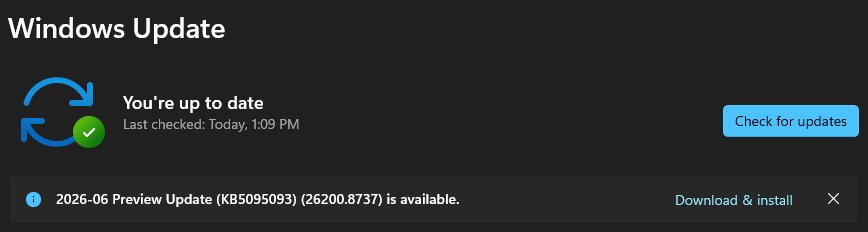
Install all available updates.
Restart the computer if prompted.
Repeat the process until Windows reports that no additional updates are available.
Note: In managed IT environments, Windows updates may be controlled by your network administrator.
Step 3 – Verify Your Graphics Hardware and Driver
GibbsCAM relies heavily on hardware-accelerated graphics. Outdated drivers or unsupported graphics hardware are among the most common causes of crashes.
Verify the Graphics Adapter
On Windows:
Open Settings.
Select System > Display.
Select Advanced display.
Choose Display adapter properties.

Verify that GibbsCAM is using a dedicated graphics adapter, such as:
NVIDIA
AMD
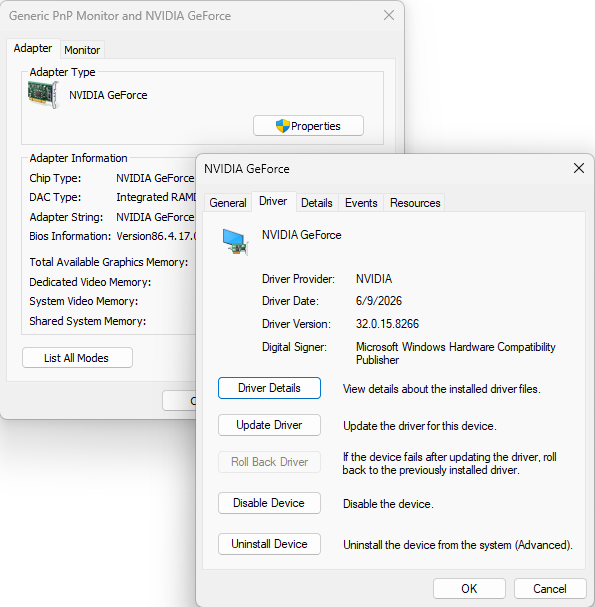
If Windows reports an Intel integrated graphics adapter, your system may not be using the dedicated GPU required for optimal GibbsCAM performance.
Update the Graphics Driver
Open the graphics adapter Properties and review the Driver tab.
If the driver is several months old, download the latest driver directly from the graphics card manufacturer's website.
Avoid relying solely on Windows Update for graphics drivers.
Step 4 – Disable the Nahimic Service (If Applicable)
Check if the NahimicOSD.dll is installed and remove it.
The Nahimic audio software that comes installed on MSI/Asus boards is known for injecting into processes and crashing and freezing applications. This is a fairly common issue with other 3D applications and the MSI Audio Software.
This file could be found as part of the "A-Volute" or "Sonic Studio" software.
You can also see if you can find a blacklist .DAT file in ProgramDATA\Nahimic\... and added Virtual.exe to the blacklist.
(Example: "BlackApps.dat")
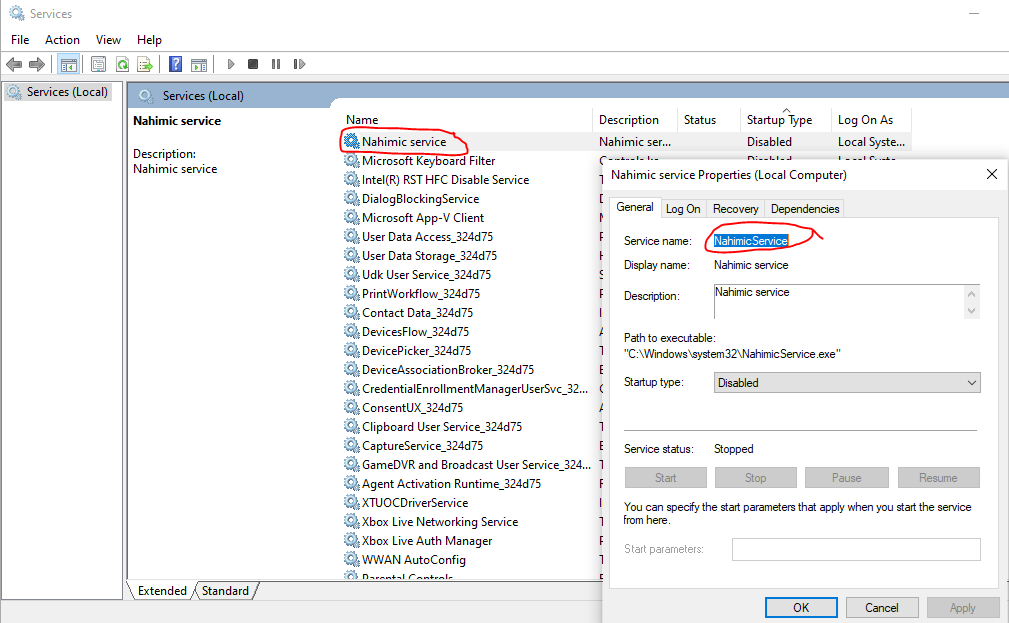
Another option would be to disable the Windows Services list.
Go to the Windows Start menu.
Search for Services.
Look for the Nahimic service and disable it.
Step 5 – Reset User Settings Using the Recovery Tool
Corrupted user settings can occasionally cause startup or stability problems.
Close GibbsCAM.
Open the Windows Start menu.
Search for Recovery Tool.
Run the Recovery Tool for the installed GibbsCAM version.
You can also launch the tool from:
C:\Program Files\Gibbs\GibbsCAM\<version>\Bin
The Recovery Tool restores GibbsCAM's user settings to their default configuration.
Step 6 – Perform a Clean Reinstallation
If the issue persists, perform a clean reinstall.
Remove User Preferences
Before uninstalling GibbsCAM, delete or rename the User Preferences folder:
C:\Users\<username>\AppData\Roaming\Gibbs\GibbsCAM\<version>
Renaming the folder is recommended if you want to preserve a backup of your settings.
Uninstall GibbsCAM
Uninstall GibbsCAM using Settings > Apps or Programs and Features.
Reinstall GibbsCAM
Install the latest version of GibbsCAM.
If permitted by your organization's IT policies, temporarily disable antivirus or endpoint protection software during installation to prevent interference.
Important: Do not run the Migration Tool immediately after reinstalling. If corrupted user settings caused the crash, migrating them into the new installation may reintroduce the problem.
After confirming that GibbsCAM operates correctly, you can selectively restore any required custom files.
If the Problem Continues
If GibbsCAM continues to crash after completing the steps above, gather the following information before contacting CAMCO Support:
GibbsCAM version number
Windows version
Graphics card model
Graphics driver version
License type (Hardware Key or Network License)
Description of what you were doing when the crash occurred
Whether the crash can be reproduced consistently
Any error messages or screenshots
If possible, provide the GibbsCAM part file that reproduces the issue.
Expected Result
GibbsCAM launches and operates normally without crashing, freezing, or closing unexpectedly.
Troubleshooting
Problem: GibbsCAM Crashes Immediately After Startup
Possible Causes
Corrupted user settings
Graphics driver issues
Damaged installation
Resolution
Run the Recovery Tool and verify the graphics driver before performing a clean reinstall.
Problem: GibbsCAM Only Crashes When Opening One Part
Cause
The part file or imported geometry may be damaged.
Resolution
Test with a different part. If only one file crashes, submit the file to CAMCO Support for review.
Problem: GibbsCAM Crashes During Graphics Operations
Cause
Graphics hardware or drivers are the most likely cause.
Resolution
Verify that a supported NVIDIA or AMD graphics adapter is in use and install the latest driver from the manufacturer's website.
Problem: GibbsCAM Started Crashing After Migrating Settings
Cause
A corrupted preference or configuration file may have been migrated.
Resolution
Delete the User Preferences folder or run the Recovery Tool and recreate your custom settings manually.
Best Practices
Keep GibbsCAM updated with the latest maintenance release.
Install Windows updates regularly.
Use a supported dedicated NVIDIA or AMD graphics card.
Keep graphics drivers current.
Back up custom settings before making major changes.
Avoid running the Migration Tool unless migrating between compatible versions.
Related Articles
- Hardware and System Requirements
- Laptops with Switchable Graphics Cards
- How to Reset GibbsCAM to the Default Settings
- How to Transfer User Settings Between Workstations
- How to Migrate Settings from a Previous GibbsCAM Installation
- Error: "Installation Ended Prematurely"
Keywords
Crash, Crashing, Freeze, Freezing, Not Responding, Unexpected Close, Application Crash, Stability, Performance, Recovery Tool, Graphics Driver, NVIDIA, AMD, Intel Graphics, Windows Update, Clean Install