
Summary
If you are moving to a new computer or want multiple workstations to use the same GibbsCAM preferences, you can transfer your user settings by copying the User Preferences folder.
This article explains which files can be transferred, where they are stored, and how to move them to another workstation.
Table of Contents
- Before You Begin
- Procedure
- Related Video
- Alternative Procedure
- Upgrading to a New GibbsCAM Version
- Troubleshooting
- Best Practices
- Related Articles
Overview
Most GibbsCAM user customizations are stored in the User Preferences folder located within your Windows user profile.
Transferring this folder to another workstation allows you to retain many of your personalized settings without recreating them manually.
Before You Begin
Before copying settings:
Install the same (or newer compatible) version of GibbsCAM on the destination computer.
Close GibbsCAM on both computers.
Log in using the Windows account that will use GibbsCAM.
Note: User settings are stored per Windows user account. If multiple users share a workstation, each user has their own User Preferences folder.
Procedure
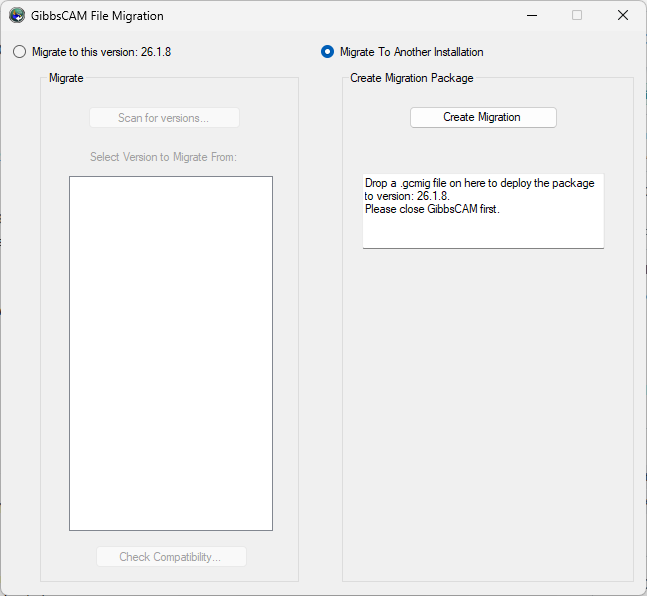
Step 1 – Launch the Migration Tool
Open the Windows Start menu.
Navigate to:
GibbsCAM > Migration Tool 2026.x.x.xLaunch the Migration Tool.
Step 2 – Create Migration Package
Select Migrate To Another Installation.
Click Create Migration
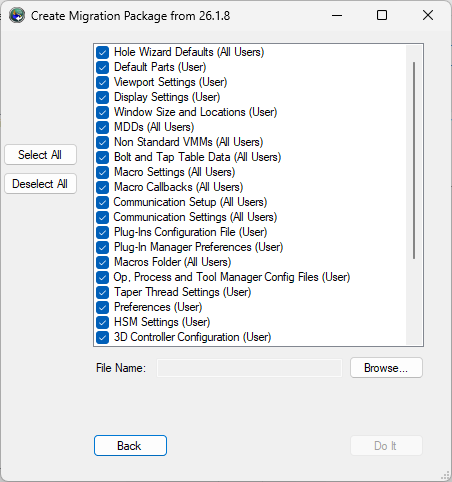
Select the settings you want to transfer.
Click Browse.
Chose a name to save the package file as.
Click Save.
Click Do It to create the package file.
Note: It may take some time to create the package file depending on the number of settings files included.
Step 3 – Transfer Migration Package to New System
Move the package file to the new system
Launch the Migration Tool
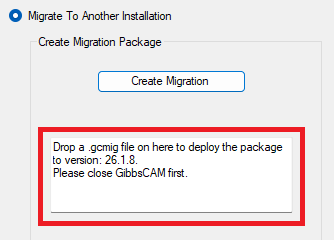
GibbsCAM > Migration Tool 2026.x.x.xSelect Migrate To Another Installation.
Drag and drop the package file onto the Migration Tool window
Related Video
Alternative Procedure
Step 1 – Locate the User Preferences Folder
The default location is:
%APPDATA%\Gibbs\GibbsCAM\<version>\
This expands to:
C:\Users\<username>\AppData\Roaming\Gibbs\GibbsCAM\<version>\
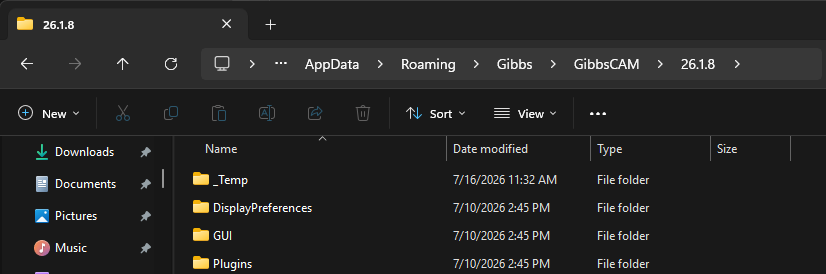
Within this folder, locate the User Preferences folder.
Step 2 – Copy the User Preferences Folder
Close GibbsCAM on both workstations.
Browse to the User Preferences folder on the source computer.
Copy the User Preferences folder to removable media or a network location.
On the destination workstation, browse to the same GibbsCAM version folder.
Replace the existing User Preferences folder with the copied version.
If prompted, choose Replace the files in the destination.
Step 3 – Start GibbsCAM
Launch GibbsCAM on the destination workstation.
Your customized preferences should now be available.
What Transfers?
The User Preferences folder typically includes items such as:
Workspace layout
Toolbar customization
Window positions
Interface preferences
Display settings
Recently used settings
Various user configuration files
What Does Not Transfer?
The following items are stored elsewhere and must be transferred separately if needed:
Machine Definition Databases (MDDs)
Virtual Machine Models (VMMs)
Post processors
Tool libraries
Material databases
Plug-ins
CAD add-ins
GibbsCAM license files
Network license configuration
If these resources are required on the new workstation, copy or reinstall them separately.
Upgrading to a New GibbsCAM Version
If you are moving to a newer GibbsCAM release on the same computer, use the Migration Tool instead of manually copying the User Preferences folder.
The Migration Tool automatically copies compatible settings while preserving the existing installation.
Expected Result
The destination workstation uses the same GibbsCAM user preferences and workspace configuration as the original workstation while maintaining its own installation and licensing.
Troubleshooting
Problem: My Settings Did Not Transfer
Possible Causes
GibbsCAM was running during the copy.
Files were copied to the wrong version folder.
The destination files were not replaced.
Resolution
Close GibbsCAM, verify the correct folder location, copy the User Preferences folder again, and restart GibbsCAM.
Problem: GibbsCAM Behaves Unexpectedly After Copying Settings
Cause
Older user settings may not be fully compatible with the installed GibbsCAM version.
Resolution
Run the Recovery Tool to reset the user settings, or use the Migration Tool if upgrading from a previous version.
Problem: My License Did Not Transfer
Cause
Licenses are stored separately from the User Preferences folder.
Resolution
Register GibbsCAM or install the appropriate license file on the new workstation.
Best Practices
Install GibbsCAM before copying user settings.
Close GibbsCAM before copying files.
Keep a backup of the original User Preferences folder.
Use the Migration Tool when upgrading versions on the same computer.
Transfer MDDs, VMMs, post processors, and other custom resources separately.
Related Articles
- How to Install GibbsCAM
- Hardware and System Requirements
- How to Migrate Settings from a Previous GibbsCAM Installation
- How to Reset GibbsCAM to the Default Settings
Keywords
Transfer Settings, User Preferences, Copy Settings, Move Settings, New Computer, Workstation, Profile, Workspace, Toolbar, Preferences, AppData, Roaming, Migration, Backup