
Summary
This article provides troubleshooting steps for resolving the "Installation Ended Prematurely" error that may occur when installing or upgrading GibbsCAM.
This is a Microsoft Windows Installer (MSI) error indicating that the installation was unable to complete successfully and was rolled back. The error is typically caused by insufficient permissions, antivirus software, Windows Installer issues, or remnants of a previous installation.
Table of Contents
Symptoms
During installation, one or more of the following may occur:
The installer displays "Installation Ended Prematurely."
The installation rolls back automatically.
GibbsCAM is not installed after the installer closes.
The installation stops before reaching 100%.
Windows reports that the setup wizard was interrupted.
Cause
This error is generated by Microsoft Windows Installer when the installation cannot be completed successfully.
Common causes include:
Insufficient Windows permissions
Antivirus or endpoint security software blocking the installer
Corrupted installation files
Windows Installer service issues
Pending Windows updates or system restart
Existing GibbsCAM files preventing installation
Insufficient disk space
Resolution
Follow the steps below in order.
Step 1 – Restart the Computer
Restart Windows before attempting the installation again.
A pending restart from another installation or Windows Update can prevent the installer from completing successfully.
Step 2 – Verify Administrator Permissions
Ensure you are logged into Windows using an account with Administrator privileges.
Right-click the GibbsCAM installer and select:
Run as administrator
Even if your account is an administrator, explicitly running the installer with elevated privileges can resolve permission-related issues.
Step 3 – Verify the Installation File
If the installer was downloaded from the Internet:
Delete the existing installer.
Download a new copy from the official GibbsCAM Online Services website.
Save the installer to a local drive before running it.
Do not install directly from a network share, USB drive, or compressed ZIP archive.
Step 4 – Temporarily Disable Antivirus Software
Some antivirus or endpoint protection software may block the installer from creating or modifying files.
If permitted by your organization's IT policies:
Temporarily disable real-time protection.
Install GibbsCAM.
Re-enable antivirus protection immediately after installation.
If using corporate-managed security software, contact your IT department for assistance.
Step 5 – Verify Available Disk Space
Ensure sufficient free disk space is available on the installation drive.
The installer requires additional temporary working space during installation.
Step 6 – Check for Previous Installations
If upgrading from an earlier version:
Verify that any previous installation completed successfully.
Remove incomplete or failed installations before reinstalling.
Restart Windows after uninstalling.
Installing over a partially installed version can cause Windows Installer to terminate the installation.
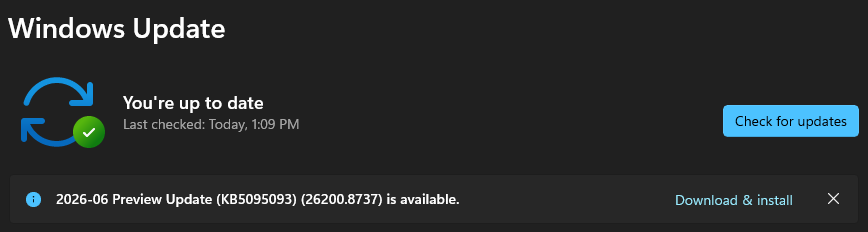
Step 7 – Install Windows Updates
Install any pending Windows updates and restart the computer.
Outdated Windows Installer components or required Microsoft runtime libraries may prevent the installation from completing.
Step 8 – Retry the Installation
Run the installer again using Run as administrator.
If the installation completes successfully, no additional action is required.
Advanced Troubleshooting
If the installation continues to fail:
Review the Windows Event Viewer for application or installer errors.
Check whether Windows Installer (MSI) errors are being recorded.
Confirm that Windows Installer service is functioning correctly.
Temporarily disconnect from VPN software if your organization uses one.
Attempt the installation using a newly created local Windows Administrator account.
Expected Result
GibbsCAM installs successfully without displaying the "Installation Ended Prematurely" error.
Common Causes and Resolutions
Best Practices
Download GibbsCAM only from the official GibbsCAM Online Services website.
Keep Windows fully updated before installing a new release.
Save the installer to a local SSD before running it.
Close all applications before beginning the installation.
Restart the computer after uninstalling an older version of GibbsCAM.
When to Contact CAMCO Support
If the error continues after completing all troubleshooting steps, contact CAMCO Support and provide:
GibbsCAM version being installed
Windows version and edition
Whether this is a new installation or an upgrade
The complete error message
Screenshots of the error
Windows Event Viewer logs (if available)
Related Articles
- Download GibbsCAM
- How to Install GibbsCAM
- Hardware and System Requirements
- Trouble Downloading GibbsCAM
Keywords
Installation Ended Prematurely, Setup Wizard Ended Prematurely, Windows Installer Error, MSI Error, Installation Failed, Installation Rolled Back, Install Failed, Cannot Install GibbsCAM, GibbsCAM Installation Error, Installer Error