
Summary
GibbsCAM allows you to set a default part for either a specific machine type or a specific MDD (machine).
The default part is automatically opened based on the machine selection made in the Document Control Dialog (DCD).
There are two types of default parts:
Type Default Part – Opens when the corresponding machine type is selected in the DCD.
MDD Default Part – Opens when the specific machine is selected in the DCD.
Table of Contents
Procedure
Step 1 – Open the Part to Use as the Default
Launch GibbsCAM.
Open or create the part that you want to use as the default part.
Make sure the part is configured as desired.
Step 2 – Select the Default Part Option
From the GibbsCAM menu, select:
File > Type Default Part
or
File > MDD Default Part
Choose the option that corresponds to how you want the default part to be used.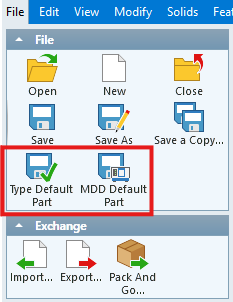
Type Default Part
Select Type Default Part if the part should open whenever the corresponding machine type is selected in the DCD.
MDD Default Part
Select MDD Default Part if the part should open whenever the specific MDD/machine is selected in the DCD.
Step 3 – Verify the Default Part
Open the Document Control Dialog (DCD).
Select the applicable machine type or MDD.
Verify that the assigned default part opens as expected.
Expected Result
GibbsCAM opens the assigned default part when the associated machine type or MDD is selected.
Removing a Default Part
To remove a default part, delete the corresponding default part file from the DefaultParts folder.
The folder is located at:
C:\Users\<username>\AppData\Roaming\Gibbs\GibbsCAM\<version>\DefaultParts
Close GibbsCAM.
Navigate to the DefaultParts folder.
Locate the default part you want to remove.
Delete the file.
Relaunch GibbsCAM.
Expected Result
The deleted part is no longer used as a default part.
Additional Information
Type Default Part vs. MDD Default Part
Default Parts Folder
Default part files are stored in:
C:\Users\<username>\AppData\Roaming\Gibbs\GibbsCAM\<version>\DefaultParts
The <version> folder corresponds to the installed GibbsCAM version.
Best Practices
Use a Type Default Part when the same starting part should be used for an entire machine type.
Use an MDD Default Part when a starting part should be specific to an individual machine.
Verify the DCD machine selection when testing a default part.
Keep backup copies of important default parts before deleting or replacing them.
Troubleshooting
Problem: The expected default part does not open.
Possible Cause
The wrong type of default part was assigned.
Resolution
Verify whether the default should be associated with the machine type or the specific MDD. Use File > Type Default Part for a machine type or File > MDD Default Part for a specific machine.
Problem: The default part needs to be removed.
Resolution
Close GibbsCAM and delete the corresponding default part file from:
C:\Users\<username>\AppData\Roaming\Gibbs\GibbsCAM\<version>\DefaultParts
Related Articles
Explore More from CAMCO
Visit the CAMCO website to learn more about:
Keywords
Default Part, Set Default Part, Type Default Part, MDD Default Part, Machine Default Part, Default Parts Folder, Document Control Dialog, DCD, Machine Type, MDD, GibbsCAM Default Part, Default Part File