
Summary
GibbsCAM uses communication parameters to establish communication between the software and a machine.
These parameters are configured in File > Preferences > Com-Setup. The appropriate settings are determined by the machine being communicated with and can typically be found in the machine's manual.
After configuring the settings, save them with a Protocol Name. The saved communication protocol can then be selected when communicating with the machine.
Table of Contents
Procedure
Step 1 – Open the Communication Setup
Launch GibbsCAM.
Select File > Preferences.
Select Com-Setup from the list on the left.
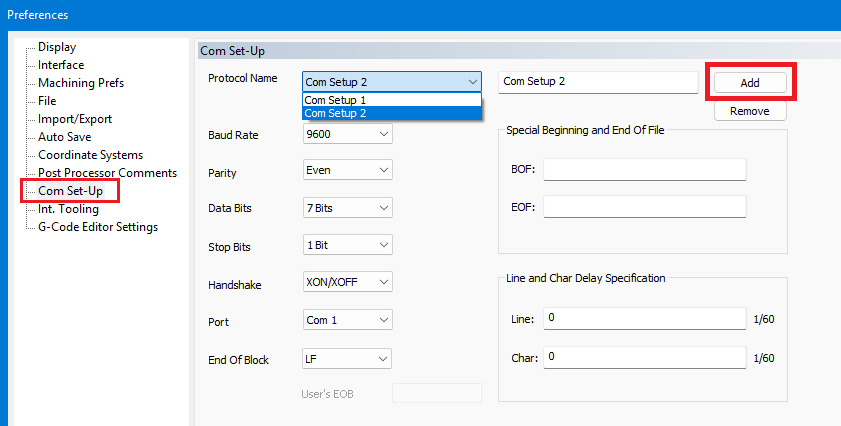
Step 2 – Enter the Communication Parameters
Enter the communication settings required by your machine.
The Com-Setup page includes the following parameters:
Protocol Name
Baud Rate
Parity
Data Bits
Stop Bits
Handshake
Port
End Of Block
BOF
EOF
Line Delay
Character Delay
Use the communication settings specified in the machine manual.
Step 3 – Name and Save the Communication Protocol
Enter a name for the communication settings in Protocol Name.
Click Add.
Step 4 – Use the Communication Protocol
When communicating with the machine, select the saved communication protocol.
Verify that the appropriate protocol is selected.
Proceed with communicating with the machine.
Expected Result
The machine's communication parameters are saved in GibbsCAM under a named communication protocol.
The saved protocol can be selected when communicating with the machine, allowing the Send function to be used.
Additional Information
Where to Find the Correct Settings
The communication settings required by the machine should be listed in the machine manual.
If the required settings cannot be found in the manual, contact the machine manufacturer for the correct communication parameters.
Communication Protocols
Multiple communication protocols can be configured and saved by giving each set of parameters a unique Protocol Name and selecting Add.
This allows different communication configurations to be available for different machines or communication requirements.
Best Practices
Obtain the communication parameters from the machine manual whenever possible.
Contact the machine manufacturer if the required settings are not documented.
Give each saved communication configuration a meaningful Protocol Name.
Verify that the correct communication protocol is selected before sending a file to a machine.
Confirm that the communication parameters match the machine before attempting communication.
Troubleshooting
Problem: The Send button is not usable.
Possible Cause
A communication protocol has not been configured and saved.
Resolution
Go to File > Preferences > Com-Setup, configure the required communication parameters, enter a Protocol Name, and click Add. Then select the saved protocol when communicating with the machine.
Problem: Communication with the machine does not work.
Possible Cause
One or more communication parameters may not match the machine's required settings.
Resolution
Review the communication parameters against the machine manual. If the correct settings cannot be determined, contact the machine manufacturer.
Related Articles
- How to Recover a Corrupted GibbsCAM Part File
- What Is a .ZOOB File?
- Troubleshooting GibbsCAM Crashes, Freezes, or Unexpected Closures
- How to Reset GibbsCAM to the Default Settings
Explore More from CAMCO
Visit the CAMCO website to learn more about:
Keywords
Communication Parameters, Com-Setup, Communication Setup, Machine Communication, CNC Communication, Protocol Name, Baud Rate, Parity, Data Bits, Stop Bits, Handshake, COM Port, End of Block, GibbsCAM Communication, Send to Machine