
Summary
GibbsCAM can save selected Tool Tiles as a Tool List and selected Process Tiles as a Process List. Reusing these lists reduces setup time and helps programmers apply consistent shop standards across parts.
A saved list can be loaded by browsing to the file, or a parent folder can be assigned so its lists and subfolders appear directly in the Load Tools or Load Process List menu. A Process List also carries the tools used by its saved processes.
- Before You Begin
- Choose the Right Saved List
- Save and Load Tool Lists
- Save and Load Process Lists
- Best Practices
- Video Tutorial
- Troubleshooting
- Related Articles
Before You Begin
Create and fully configure the tools or processes you want to reuse before saving the list.
Select only the Tool Tiles or Process Tiles that belong in the saved list. Use Ctrl+A to select all tiles, Shift+click to select a range, or Ctrl+click to add or remove individual tiles.
Choose a durable, backed-up parent folder for the library. Plan subfolders by machine type, operation, material, part family, or another shop-standard category.
Use descriptive filenames that identify the purpose and revision of the saved list.
When reusing a Process List, confirm the active machine, material, geometry, coordinate system, stock, workholding, and output requirements before creating operations.
Important: A saved process can include tool and holder data, speeds, feeds, depth settings, and other process parameters. Treat it as a reusable starting point, then verify every setting for the current part before generating or posting toolpath.
Choose the Right Saved List
Save and Load Tool Lists
Save a Tool List
Create and configure the required Tool Tiles.
Select the Tool Tiles that should be included in the saved list.
Right-click any selected nonblank Tool Tile and choose Save Selected Tools.
Browse to the intended library folder, enter a descriptive filename, and save the Tool List.
Expected Result
The selected tools are stored in a Tool List file that can be loaded into another GibbsCAM part.
Load a Tool List
Right-click a blank Tool Tile.
Select Load Tools > Browse.
Browse to the saved Tool List and select it.
Review the added tools and resolve any numbering, position, offset, toolgroup, or holder conflicts before using them.
Expected Result
The saved tools are added to the Tool List in the current part.
Add a Tool Library Folder
Right-click a Tool Tile and select Load Tools > Set Folder.
Create or select the backed-up parent folder used to store Tool Lists.
Add subfolders when needed to organize the library by machine, operation, material, or another category.
Right-click a Tool Tile again and confirm the configured folders and lists appear under Load Tools.
Expected Result
The assigned folder and its subfolders are available from the Load Tools menu without browsing manually each time.
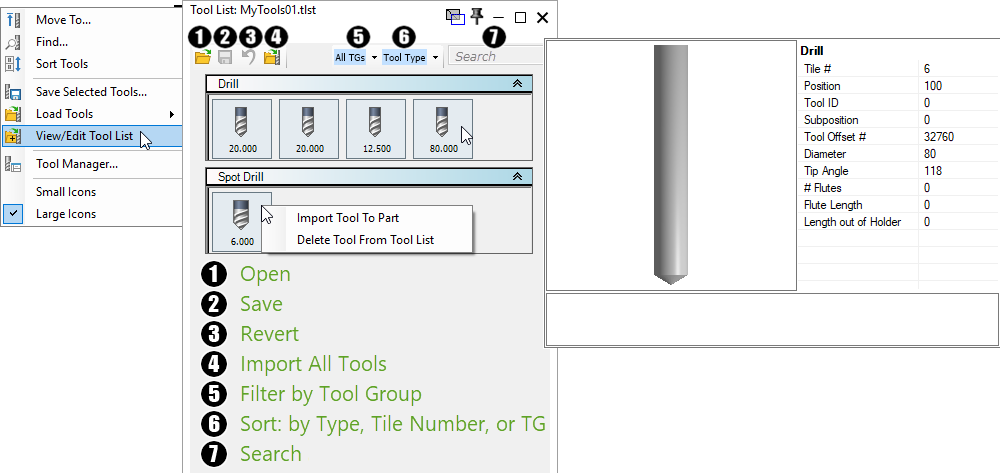
Figure 1 - Tool List commands available from the Tool Tile context menu.
Save and Load Process Lists
Save a Process List
Create and fully configure the Process Tiles to be reused, including their tools, holders, speeds, feeds, depths, and other applicable settings.
Select one or more Process Tiles.
Right-click a selected nonblank Process Tile and choose Save Process List.
Browse to the intended library folder, enter a descriptive filename, and save the Process List.
Expected Result
The selected processes and the tools used by those processes are stored for reuse.
Load a Process List
Right-click a blank Process Tile.
Select Load Process List > Browse.
Browse to the saved Process List and select it.
Confirm that the processes and their required tools were added to the current part.
Apply the loaded processes to the intended geometry, review every parameter, regenerate, simulate, and verify the approved post output before machining.
Expected Result
The saved Process Tiles and their required tools are available in the current part as a reusable programming starting point.
Add a Process Library Folder
Right-click a Process Tile and select Load Process List > Set Folder.
Create or select the backed-up parent folder used to store Process Lists.
Organize Process Lists into subfolders that match the shop workflow.
Right-click a Process Tile again and confirm the folder structure and saved lists appear under Load Process List.
Expected Result
The assigned folder structure is available directly from the Load Process List menu.
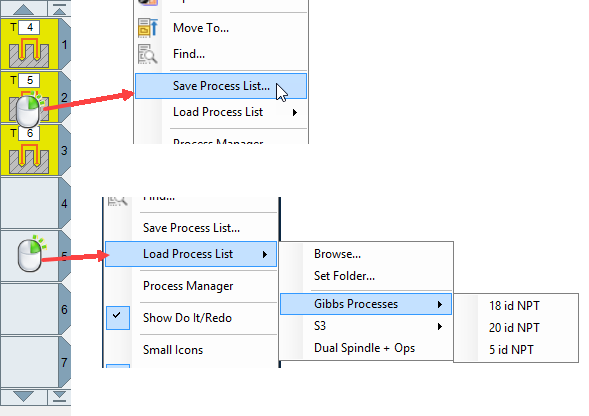
Figure 2 - Save, browse, and assign folders for Process Lists.
Expected Result
Tool Lists and Process Lists can be saved, organized, and reused across GibbsCAM parts. Tool Lists add the selected tool definitions. Process Lists add the selected processes and their associated tools. Configured parent folders and subfolders appear in the appropriate load menu for faster access.
Additional Information
Tool List files contain all information for the selected tools and use the .tlst file type.
View/Edit Tool List opens a saved Tool List so its contents can be reviewed, filtered, sorted, imported, or edited.
Process Lists can contain multiple process types and can support repeatable operation sequences, such as drill, bore, and tap or rough and contour workflows.
Set Folder establishes the parent library folder shown by the load menu. Subfolders beneath it provide additional organization.
Accelerated Process Loading in File Preferences can improve loading performance for Process Lists and Tool Lists by using additional memory.
Best Practices
Build saved lists from validated shop-standard tools, holders, and process parameters.
Use names that identify the machine or operation, material or part family, and revision when applicable.
Store libraries in a backed-up shared location with controlled write access so programmers use the same approved content.
Use separate parent folders when incompatible GibbsCAM versions, machine types, or programming standards must remain isolated.
Review loaded tool numbers, positions, offsets, toolgroups, holders, and duplicate definitions before generating operations.
Review loaded process parameters against the active geometry, stock, material, workholding, machine, and post processor.
Regenerate, simulate, inspect the posted code, and follow the normal prove-out process whenever a saved list is reused.
Video Tutorial

Troubleshooting
Problem: A saved Tool List does not appear under Load Tools.
Possible Causes
The list is outside the configured parent folder or one of its subfolders.
The Tool List was saved under a different filename or location.
The configured folder is no longer accessible or was moved.
Resolution
Use Load Tools > Browse to locate and test the Tool List. If it loads correctly, select Load Tools > Set Folder and assign the parent folder that contains the approved Tool Lists.
Problem: A saved Process List does not appear under Load Process List.
Possible Causes
The wrong Process List parent folder is configured.
The file is stored outside the configured folder tree.
The network or shared-library location is unavailable.
Resolution
Use Load Process List > Browse to locate the saved list. Then use Load Process List > Set Folder to assign the correct parent folder and confirm the folder structure appears in the menu.
Problem: The wrong tools or unexpected duplicate tools appear after loading a Process List.
Possible Causes
A Process List includes the tools used when its processes were saved.
The current part already contains tools with the same numbers, positions, offsets, or definitions.
An outdated or incorrectly named Process List was selected.
Resolution
Confirm that the intended Process List was loaded, then review the Tool List and resolve duplicate or conflicting tool definitions. Update and resave the approved Process List if its embedded tool data is outdated.
Problem: A loaded process creates incorrect or unsafe toolpath for the current part.
Possible Causes
The saved process settings were created for different geometry, stock, material, workholding, or machine conditions.
Speeds, feeds, depth values, clearances, coordinate systems, or tool and holder selections were not revalidated.
The active machine or post processor does not match the saved workflow.
Resolution
Stop and review every loaded process parameter against the current job. Correct the geometry selection, machine setup, tools, holders, cutting data, depths, clearances, and other settings. Regenerate, simulate, verify the post output, and complete the shop's normal prove-out before machining.
Related Articles
- How to Create a Pack and Go File
- How to Save Settings in GibbsCAM
- How to Set a Default Part
- How to Configure Autosave and Backup Files
Explore More from CAMCO
Visit the CAMCO website to learn more about:
Keywords
GibbsCAM, Tool List, Process List, Save Selected Tools, Load Tools, Save Process List, Load Process List, Tool Tiles, Process Tiles, Set Folder, Tool Library, Process Library, TLST, Saved Processes, Reusable Processes