
Summary
The Machine Manager is available in GibbsCAM after it has been activated through the Plug-In Manager.
The Plug-In Manager displays the valid plug-ins installed in the GibbsCAM Plug-Ins folder. After the Machine Manager plug-in is enabled, Machine Manager becomes available from the Plug-Ins menu.
Table of Contents
Procedure
Step 1 – Open the Plug-In Manager
Launch GibbsCAM.
Select Plug-Ins from the menu at the top of the GibbsCAM window.
Select Plug-In Manager.
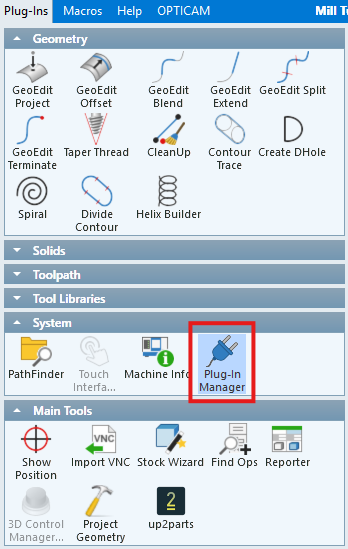
Step 2 – Activate the Machine Manager
Locate the Machine Manager plug-in in the Plug-In Manager.
Select the checkbox next to the plug-in to activate it.
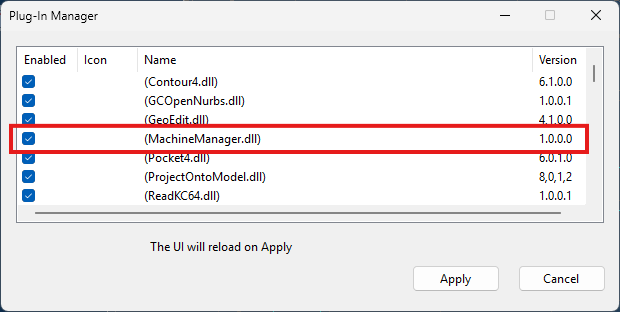
Click Apply.
Step 3 – Open the Machine Manager
Return to the Plug-Ins menu.
Locate Machine Manager.
Select Machine Manager to open it.
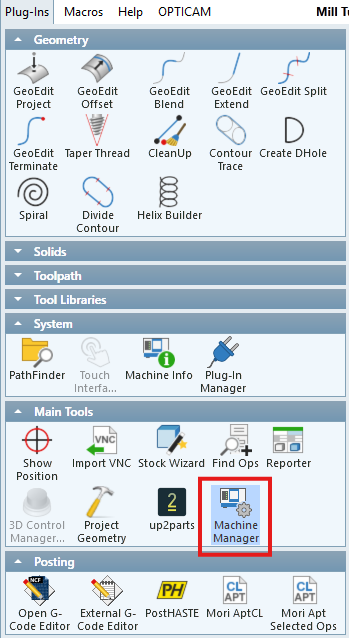
Expected Result
The Machine Manager plug-in is enabled through the Plug-In Manager and Machine Manager appears in the GibbsCAM Plug-Ins menu.
Additional Information
The Plug-In Manager lists valid plug-ins that have been installed in the GibbsCAM Plug-Ins folder.
A plug-in must be activated using its checkbox before its associated functionality becomes available in GibbsCAM.
Best Practices
Verify that the plug-in is installed before troubleshooting why it does not appear in the Plug-In Manager.
Use the Plug-In Manager to enable or disable installed GibbsCAM plug-ins.
After activating Machine Manager, verify that it appears under the Plug-Ins menu.
Troubleshooting
Problem: Machine Manager does not appear in the Plug-Ins menu.
Possible Cause
The Machine Manager plug-in has not been activated.
Resolution
Open Plug-Ins > Plug-In Manager and select the checkbox for the Machine Manager plug-in.
Problem: Machine Manager does not appear in the Plug-In Manager.
Possible Cause
The Machine Manager plug-in may not be installed in the GibbsCAM Plug-Ins folder.
Resolution
Verify that the required plug-in has been installed before attempting to activate it.
Related Articles
Explore More from CAMCO
Visit the CAMCO website to learn more about:
Keywords
Machine Manager, Activate Machine Manager, Plug-In Manager, Plugin Manager, GibbsCAM Plug-Ins, Enable Plug-In, Machine Manager Plug-In, Plug-Ins Menu