
Summary
This article explains how to generate a Part, Tool, Operation, or supplied custom report from the current GibbsCAM part. Reporter creates an Excel-compatible .xlsx workbook and does not require Microsoft Excel to be installed to generate the report.
Table of Contents
Before You Begin
Open the GibbsCAM part that contains the data to report.
Save the part if the report must include the final part filename and other saved-file information.
For an Operation Report, make the operations to include active. Inactive operations are not processed.
Procedure
Step 1 - Prepare the Part
Open the part to report in GibbsCAM.
Confirm that the part, stock, tools, operations, and post-processing information are current.
If creating a Part Report, run Cut Part Rendering before opening Reporter. The Part Report uses the last rendered image for the finished-part graphic.
Step 2 - Open Reporter
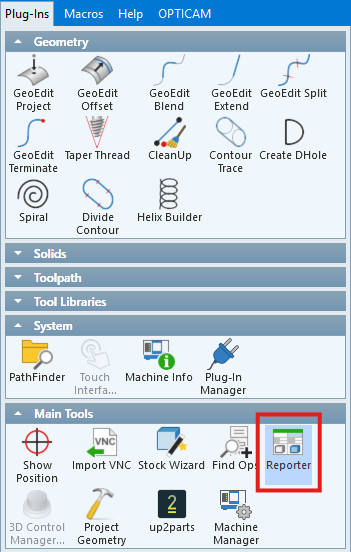
Select Plug-ins > Reporter.
Step 3 - Select the Report Type
Select the report to generate:
Part Report: Creates an overview of the part, including part and stock information, a part graphic, and the last rendered result.
Tool Report: Creates an overview of the tools in the current Tool List, including tool graphics and tool details.
Operation Report: Creates a detailed report for the active operations, including tools, feeds, cut data, calculated time, and rendered stock conditions. Large reports may take several minutes.
Custom: Uses a supplied custom report. Select a report that supports the part's machine type; a machine-specific report can produce invalid output for another machine type.
Step 4 - Set the Rendering Mode and Output File
Leave Use Op Sim selected for the default rendering mode.
Select Use Legacy CPR when the report requires CPR rendering or when faster rendering is helpful for a large report.
Confirm the Output File path, or use the browse button to select the destination and .xlsx filename.
Step 5 - Generate the Report
Select OK.
Wait for Reporter to finish. Part and Tool Reports are typically quick; an Operation Report fully renders the included operations before creating the workbook.
Step 6 - Review and Save the Report
Open the generated .xlsx workbook if it does not open automatically.
Review the report data and graphics for the correct part, tools, operations, units, and rendering results.
Save the workbook with the final name and location, and print or distribute it as needed.
Expected Result
Reporter creates the selected .xlsx report at the specified output location using data from the current GibbsCAM part.
Troubleshooting
Problem: Expected operations are missing from an Operation Report.
Possible Causes
The operations were inactive when the report was generated.
Resolution
Activate the operations that should be included, then generate the Operation Report again.
Problem: A custom report produces missing, incorrect, or invalid output.
Possible Causes
The selected custom report was designed for a different machine type.
Resolution
Return to Reporter and select a custom report that supports the current part's machine type. Use the companion Modifying Reports article when a report template must be changed.
Problem: An Operation Report places Mill information on the Turning sheet.
Possible Causes
The affected operation needs to be refreshed before the report is generated.
Resolution
Select the affected operation, use Redo for that operation, and generate the report again. Redo All Ops does not correct this reporting issue.
Additional Information
Reporter can generate .xlsx files without Microsoft Excel installed. Use Microsoft Excel or another compatible spreadsheet application to review or edit the completed workbook.
For instructions on changing a report's Excel model file, text template file, layout, or output fields, see the separate Modifying Reports article.
Related Articles
Explore More from CAMCO
Visit the CAMCO website to learn more about:
Keywords
GibbsCAM Reporter, Reporter Plug-In, Part Report, Tool Report, Operation Report, Custom Report, Setup Sheet, Excel Report, XLSX, Use Op Sim, Use Legacy CPR, Active Operations, Report Output File