
Summary
This article explains how to prepare a flattened sheet-metal model for import into GibbsCAM. A CAD flat-pattern configuration may contain only 2D data or no solid body, so the reliable workflow is to unfold the original solid in a sheet-metal CAD application and export the flattened result as solid data, preferably an X_T Parasolid file.
Table of Contents
Before You Begin
Keep the original folded solid model available; it may be required when the CAD flat-pattern configuration does not contain solid data.
Use a CAD application with sheet-metal unfolding tools, such as SpaceClaim, when the source application cannot export the flat pattern as a solid.
Choose a solid exchange format. X_T (Parasolid) is preferred when it is available in both applications.
A sample GibbsCAM part containing the flattened model will be attached to this article.
Note: Command names and available export formats vary by CAD product and version. Use the equivalent unfold, flatten, and solid-export commands in your system.
Procedure
Step 1 - Inspect the Flat-Pattern Import
Open or import the source CAD file in GibbsCAM.
If the Select Configuration dialog appears, review the configuration, stream, and status columns.
Select the flat-pattern configuration only when its stream contains usable solid data.
If the flat-pattern stream has no status or imports no body, cancel the import and continue with the original folded solid model.
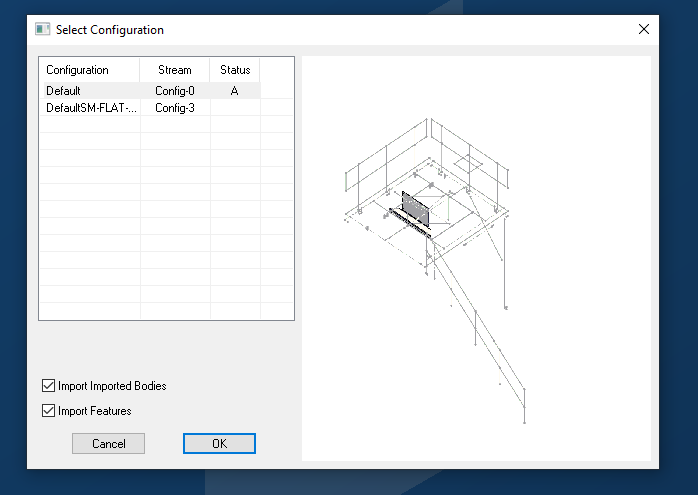
Figure 1 - The flat-pattern configuration is present, but its stream contains no usable data.
Step 2 - Open the Folded Solid in a Sheet-Metal CAD Application
Return to the source CAD application or open the original folded model in a sheet-metal CAD application.
Confirm that the complete part is present as solid data, including the faces, bends, and any required holes or cutouts.
Identify the body as sheet metal if the application requires this before its unfold or flatten command becomes available.
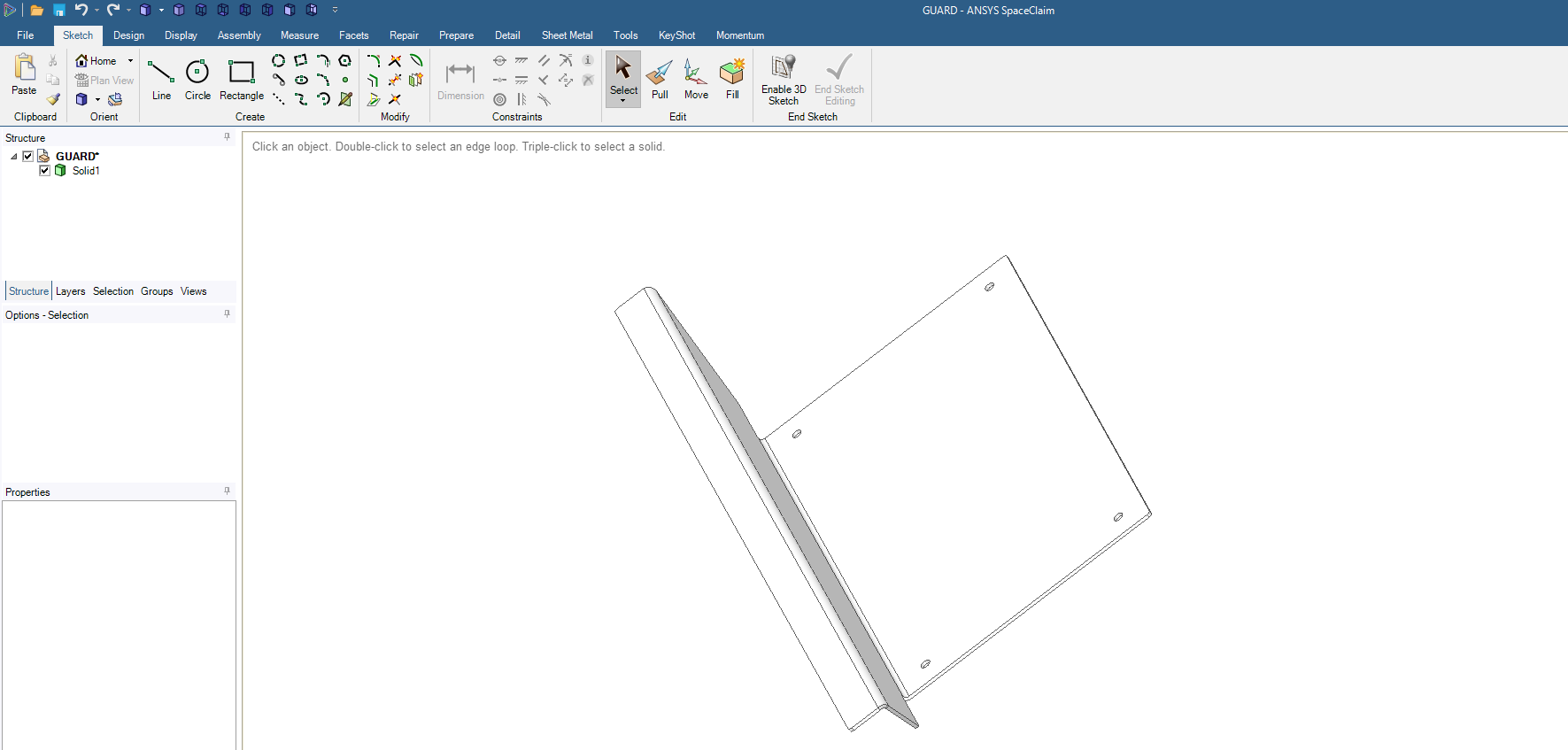
Figure 2 - The original folded solid is opened in SpaceClaim.
Step 3 - Unfold and Export the Model as Solid Data
Use the CAD application's Unfold or Flatten command to create the flat model.
Confirm that the flattened result contains solid faces and the complete part outline.
Export the flattened model as X_T (Parasolid) or another supported solid format.
Do not use a DXF flat-pattern export when the GibbsCAM workflow requires a solid model; DXF normally transfers 2D entities rather than the solid body.
Reopen the exported file in a CAD viewer or a new CAD document to verify that the flat solid was written correctly.
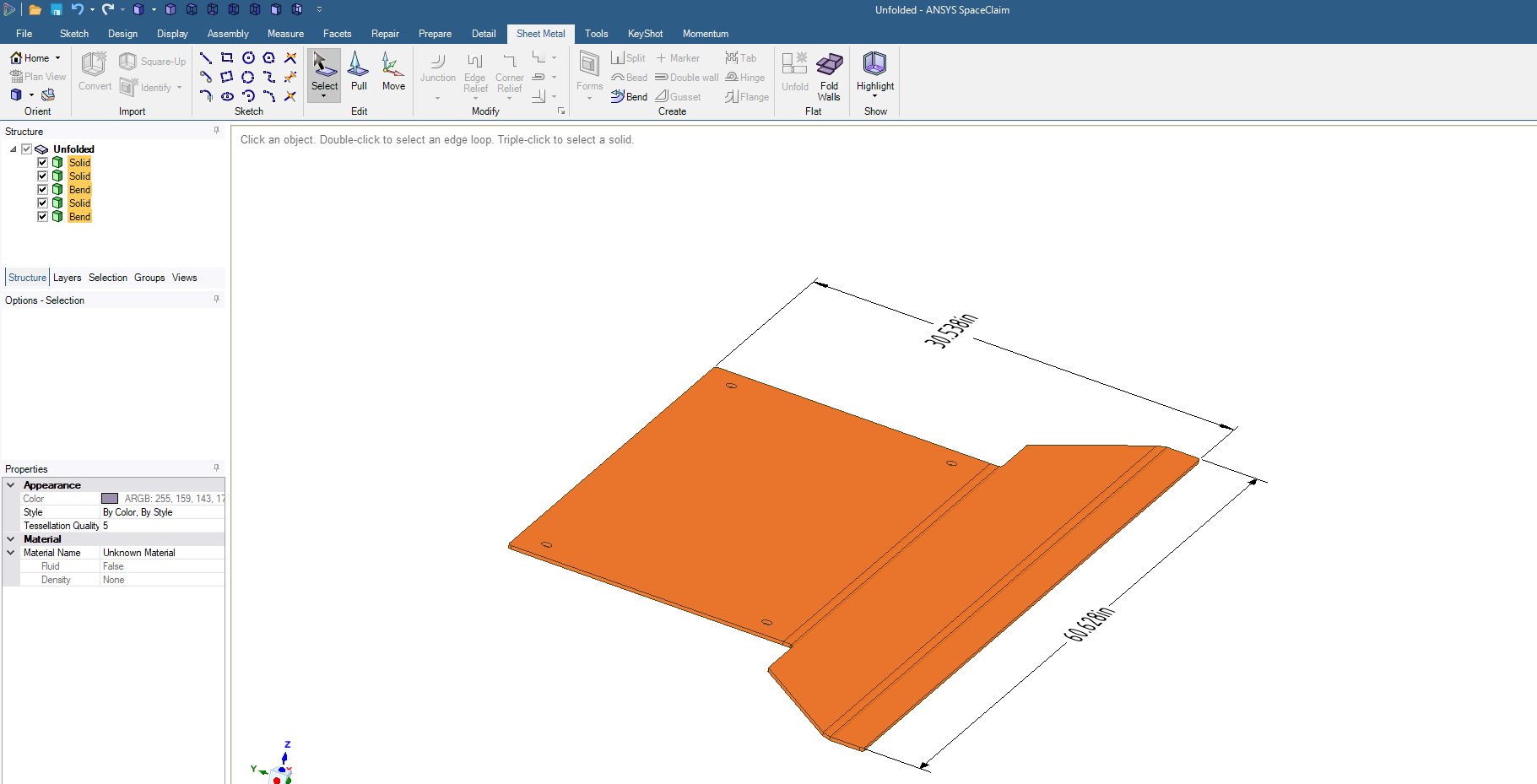
Figure 3 - The unfolded sheet-metal part is ready for X_T Parasolid export.
Step 4 - Import and Verify the Flattened Solid in GibbsCAM
Open a GibbsCAM part and import the exported solid file.
If prompted to choose a configuration or stream, select the entry that contains the flattened solid body.
Confirm that the complete flattened body appears in the GibbsCAM workspace.
Orient and position the solid for the intended machining setup, then verify the coordinate system and stock before creating operations.
Save the GibbsCAM part after the imported solid has been verified.
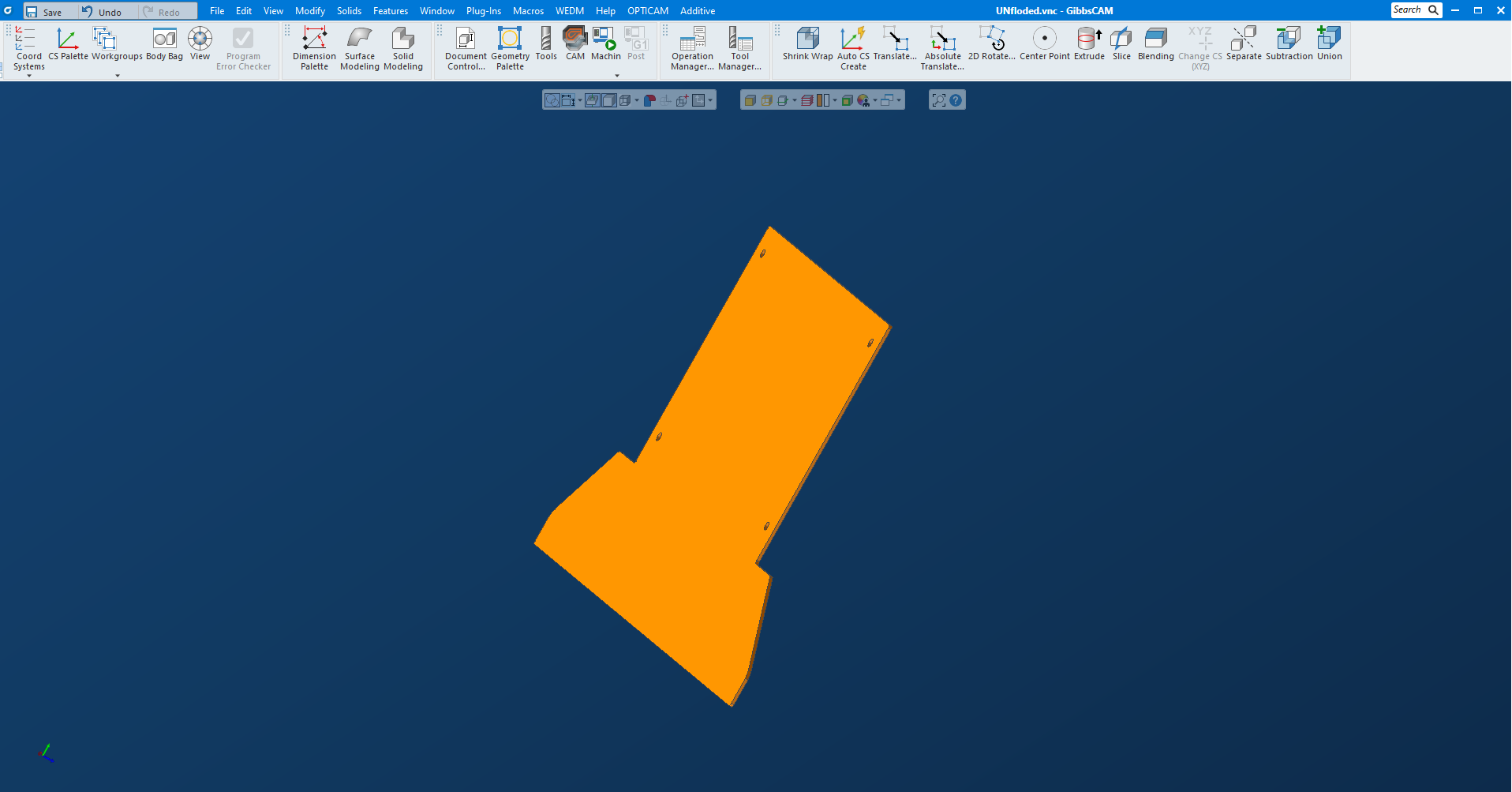
Figure 4 - The flattened solid is imported into GibbsCAM and ready for setup and machining.
Expected Result
The flattened sheet-metal part imports into GibbsCAM as a complete solid body rather than an empty configuration, a folded model, or only 2D entities. The model can then be positioned, stocked, and programmed for machining.
Additional Information
The sample GibbsCAM part file with the flattened model is provided as an attachment in this article.
SOLIDWORKS flat-pattern output may default to DXF. That output can be useful for 2D workflows, but it does not provide the solid body shown in this procedure.
X_T is the Parasolid exchange format and is preferred here because it preserves solid-model data for import.
Troubleshooting
Problem: The flat-pattern configuration appears, but no body imports.
Possible Causes
The selected stream contains no solid data.
The CAD flat-pattern configuration was generated only for a 2D export workflow.
The wrong configuration or stream was selected during import.
Resolution
Return to the original folded solid, unfold it in a sheet-metal CAD application, and export the flattened result as X_T Parasolid or another supported solid format. Then import the new file into GibbsCAM.
Problem: The model imports into GibbsCAM in its folded state.
Possible Causes
The original configuration was exported instead of the flat pattern.
The unfold operation was not completed or the folded body was still active during export.
Resolution
Reopen the model in the CAD application, unfold or flatten it, hide or exclude the folded body if necessary, and export only the verified flattened solid.
Problem: Only curves or wireframe geometry import instead of a solid.
Possible Causes
The model was exported as DXF or another 2D format.
The export options excluded solid bodies.
Resolution
Repeat the export using X_T Parasolid or another GibbsCAM-supported solid format, confirm that solid bodies are included, and verify the exported file before importing it again.
Related Articles
Explore More from CAMCO
Visit the CAMCO website to learn more about:
Keywords
Unfold Model, Flatten Sheet Metal, Flat Pattern, X_T, Parasolid, DXF, SOLIDWORKS, SpaceClaim, CAD Import, Solid Body, No Bodies in Part