
Summary
This article explains how to export a GibbsCAM part to a supported CAD, mesh, point-data, or 3D review format. It covers choosing an appropriate format for the receiving application, saving the exported file, and verifying the result before the file is released for downstream use.
Before You Begin
Open the GibbsCAM part to export and save the current native GibbsCAM file.
Ask the receiving user or application which file format it supports and whether editable CAD geometry, a faceted mesh, coordinate points, or a review-only document is required.
Confirm that the required format appears under File > Export. Available formats can vary by GibbsCAM version and configuration.
Choose a destination folder where you have write permission, and use a new filename so the native GibbsCAM part remains unchanged.
Important: An export creates a separate exchange file; it does not prove that the receiving application will interpret every entity as intended. Keep the native GibbsCAM part and verify the exported file before deleting, archiving, or distributing the source.
Procedure
Step 1 - Prepare the Part
Open the GibbsCAM part that contains the geometry or data to export.
Save the current part so the source file contains the latest intended changes.
Confirm the required export format, destination folder, and final filename with the receiving user or application.
Step 2 - Open the Export Menu
Select File > Export.
Confirm that the required export command is available in the Exchange section of the File menu.
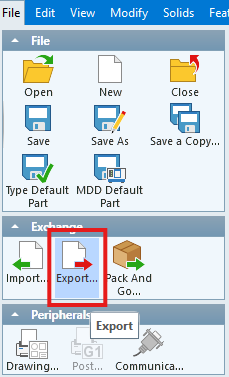
Figure 1 - Select File > Export from the Exchange section of the GibbsCAM File menu.
Step 3 - Select the File Type
Select the export format required by the receiving application.
Enter the destination path and filename when prompted.
Review any format-specific options that appear. The available options vary by export translator and GibbsCAM release.
Step 4 - Save the Exported File
Select Save.
Allow the export process to finish before closing GibbsCAM or disconnecting a network or removable destination.
Confirm that the exported file exists at the selected destination and is not empty.
Step 5 - Verify the Export
Open or import the exported file in the receiving application whenever possible.
Compare the exported result with the GibbsCAM source for overall size, orientation, units, and expected geometry or data.
Confirm that the file type meets the downstream need: editable solid or surface geometry, wireframe or drawing geometry, mesh data, point data, or visual review.
If verification fails, confirm the receiving application's supported formats and repeat the export with a mutually supported alternative.
Expected Result
GibbsCAM creates the selected export file at the specified location. The file opens successfully in the receiving application and contains the expected geometry or data at the correct size, orientation, and units.
Export Format Reference
Best Practices
Choose the format requested by the receiving system rather than selecting a format only because it appears in the Export menu.
Use Parasolid when both applications support it; Parasolid is the most native exchange format relative to GibbsCAM.
Keep the native GibbsCAM file and save exports with clear filenames that identify the part, revision, and exchange format.
Verify important exports in the destination application before releasing them to manufacturing, inspection, a customer, or another programmer.
Use a CAD exchange format when editable geometry is required. Use STL for mesh workflows and 3D PDF for visual review.
Additional Information
The formats displayed under File > Export can vary by GibbsCAM version, installed translators, and configuration.
An exchange format may preserve geometry while omitting application-specific history, feature definitions, annotations, or other proprietary data.
STL stores tessellated mesh data, while 3D PDF is intended primarily for viewing and communication. Neither is equivalent to an editable solid model in a CAD exchange format.
When another GibbsCAM user needs the native part and its supporting files, a Pack and Go file may be more appropriate than a neutral CAD export.
Troubleshooting
Problem: The receiving application cannot open the exported file.
Possible Causes
The receiving application does not support the selected format or translator version.
The export was interrupted or the saved file is incomplete.
The file extension does not match the format expected by the receiving application.
Resolution
Confirm the formats supported by the receiving application, verify that the exported file is not empty, and export again using the agreed format. When both systems support them, test Parasolid or STEP as an alternative neutral exchange format.
Problem: The desired export format is not available.
Possible Causes
The format is not supported by the installed GibbsCAM release or current configuration.
The required translator or option is unavailable on the workstation.
Resolution
Review the formats listed under File > Export and select a supported alternative. If the required format should be available, record the GibbsCAM version and contact CAMCO Technical Support to verify the installation and available options.
Problem: The exported file opens at the wrong size or units.
Possible Causes
The exporting and receiving applications are interpreting units differently.
A format-specific unit option was set incorrectly or ignored by the receiving translator.
Resolution
Confirm the source-part units and the units expected by the receiving application. Re-export after reviewing any available unit settings, then measure a known feature in the destination application before using the file.
Problem: The exported geometry is incomplete, altered, or distorted.
Possible Causes
The selected exchange format does not preserve every entity type in the source part.
The receiving application's translator interprets the file differently.
The source contains unsupported or damaged geometry.
Resolution
Verify the source geometry in GibbsCAM, then test another mutually supported format. Prefer Parasolid for solid or surface exchange when the receiving system supports it; otherwise test STEP or ACIS-SAT. If the issue continues, provide CAMCO Technical Support with the source file, export format, GibbsCAM version, and receiving application details.
Problem: The export is not editable as a solid model.
Possible Causes
STL contains faceted mesh data rather than an editable boundary-representation solid.
3D PDF is intended for interactive review and communication rather than CAD editing.
Resolution
Export to a solid or surface exchange format supported by the receiving application, such as Parasolid, STEP, or ACIS-SAT. Use STL only for mesh-based workflows and 3D PDF only for visual review.
Related Articles
Explore More from CAMCO
Visit the CAMCO website to learn more about:
Keywords
GibbsCAM, Export Files, File Export, CAD Export, Export Geometry, ACIS-SAT, DXF, IGES, Parasolid, Point List, STL, STEP, 3D PDF, Neutral File Format, Geometry Exchange