
Summary
Roaming licenses allow users to temporarily check out a GibbsCAM Network License (NLO) from the license server and continue using GibbsCAM while disconnected from the network.
Beginning with GibbsCAM 2025, roaming licenses can be checked out and returned directly from the License Checkout window within GibbsCAM.
Table of Contents
- Before You Begin
- Check Out a Roaming License
- Return a Roaming License
- Roaming License Duration
- Administrator Information
- Best Practices
- Troubleshooting
- Related Articles
Overview
Roaming licenses are intended for users who need to use GibbsCAM away from the office or while disconnected from the company network.
When a license is checked out:
The license is temporarily assigned to that workstation.
The workstation no longer needs to communicate with the Network License Server while roaming.
The checked-out license is unavailable to other users until it is returned or expires.
A roaming license can remain checked out for up to 30 days.
Before You Begin
Before checking out a roaming license:
Your workstation must be connected to the Network License Server.
A Network License must be available.
Roaming must be permitted by your license administrator.
Check Out a Roaming License
Start GibbsCAM while connected to your organization's Network License Server.
Open the License Checkout window.
Select the option to Start Roaming.
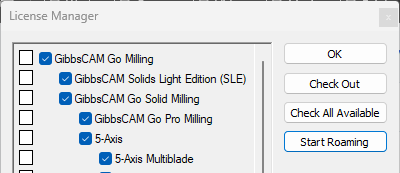
Select the Options to check out, click Check Out.
Click OK.
Once completed, the license is stored on your workstation and GibbsCAM can be used without a connection to the license server.
Return a Roaming License
When you reconnect to your company network:
Start GibbsCAM.
Go to File > Preferences > License Update
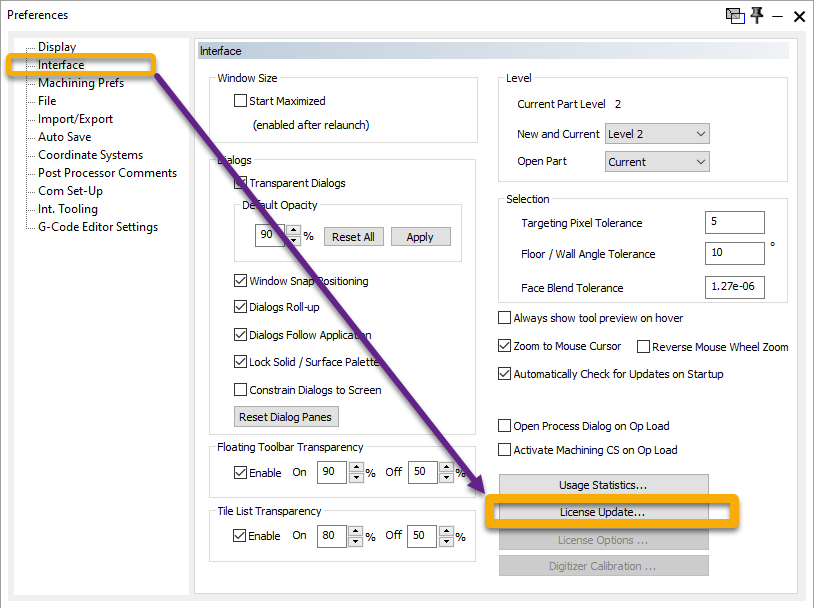
Select Stop Roaming.
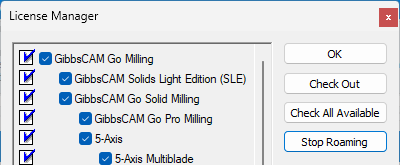
Click OK.
Close GibbsCAM to return license seats to the server.
Roaming License Duration
A roaming license:
May remain checked out for up to 30 days.
Can be returned early at any time.
Automatically expires after the roaming period ends.
Once the roaming period expires, the workstation must reconnect to the Network License Server to obtain another license.
Administrator Information
Network License administrators can monitor roaming licenses using the RLM Web Administration interface.
The interface displays whether a license is currently roaming, allowing administrators to identify which licenses are checked out from the server.
Can an Administrator Cancel a Roaming License?
An administrator may be able to force the cancellation of a roaming license only if the workstation is currently connected to the Network License Server.
If the workstation is offline, the roaming license cannot generally be reclaimed until:
The user returns the license, or
The roaming period expires.
Expected Result
Users can continue using GibbsCAM while disconnected from the company network, and administrators can monitor roaming licenses through the RLM Web Administration interface.
Best Practices
Return roaming licenses as soon as they are no longer needed.
Only check out a roaming license when working away from the network.
Avoid checking out licenses longer than necessary, as each roaming license reduces the number of licenses available to other users.
Verify that your license has been successfully returned before disconnecting from the network.
Troubleshooting
Problem: The Roam Option Is Not Available
Possible Causes
Your license does not support roaming.
Roaming has been disabled by the license administrator.
You are not connected to the Network License Server.
Resolution
Reconnect to the network and contact your license administrator if the option remains unavailable.
Problem: Unable to Return a Roaming License
Possible Causes
The workstation is not connected to the Network License Server.
Network connectivity has been interrupted.
Resolution
Reconnect to the company network, start GibbsCAM, and return the license using the License Checkout window.
Problem: No Licenses Are Available
Cause
One or more licenses may currently be checked out as roaming licenses.
Resolution
Review license usage in the RLM Web Administration interface or contact your license administrator.
Problem: Roaming License Expired
Cause
The maximum roaming period has elapsed.
Resolution
Reconnect to the Network License Server and check out a new roaming license if needed.
Related Articles
- Network License (NLO) Server Setup
- How to Test the Connection Between an NLO Client and Server
- Moving a Network License (NLO) Server
- How to Track NLO Usage
- How to Reserve GibbsCAM Licenses for Specific Users
- How to Configure User Groups in RLM
Keywords
Roaming License, Roam, License Checkout, Offline License, Network License, NLO, RLM, Reprise License Manager, License Server, Remote Work, Mobile User, Check Out License, Return License, License Borrowing