
Summary
If a GibbsCAM client cannot obtain a Network License (NLO), one of the first troubleshooting steps is to verify that the client computer can communicate with the Network License Server.
This article explains how to test network connectivity using Windows PowerShell and provides guidance for troubleshooting common communication problems.
Table of Contents
- Before You Begin
- Test Connectivity Using PowerShell
- Understanding the Results
- Troubleshooting
- Best Practices
- Related Articles
When to Use This Article
Use this article if you experience one or more of the following:
GibbsCAM cannot obtain a network license.
"Unable to connect to license server" errors.
The client starts but reports that no licenses are available.
Some workstations connect successfully while others do not.
Before You Begin
Before testing the connection:
Verify that the Network License Server is powered on.
Confirm that the GibbsRLMServer service is running.
Determine the server's hostname or IP address.
Verify the port number configured for the RLM license server.
By default, the RLM license server uses TCP port 2764. Your administrator may have configured a different port.
Test Connectivity Using PowerShell
To test if the client and server can communicate back and forth:
On the client, open the Windows Start menu.
Search for PowerShell.
Open Windows PowerShell or Windows Terminal.
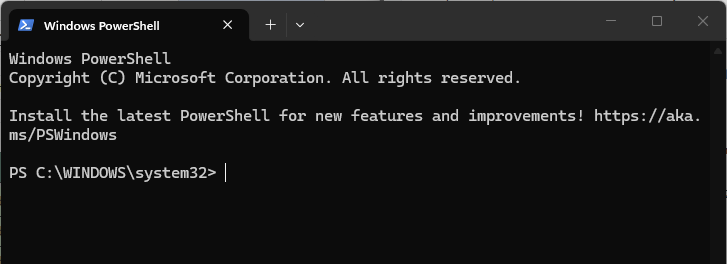
Run the following command:
Test-NetConnection <ServerNameOrIPAddress> -Port 2764
Example using an IP address:
Test-NetConnection 192.168.1.25 -Port 2764
Example using a server name:
Test-NetConnection GC-NLO-SERVER -Port 2764
If your Network License Server has been configured to use a different port, replace 2764 with the appropriate port number.
Understanding the Results
Successful Connection
A successful test will report:
TcpTestSucceeded : True
This indicates that:
The client can reach the server.
The specified port is accessible.
Network communication is functioning.
This does not necessarily confirm that the license configuration is correct—it only verifies network connectivity.
Failed Connection
If the test reports:
TcpTestSucceeded : False
the client cannot communicate with the server on the specified port.
Possible causes include:
Windows Firewall blocking the connection
Third-party firewall or antivirus software
Incorrect server name or IP address
Incorrect port number
Network routing issues
VPN configuration
Switch or router security policies
The GibbsRLMServer service is not running
Verify the Server Name
If you are using a hostname instead of an IP address:
Open a Command Prompt.
Run:
ping ServerName
Example:
ping GC-NLO-SERVER
If the hostname cannot be resolved, try using the server's IP address instead or consult your network administrator.
Verify the License Server Service
On the server:
Open Services.
Locate:
GibbsRLMServer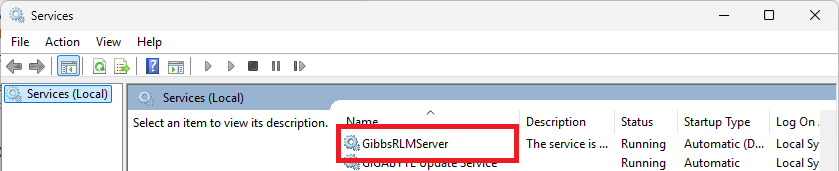
Verify that:
The service is running.
Startup Type is Automatic.
No errors are reported.
Verify the Firewall
If PowerShell reports that the connection failed:
Confirm that:
TCP port 2764 is open.
Any custom RLM port is open if the default has been changed.
Security software is not blocking the connection.
If your organization manages firewall rules centrally, contact your IT department.
Expected Result
The PowerShell test completes successfully and reports:
TcpTestSucceeded : True
The client should then be able to communicate with the Network License Server.
Troubleshooting
Problem: PowerShell Reports TcpTestSucceeded : False
Possible Causes
Firewall
Incorrect server address
Incorrect port
RLM service stopped
Resolution
Verify the server address, confirm the RLM service is running, and ensure the required TCP port is open.
Problem: Ping Works but Test-NetConnection Fails
Cause
The server is reachable, but the required port is blocked.
Resolution
Review firewall settings and confirm that the RLM server is listening on the expected port.
Problem: Test-NetConnection Succeeds but GibbsCAM Still Cannot Obtain a License
Possible Causes
Incorrect client license configuration
No licenses available
Client pointing to the wrong server
License server configuration issue
Resolution
Verify the client license configuration, review the RLM server status, and confirm that licenses are available for checkout.
Best Practices
Use the server hostname whenever possible to avoid future IP address changes.
Assign a static IP address or static DNS name to the Network License Server.
Verify connectivity before troubleshooting licensing configuration.
Document any non-default port assignments.
Test connectivity from multiple client workstations when diagnosing network-wide issues.
Related Articles
- Network License (NLO) Server Setup
- Moving a Network License (NLO) Server
- Using the Activation Check Utility
Keywords
Test-NetConnection, PowerShell, Network License, NLO, License Server, RLM, Reprise License Manager, TCP 2764, Firewall, Connectivity Test, License Checkout, GibbsRLMServer