
Summary
If Windows Explorer does not display preview thumbnails or preview pane information for GibbsCAM part files, the GibbsCAM File Preview extension may not be installed or registered correctly.
This article explains how to repair the installation and manually register the file preview component if necessary.
Table of Contents
Cause
The GibbsCAM File Preview extension is a Windows Shell extension that enables Windows Explorer to display previews of GibbsCAM part files.
If the extension is missing, damaged, or not properly registered, Windows cannot generate file previews.
Possible causes include:
Incomplete GibbsCAM installation
Antivirus software blocking installation
Damaged Windows registration
Missing or corrupted GibbsCAM shared components
Resolution
Follow the steps below in order.
Step 1 – Repair the GibbsCAM Installation
Close GibbsCAM.
Open Settings > Apps > Installed apps.
Select your installed version of GibbsCAM.
Choose Modify.

Select Repair.
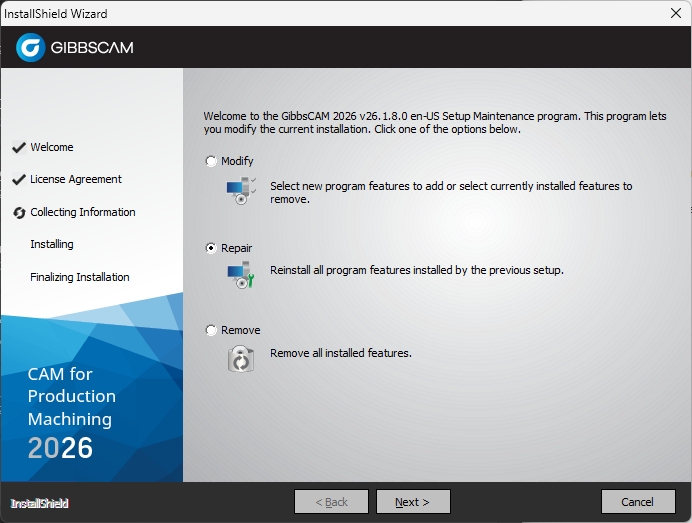
If the repair option is unavailable, reinstall GibbsCAM using the latest installer.
If antivirus or endpoint protection software is installed, temporarily disable it (if permitted by your organization's IT policies) during the installation process, as it may prevent the preview component from being installed correctly.
After the repair or reinstall completes, restart Windows and verify whether file previews have been restored.
Step 2 – Manually Register the Preview DLL
If reinstalling does not resolve the issue, manually register the GibbsCAM File Preview extension.
Close Windows Explorer
Close all File Explorer windows before continuing.
Open an Elevated Command Prompt
Open the Windows Start menu.
Search for Command Prompt.
Right-click Command Prompt.
Select Run as administrator.
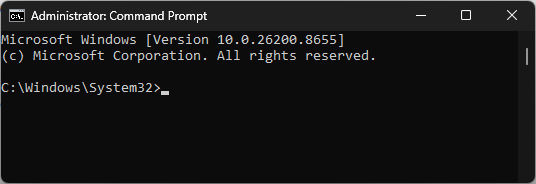
Register the Preview Extension
Run the following command exactly as shown:
C:\Windows\Microsoft.NET\Framework64\v4.0.30319\regasm.exe /codebase "C:\Program Files\Common Files\GibbsCAM Shared\Extensions\GCFilePreviewer.dll"
If registration is successful, you should receive a message similar to:
Types registered successfully.
Restart Windows Explorer or reboot the computer, then test the file preview again.
Step 3 – Verify the Microsoft .NET Framework
If the registration command fails:
Verify that the Microsoft .NET Framework required by GibbsCAM is installed.
Install any pending Windows updates.
Restart the computer.
Run the registration command again using an elevated Command Prompt.
Expected Result
Windows Explorer successfully displays previews for supported GibbsCAM part files in the Preview Pane and thumbnail view.
Troubleshooting
Problem: "Access is Denied"
Cause
The command prompt was not started with Administrator privileges.
Resolution
Close Command Prompt, reopen it using Run as administrator, and run the command again.
Problem: "regasm.exe" Cannot Be Found
Cause
The required Microsoft .NET Framework components may not be installed correctly.
Resolution
Install the required .NET Framework components through Windows Update or repair the Microsoft .NET Framework installation.
Problem: Registration Completes but the Preview Still Does Not Work
Possible Causes
Windows Explorer has not been restarted.
The DLL registration did not complete correctly.
Antivirus software blocked the registration.
The GibbsCAM installation is damaged.
Resolution
Restart Windows, repair or reinstall GibbsCAM, and repeat the DLL registration procedure if necessary.
Problem: Only Some GibbsCAM Files Show a Preview
Cause
The preview handler may not support every file type or the file may be damaged.
Resolution
Open the file in GibbsCAM to verify that it is valid and not corrupted.
Best Practices
Install GibbsCAM using an Administrator account.
Keep Windows fully updated.
Avoid interrupting the installation process.
Exclude the GibbsCAM installation folder from antivirus scanning if recommended by your IT department.
Restart Windows after repairing or reinstalling GibbsCAM.
Related Articles
- How to Install GibbsCAM
- How to Reset GibbsCAM to the Default Settings
- Troubleshooting Graphical Issues in GibbsCAM
- Hardware and System Requirements
Explore More from CAMCO
Visit the CAMCO website to learn more about:
Keywords
File Preview, Preview Pane, Windows Explorer, Thumbnail, GCFilePreviewer, GCFilePreviewer.dll, regasm,
Windows Shell, DLL Registration, Explorer Preview, Preview Handler