
Summary
If GibbsCAM displays the error:
Tag is Invalid or Dead
it indicates that GibbsCAM has encountered corrupted or invalid internal data. This is most commonly caused by corrupted installation files or damaged user configuration files.
In most cases, the issue can be resolved by resetting the user environment with the Recovery Tool. If the error persists, performing a clean reinstallation of GibbsCAM typically resolves the problem.
Table of Contents
Before You Begin
Before performing the troubleshooting steps:
Save and close all open GibbsCAM sessions.
Ensure all instances of GibbsCAM are completely closed before running the Recovery Tool.
Administrator permissions may be required to reinstall the software.
Procedure
Step 1 – Close All Instances of GibbsCAM
Before attempting any repairs:
Close GibbsCAM.
Verify that no GibbsCAM processes remain running in Windows Task Manager.
Running the Recovery Tool while GibbsCAM is open may prevent it from repairing all required files.
Step 2 – Run the Recovery Tool
The Recovery Tool resets GibbsCAM user settings and repairs common configuration issues.
Open the Windows Start menu.
Launch the Recovery Tool for your installed version from the Windows Start menu.
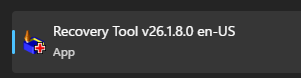
Alternatively, run the tool directly from:
C:\Program Files\Gibbs\GibbsCAM\<version>\Bin\Recovery Tool.exe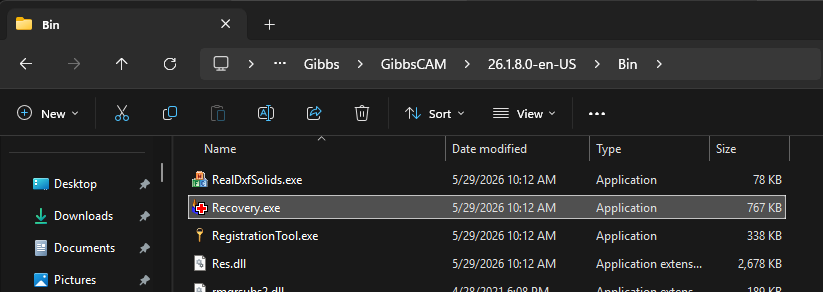
Allow the process to complete.
Restart GibbsCAM.
Step 3 – Perform a Clean Reinstallation
If the error continues after running the Recovery Tool, perform a complete reinstall.
Close GibbsCAM.
Delete the User Preferences folder:
C:\Users\<username>\AppData\Roaming\Gibbs\GibbsCAM\<version>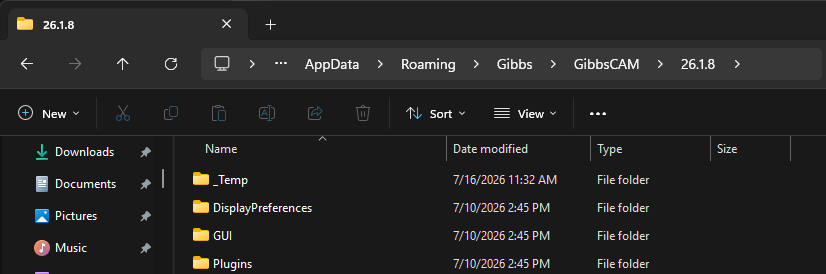
Uninstall GibbsCAM using Apps & Features or Programs and Features.

Restart the computer.
Temporarily disable antivirus or endpoint security software if permitted by your organization's IT policies.
Reinstall GibbsCAM.
Important: Do not run the Migration Tool after reinstalling until you have confirmed that GibbsCAM launches normally. Migrating previous settings may restore corrupted configuration files.
Step 4 – Test GibbsCAM
Launch GibbsCAM after reinstalling.
If the application opens normally, verify that the error no longer occurs during normal operation.
Expected Result
GibbsCAM launches and operates normally after repairing or reinstalling the application.
Common Causes
This error is commonly caused by:
Corrupted installation files.
Corrupted user configuration files.
Interrupted software installation.
Antivirus or endpoint security software interfering with installation.
Damaged application components.
Best Practices
Run the Recovery Tool before attempting a reinstall.
Keep Windows and GibbsCAM up to date.
Temporarily disable antivirus software during installation if permitted by your IT department.
Verify GibbsCAM operates correctly before migrating previous user settings.
Regularly back up custom preferences and configuration files.
Troubleshooting
Problem: The error persists after running the Recovery Tool.
Possible Causes
Corrupted installation files.
Damaged user preferences.
Resolution
Perform a complete reinstall of GibbsCAM and delete the User Preferences folder before reinstalling.
Problem: The error returns immediately after using the Migration Tool.
Possible Cause
Corrupted settings were migrated from the previous installation.
Resolution
Delete the User Preferences folder again, rerun the Recovery Tool if necessary, and reinstall GibbsCAM without migrating previous settings.
Problem: The error began after installing or updating GibbsCAM.
Possible Causes
Incomplete installation.
Security software blocked installation files.
Resolution
Perform a clean reinstall while temporarily disabling antivirus or endpoint security software during the installation process.
Related Articles
- How to Reset GibbsCAM to the Default Settings
- Troubleshooting GibbsCAM Crashes, Freezes, or Unexpected Closures
- Error: Failed to Load Adv3D.DLL
- Run Windows System File Checker (SFC) and DISM Repair
Explore More from CAMCO
Visit the CAMCO website to learn more about:
Keywords
Tag Is Invalid or Dead, Invalid Tag, Dead Tag, Recovery Tool, Corrupt Installation, Corrupt User Preferences, Clean Reinstall, Startup Error, Installation Error