
Summary
This article explains how to install or reinstall Sentinel hardware key drivers required for GibbsCAM USB hardware licenses. These drivers allow Windows to recognize the Sentinel hardware key and enable GibbsCAM licensing functions.
Table of Contents
Procedure
Step 1 – Close GibbsCAM
Close all running instances of GibbsCAM and any licensing utilities before proceeding.
Step 2 – Connect the Hardware Key
Insert the Sentinel hardware key into an available USB port.
Note: Connect the key directly to the computer whenever possible. Avoid USB hubs during troubleshooting.
Screenshot Placeholder
[Insert image showing Sentinel USB hardware key connected]
Step 3 – Obtain the Sentinel Driver Installer
Download the approved hardware key driver installer:
Rainbow - Sentinel Protection Installer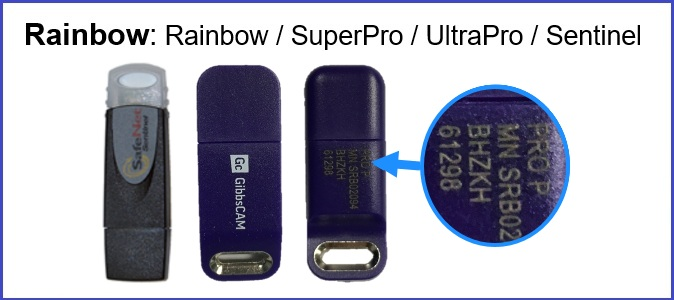 (Pro P)
or
HASP - HASP/LDK Driver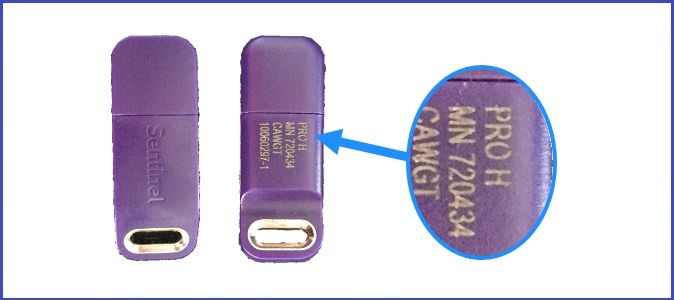 (Pro H)
Verify it is the correct installer for the hardware key type.
Step 4 – Run the Driver Installer
Right-click the Sentinel driver installer.
Select Run as Administrator.
Follow the installation wizard prompts.
Allow the installation to complete.
Step 5 – Restart the Computer
After installation completes:
Save all work.
Restart Windows.
A reboot ensures the driver service loads correctly.
Step 6 – Verify Driver Installation
After rebooting:
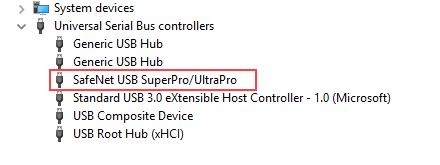
Open Device Manager.
Expand the appropriate USB or Sentinel device category.
Verify the Sentinel key is detected without warning icons.
Step 7 – Verify GibbsCAM Licensing
Launch GibbsCAM.
Run the Registration Tool if needed for license activation.
Confirm the software starts normally.
Verify licensed modules are available.
If GibbsCAM launches without licensing errors, installation is complete.
Expected Result
The Sentinel hardware key is recognized by Windows and GibbsCAM.
Users should be able to:
Launch GibbsCAM successfully.
Register licenses.
Access licensed modules.
Perform normal software operations.
Troubleshooting
Problem: License Not Found
Possible Causes
Driver not installed
Hardware key not connected
USB port failure
Resolution
Reinstall Sentinel drivers
Test a different USB port
Verify Device Manager detection
Problem: The Plug Is Not Found
Possible Causes
Driver corruption
Hardware key communication issue
Resolution
Remove and reinstall drivers
Reboot the workstation
Test the key on another system
Problem: Hardware Key Not Visible in Device Manager
Possible Causes
Driver installation failure
Defective USB port
Defective hardware key
Resolution
Reinstall drivers
Test alternative ports
Contact CAMCO Support
Problem: License Registration Tool Cannot Detect the Key
Possible Causes
Sentinel service not running
Driver installation incomplete
Resolution
Reinstall Sentinel drivers
Restart Windows
Verify hardware detection
Best Practices
Use current approved Sentinel drivers.
Reboot after installation.
Avoid using USB hubs during licensing troubleshooting.
Keep a backup copy of approved driver installers.
Verify driver functionality before beginning license registration.
Additional Information
Sentinel hardware key drivers provide communication between Windows and the GibbsCAM licensing system.
Many licensing issues can be resolved by reinstalling the Sentinel driver package before performing more advanced troubleshooting.
Related Articles
- Offline Registration Guide (Hardware-Locked Licenses)
- Online Registration Guide (Hardware-Locked Licenses)
- What Options are on my GibbsCAM License?
- Error: No Hardware Key Detected
Keywords
Hardware Key, USB License, Rainbow Sentinel, Sentinel Protection Installer, Sentinel HASP, Sentinel LDK, HASP Driver, USB Driver, Hardware Key Driver, License Key, Dongle, Sentinel Runtime