
Summary
GibbsCAM supports several different licensing methods. Knowing which license type you are using is important when troubleshooting licensing issues, registering the software, or moving your license to another computer.
This article explains the different license types and how to identify which one you have.
Table of Contents
- Method 1 – Check for a USB Hardware Key
- Method 2 – Check for a USB Hardware Key
- Method 3 – Determine Whether You Use a Network License
- Method 4 – Examine Your License File
- Best Practices
- Related Articles
Overview
GibbsCAM licenses generally fall into one of four categories:
Method 1 – Check for a USB Hardware Key
The easiest way to identify a Standalone Hardware Key license is to check whether a USB license key is required for GibbsCAM to run.
If your computer must have a USB hardware key connected before GibbsCAM will start or produces errors referencing a hardware key, you are using a Standalone Hardware Key license.
Method 2 – Check for a USB Hardware Key
The Registration Tool displays the available licensing options.
If you launch the Registration Tool from the Windows Start menu, the available license types can help identify your installation.
Typical options include:
Hardware Locked – Standalone Hardware Key or Standalone Software (Keyless)
Network License Client – Connects to an RLM license server
Network License Server – Hosts network licenses
These options correspond to the current GibbsCAM licensing methods.
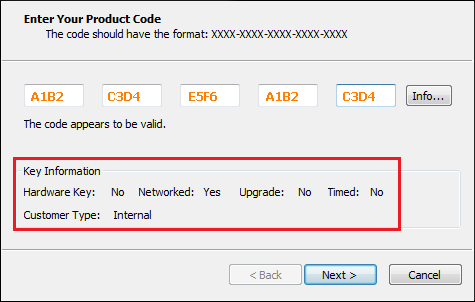
After clicking Run Registration Tool… enter the Product Code and check the Key Information.
Method 3 – Determine Whether You Use a Network License
If multiple users share a pool of licenses from a central server, you are using a Network License (NLO).
Typical characteristics include:
GibbsCAM checks out a license when it starts.
Licenses are returned when GibbsCAM closes.
The License Options dialog may appear during startup.
Your IT department or administrator maintains an RLM license server.
Method 4 – Examine Your License File
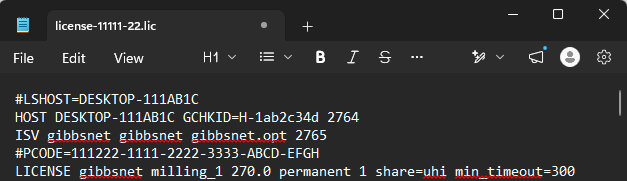
If you have access to your .lic file, open it using a text editor such as Notepad.
The license file contains information that can help identify:
Product Code
License type
Licensed options
Host Information
Still Not Sure?
If you are unsure which license type you have, gather the following information before contacting CAMCO Support:
Does GibbsCAM require a USB hardware key?
Is your license shared with other users?
Do you connect to a network license server?
A copy of your .lic file (if available)
Your Product Code, if known
Support can use this information to determine your licensing method.
Best Practices
Keep a backup copy of your .lic file.
Record your Product Code for future reference.
Document whether your installation uses a standalone or network license.
If using an NLO license, document the server name and port number.
Related Articles
- What Options are on my GibbsCAM License?
- Online Registration Guide (Hardware-Locked Licenses)
- Offline Registration Guide (Hardware-Locked Licenses)
- Network License (NLO) Server Setup
- Moving a Network License (NLO) Server
- I Lost My Product Code
Keywords
License Type, Standalone License, Hardware Key, USB Dongle, Keyless License, Network License, NLO, RLM, License File, Product Code, Registration Tool