
Summary
If GibbsCAM is experiencing unexpected behavior, resetting the user settings can often resolve issues caused by corrupted preferences or configuration files.
The recommended method is to use the Recovery Tool, which restores the user settings to their default values. If the Recovery Tool is unavailable, you can manually reset the User Preferences folder.
Table of Contents
- Before You Begin
- Method 1 – Use the Recovery Tool (Recommended)
- Method 2 – Manually Reset the User Preferences Folder
- Verify the Reset
- Related Video
- Troubleshooting
- Best Practices
- Related Articles
When to Use This Article
Resetting the GibbsCAM user settings may resolve issues such as:
Missing or misplaced toolbars
Missing dialog boxes
Windows opening off-screen
Unexpected interface behavior
Display or graphics settings not saving
Corrupted user preferences
Startup problems caused by damaged configuration files
Before You Begin
Resetting the User Preferences restores GibbsCAM to its default configuration.
Depending on your configuration, this may reset:
Workspace layout
Toolbar customization
Window positions
Display preferences
Interface settings
Recently opened file list
Other user-specific preferences
The following items are not removed:
Part files
Machine Definition Databases (MDDs)
Virtual Machine Models (VMMs)
Post processors
Tool libraries
Other production data
If you have customized your workspace, consider making a backup before resetting your settings.
Method 1 – Use the Recovery Tool (Recommended)
The Recovery Tool is the recommended method for restoring GibbsCAM's default user settings.
Launch the Recovery Tool
Close GibbsCAM.
Open the Windows Start menu.
Locate Recovery Tool for the version number of GibbsCAM being used.
Alternatively, run the tool directly from:
C:\Program Files\Gibbs\GibbsCAM\<version>\Bin\Recovery Tool.exe
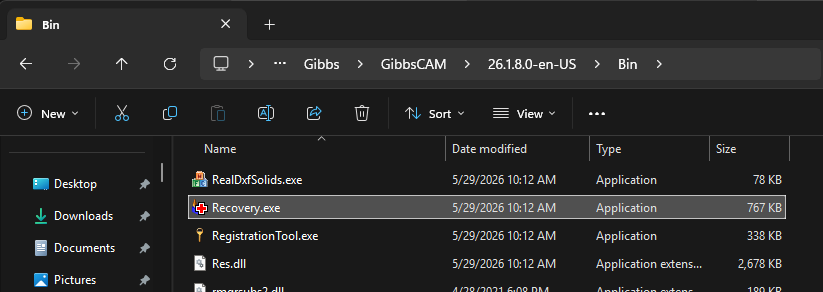
Run the Recovery Tool.
Allow the tool to reset the user settings.
Restart GibbsCAM.
When GibbsCAM starts again, a new set of default user preferences will be created automatically.
Method 2 – Manually Reset the User Preferences Folder
If the Recovery Tool cannot be used, you can manually reset the user profile.
Close GibbsCAM.
Open File Explorer.
Browse to:
%APPDATA% \Gibbs\GibbsCAM\<version>
C:\Users\<username>\AppData\Roaming\Gibbs\GibbsCAM\<version>
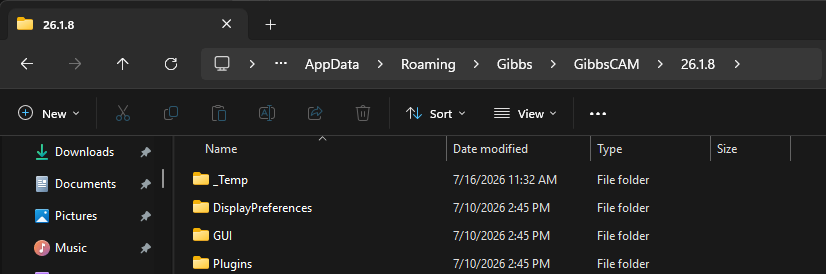
Locate the User Preferences folder.
Rename the folder to something like:
User Preferences_Old
Launch GibbsCAM.
If the User Preferences folder is missing, GibbsCAM automatically creates a new one using the default settings.
Tip: Renaming the folder instead of deleting it allows you to restore your previous settings if necessary.
Verify the Reset
After GibbsCAM starts:
Default toolbars are restored.
Window locations return to their default positions.
Display settings are reset.
User preferences return to factory defaults.
If the original problem no longer occurs, the issue was likely caused by a corrupted user profile.
Expected Result
GibbsCAM starts with a clean set of default user preferences while preserving your part files, MDDs, VMMs, post processors, and other production data.
Related Video

Troubleshooting
Problem: The Recovery Tool Does Not Resolve the Issue
Cause
The problem may not be related to the User Preferences.
Resolution
Continue troubleshooting by checking:
Graphics drivers
Machine Definition Database (MDD)
Virtual Machine Models (VMM)
Plug-ins
Installation files
Problem: My Customized Layout Is Gone
Cause
The User Preferences were reset to their default values.
Resolution
If you renamed the original User Preferences folder instead of deleting it, restore the original folder to recover your previous settings.
Problem: GibbsCAM Created a New User Preferences Folder
Cause
This is expected behavior after the existing User Preferences folder has been reset or renamed.
Resolution
No action is required.
Best Practices
Use the Recovery Tool whenever possible.
Rename the User Preferences folder instead of deleting it.
Keep backups of customized settings.
Use the Migration Tool when upgrading to a newer version of GibbsCAM.
Reset user settings before performing a complete reinstall.
Related Articles
- How to Migrate Settings from a Previous GibbsCAM Installation
- How to Save Settings in GibbsCAM
- How to Install GibbsCAM
- Hardware and System Requirements
- Menu Flickering
Keywords
Recovery Tool, Reset GibbsCAM, Default Settings, User Preferences, Reset Preferences, Restore Defaults, Workspace, Toolbars, Display Settings, Configuration, Corrupt Settings, Interface, AppData