
Summary
RS-232 communication is commonly used to transfer NC programs between GibbsCAM and older CNC machine controls. Successful communication requires that the settings on the computer, communication software, and CNC control all match.
This article provides general setup recommendations and troubleshooting tips for establishing reliable RS-232 communication.
Table of Contents
- Overview
- Verify the Communication Settings
- Verify the COM Port
- Verify the Cable
- Verify Flow Control
- Test with a Small Program
- Common Communication Problems
- USB-to-Serial Adapters
- Best Practices
- Related Articles
Overview
RS-232 is a point-to-point serial communication standard commonly used by legacy CNC controls. Although many newer machines support Ethernet or USB program transfer, RS-232 remains widely used for older equipment.
Communication problems are almost always caused by one of the following:
Incorrect communication settings
Incorrect cable wiring
COM port configuration issues
Flow control mismatches
Machine control configuration errors
Successful communication requires that both the CNC control and the PC use identical serial communication settings.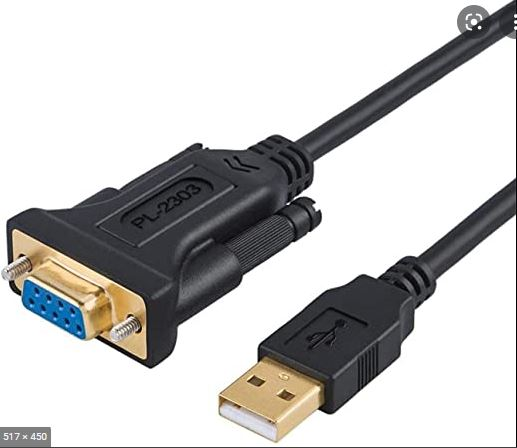
Verify the Communication Settings
The following parameters must match exactly between the CNC machine and the communication software.
If even one setting differs, communication may fail.
Verify the COM Port
Confirm that the communication software is using the correct Windows COM port.
Open Device Manager.
Expand Ports (COM & LPT).
Verify the assigned COM port number.
Configure the same COM port in your communication software.
If using a USB-to-Serial adapter, Windows may assign a different COM port when the adapter is connected to another USB port.
Verify the Cable
A large percentage of RS-232 communication problems are caused by cable issues.
Verify:
The correct cable type is being used.
Pin assignments match the CNC manufacturer's requirements.
The cable is securely connected.
The cable is not damaged.
Cable length is within recommended limits.
Many CNC controls require a null modem cable, while others require a straight-through cable. Always consult the machine tool documentation before changing cables.
Verify Flow Control
The CNC control and communication software must use the same flow control method.
Common methods include:
XON/XOFF (Software Handshaking)
RTS/CTS (Hardware Handshaking)
DTR/DSR (Less common)
If one side uses hardware handshaking while the other uses software handshaking, communication may stop or fail.
Test with a Small Program
Before transferring a large NC program:
Create a simple test program.
Send the program to the CNC.
Verify the machine receives the program successfully.
Using a short program makes it easier to identify communication issues before attempting larger program transfers.
Expected Result
After the communication settings, cable, and machine configuration are verified, GibbsCAM can reliably transfer NC programs using RS-232 communication.
Common Communication Problems
Nothing Is Received by the CNC
Possible causes:
Incorrect COM port
Incorrect cable
Wrong baud rate
Incorrect machine communication mode
Flow control mismatch
Garbled or Random Characters
Possible causes:
Incorrect baud rate
Incorrect parity
Incorrect data bits
Electrical interference
Faulty cable
Transfer Stops Before Completion
Possible causes:
Incorrect flow control
Buffer overflow
Faulty cable
USB-to-Serial adapter issues
One-Way Communication Works
If sending works but receiving does not (or vice versa), verify:
TX and RX wiring
Flow control settings
Cable pinout
Machine parameters
This often indicates a cable wiring or handshaking issue rather than a GibbsCAM configuration problem.
USB-to-Serial Adapters
Many modern computers no longer include a native RS-232 port.
When using a USB-to-Serial adapter:
Install the latest manufacturer driver.
Verify the assigned COM port.
Use the same USB port each time, if possible.
Industrial-grade adapters typically provide more reliable communication than low-cost consumer adapters.
Best Practices
Match all communication parameters exactly.
Use high-quality serial cables.
Label cables to avoid confusion.
Test communication with a small NC program first.
Document the machine's communication settings for future reference.
Consider Ethernet or USB transfer methods when supported by the CNC control.
Related Articles
- How to Set Up Communication Parameters
- Post Processor Setup
- Post Selected Operations Only
- Error: "Unable to Read Post Processor"
- Hardware and System Requirements
Explore More from CAMCO
Visit the CAMCO website to learn more about:
Keywords
RS-232, Serial Communication, COM Port, Serial Port, DNC, Program Transfer, Baud Rate, Parity, Stop Bits, Flow Control, XON/XOFF, RTS/CTS, Null Modem, USB Serial Adapter, CNC Communication