
Summary
GibbsCAM includes Autosave and Backup File features that can help protect your work from unexpected events such as software crashes, power outages, or accidental file corruption.
This article explains how to configure these options and describes what each setting does.
Table of Contents
- Open the Auto Save Preferences
- Auto Save Options
- Recommended Configuration
- Troubleshooting
- Best Practices
- Related Articles
Open the Auto Save Preferences
To configure Autosave:
Open GibbsCAM.
Select File > Preferences.
Choose Auto Save from the list on the left.
The Auto Save settings are displayed as shown below.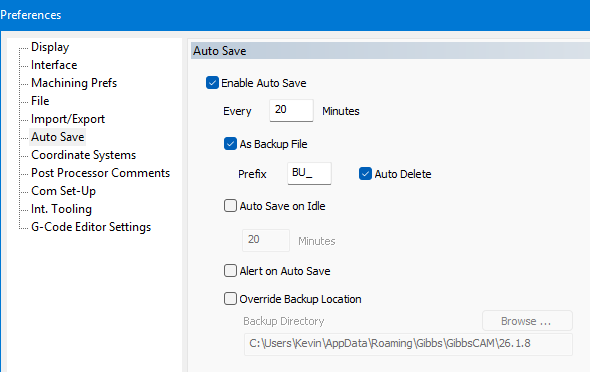
Auto Save Options
The following settings are available.
Enable Auto Save
Enables automatic saving while you work.
When enabled, GibbsCAM automatically saves your work at the specified interval.
Every _ Minutes
Specifies how often Autosave occurs.
Choose an interval appropriate for your workflow.
Typical values are:
10 minutes – Frequent protection with minimal work loss.
20 minutes – Good balance for most users.
30 minutes – Less frequent interruptions.
As Backup File
Instead of overwriting your current part, GibbsCAM creates a backup copy.
This provides an additional recovery option if the primary part file becomes damaged.
Prefix
Specifies the filename prefix used for backup files.
For example:
BU_MyPart.VNC
This makes backup files easy to identify.
Auto Delete
Automatically removes older backup files as new ones are created.
Enabling this option helps prevent backup folders from growing unnecessarily.
Auto Save on Idle
Performs an Autosave only after the workstation has been idle for the specified amount of time.
This can reduce interruptions while actively programming.
Alert on Auto Save
Displays a notification whenever an Autosave occurs.
Some users prefer this confirmation, while others leave it disabled to minimize interruptions.
Override Backup Location
Allows backup and Autosave files to be stored in a different folder than the original part file.
This is useful if you want:
Backups stored on another drive
A centralized backup folder
Backups stored on a faster SSD
Use the Browse button to select the desired location.
Recommended Configuration
CAMCO recommends the following settings for most users:
These settings provide a good balance between data protection and minimal interruption.
Expected Result
GibbsCAM automatically creates Autosave and/or backup files according to your configured preferences, reducing the risk of data loss due to crashes, unexpected shutdowns, or file corruption.
Tips
Save your work manually before making major changes.
Autosave is not a substitute for regular manual saves.
Keep important projects backed up using your organization's backup system.
If working from a network location, verify the connection remains stable while files are being saved.
Troubleshooting
Autosave Files Are Not Being Created
Verify that Enable Auto Save is selected and that the configured interval has elapsed.
Backup Files Are Missing
Confirm that As Backup File is enabled.
If Override Backup Location is enabled, verify that you are checking the correct folder.
Backup Files Are Deleted Automatically
If Auto Delete is enabled, older backup files will be removed automatically.
Disable this option if you want to retain multiple backup copies.
Autosave Seems to Interrupt My Work
Consider increasing the Autosave interval or enabling Auto Save on Idle so saves occur only when the workstation is not actively being used.
Best Practices
Enable Autosave on every workstation.
Enable Backup Files for additional protection.
Use a reasonable Autosave interval (approximately 20 minutes for most users).
Store backups on a reliable drive.
Continue performing regular manual saves throughout the day.
Related Articles
- How to Recover a Corrupted GibbsCAM Part File
- What Is a .ZOOB File?
- Troubleshooting GibbsCAM Crashes, Freezes, or Unexpected Closures
- How to Reset GibbsCAM to the Default Settings
Keywords
Autosave, Auto Save, Backup File, Backup, Recovery, Preferences, File Preferences, Auto Save on Idle, Backup Location, Corrupted File, Data Recovery