
Summary
This article provides troubleshooting steps for common issues that may prevent you from downloading GibbsCAM from the GibbsCAM Online Services website.
Download problems are typically caused by browser security settings, corporate firewalls, antivirus software, network restrictions, or Internet connectivity issues rather than the GibbsCAM installer itself.
Table of Contents
Symptoms
You may experience one or more of the following:
The download does not start.
The download stops before completion.
The downloaded installer is incomplete or corrupted.
Your browser reports the file as unsafe.
The download is blocked by your company's security software.
You receive an error when attempting to access the download page.
The download speed is extremely slow.
Resolution
Step 1 – Verify the Download Website
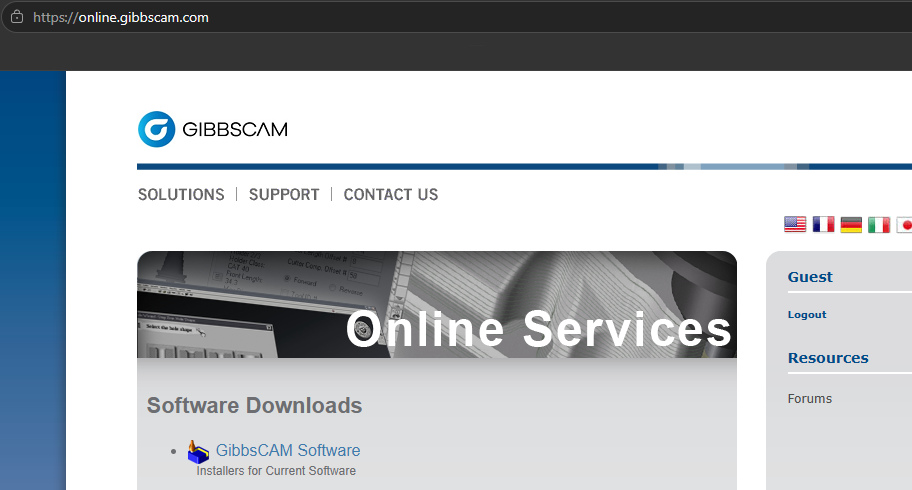
Open the official GibbsCAM Online Services website:
https://online.gibbscam.com/Verify that the website loads correctly before attempting the download.
If the website does not load, confirm that you have an active Internet connection.
Step 2 – Try a Different Web Browser
If the download does not begin:
Close your current browser.
Try downloading using a different supported browser, such as Microsoft Edge, Google Chrome, or Mozilla Firefox.
Clear your browser cache if necessary.
Disable browser extensions that may block downloads.
Step 3 – Check Antivirus or Endpoint Security Software
Some antivirus or endpoint protection applications may prevent executable (.exe) files from downloading.
Temporarily disable download protection (if permitted by your organization's IT policies), or ask your IT department to allow the GibbsCAM download.
Important: Re-enable your antivirus software immediately after completing the download.
Step 4 – Verify Firewall or Network Restrictions
If you are connected to a corporate network:
Verify that your firewall is not blocking downloads.
Confirm that HTTPS traffic is allowed.
Contact your IT department if downloads from external websites are restricted.
Step 5 – Verify Available Disk Space
Ensure sufficient free disk space is available before downloading the installer.
As a best practice, maintain several gigabytes of free disk space on the drive where the installer will be saved.
Step 6 – Retry the Download
Delete any partially downloaded installer before attempting another download.
A partial download may appear to complete successfully but can result in installation failures.
Expected Result
The GibbsCAM installer downloads successfully and is ready for installation.
Troubleshooting
Problem: Download Does Not Start
Possible Causes
Internet connection unavailable
Browser security settings
Website temporarily unavailable
Resolution
Verify your Internet connection and try another supported web browser.
Problem: Download Stops Before Completion
Possible Causes
Unstable Internet connection
Antivirus interruption
Network timeout
Resolution
Delete the incomplete installer and restart the download.
Problem: Browser Reports the File Is Unsafe
Possible Causes
Browser SmartScreen or Safe Browsing protection
Corporate security policies
Resolution
Download the installer only from the official GibbsCAM Online Services website. If your organization blocks executable downloads, contact your IT department for assistance.
Problem: Download Is Extremely Slow
Possible Causes
Limited Internet bandwidth
VPN connection
Network congestion
Resolution
Try downloading from a different network or outside peak business hours.
Problem: Installer Is Corrupted
Possible Causes
Interrupted download
Storage device error
Resolution
Delete the installer and download a new copy from the official website.
Best Practices
Download GibbsCAM only from the official GibbsCAM Online Services website.
Save the installer to a local hard drive before running it.
Do not run the installer directly from a web browser.
Keep a copy of the installer for future repairs or reinstallations.
Review the Installation Guide before installing GibbsCAM.
If download problems continue after completing the steps in this article, contact CAMCO Support and provide:
Your GibbsCAM version
Windows version
Web browser used
Any error messages or screenshots
The point at which the download failed
Related Articles
- Download GibbsCAM
- How to Install GibbsCAM
- Hardware and System Requirements
- Installing Hardware Key Drivers
Keywords
Download GibbsCAM, GibbsCAM Download Failed, Cannot Download GibbsCAM, Installer Download, Download Error, Browser Blocking Download, Antivirus Blocking Download, Firewall Blocking Download, Corrupt Installer, Online Services, Installation Troubleshooting