
Summary
If GibbsCAM displays a "Material Database Not Accessible" message when starting or creating a new part, it usually indicates one of the following:
The selected material database requires a licensed option that is not included with your GibbsCAM license.
The material database file is missing or has become corrupted.
This article explains how to identify the cause and restore access to the material database.
Table of Contents
- Cause
- Resolution 1 – Select the Standard Material Database
- Resolution 2 – Rebuild the Material Database
- Resolution 3 – Verify Your License
- Troubleshooting
- Best Practices
- Related Articles
Symptoms
You may experience one or more of the following:
"Material Database Not Accessible" appears when launching GibbsCAM.
The Material Database cannot be opened.
Cutting data is unavailable.
Material selection is empty or unavailable.
Cause
The most common causes are:
CutData.txt is selected, but your license does not include the optional Cut Data feature.
The selected material database file has been deleted, moved, or corrupted.
The configured file path is incorrect.
Resolution 1 – Select the Standard Material Database
If your license does not include the optional Cut Data database, configure GibbsCAM to use the standard material database instead.
Open GibbsCAM.
Select File > Preferences.
Select the File tab.
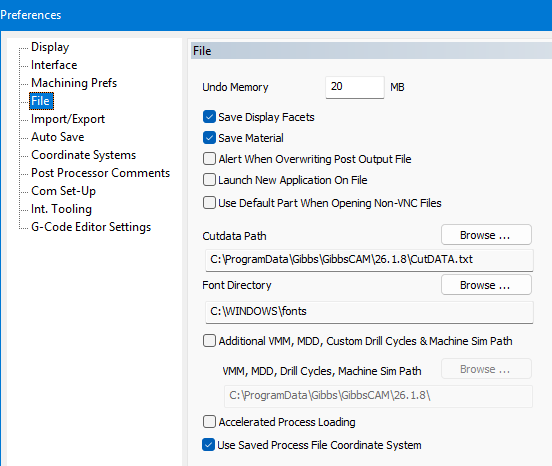
Locate the CutData Path setting.
Click Browse.
Select Material.txt.
Click Open, then OK.
Close GibbsCAM.
Restart GibbsCAM.
The message should no longer appear.
Resolution 2 – Rebuild the Material Database
If Material.txt is already selected and the error continues:
Close GibbsCAM.
Browse to the folder containing Material.txt.
Delete (or rename) Material.txt.
Launch GibbsCAM again.
GibbsCAM will detect that the file is missing and automatically create a new default Material.txt file.
Note: You may receive a one-time message indicating the material database could not be found. This is expected while the new file is being generated.
Resolution 3 – Verify Your License
If you intended to use CutData.txt, verify that your GibbsCAM license includes the Cut Data option.
If the option should be included but is unavailable, contact your CAMCO reseller or licensing representative for assistance.
Expected Result
GibbsCAM successfully loads the configured material database, and material selection and cutting data are available without error messages.
Troubleshooting
Problem: The Error Returns After Selecting Material.txt
Cause
The Material.txt file may be corrupted or inaccessible.
Resolution
Delete or rename the existing Material.txt file and allow GibbsCAM to generate a new one during startup.
Problem: I Need the CutData Database
Cause
The CutData database requires a licensed option.
Resolution
Verify your license includes the Cut Data option. If you believe your license is missing this feature, contact your CAMCO reseller.
Problem: Material.txt Cannot Be Found
Cause
The file may have been deleted or moved.
Resolution
Select the correct file location through File > Preferences > File, or allow GibbsCAM to recreate the file by deleting the missing reference and restarting the software.
Best Practices
Leave the default Material.txt database selected unless your license includes the optional Cut Data database.
Avoid manually editing or deleting the material database unless instructed by Technical Support.
Keep backup copies of customized material databases if you have made changes.
Verify file paths after migrating settings between computers or upgrading GibbsCAM.
Related Articles
- What Options are on my GibbsCAM License?
- My License Is Missing Options
- How to Update Your GibbsCAM License
- How to Migrate Settings from a Previous GibbsCAM Installation
- How to Reset GibbsCAM to the Default Settings
Keywords
Material Database, Material.txt, CutData.txt, Cut Data, Material Database Not Accessible, Material File, Cutting Data, License Option, File Preferences, Materials