
Summary
The "UseResFileCk = -193" error typically indicates that GibbsCAM is unable to locate or load one or more required program resource files during startup.
This issue is most commonly caused by an incomplete or corrupted installation, antivirus software blocking program files, or missing Windows permissions.
This article outlines the recommended troubleshooting steps to restore the required program files.
Table of Contents
Symptoms / Objective
You may experience one or more of the following:
GibbsCAM displays "UseResFileCk = -193" during startup.
GibbsCAM immediately closes after displaying the error.
GibbsCAM fails to launch after installation.
The error appears after a Windows update or security software update.
Procedure
Step 1 – Restart the Computer
Restart Windows and attempt to launch GibbsCAM again.
Occasionally, Windows may prevent program files from loading correctly until after a restart following an installation or update.
Expected Result
If the issue was temporary, GibbsCAM launches normally.
Step 2 – Run the Recovery Tool
If GibbsCAM previously worked correctly:
Close GibbsCAM.
Open the Windows Start menu.
Search for Recovery Tool.
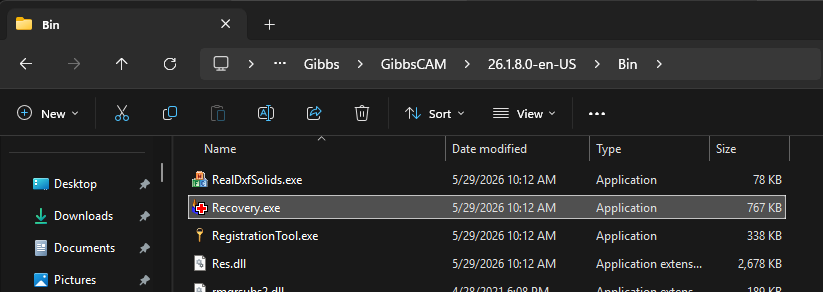
Launch the Recovery Tool for your installed version of GibbsCAM.
Allow the tool to complete.
Restart GibbsCAM.
Expected Result
If the problem was caused by corrupted user preferences, GibbsCAM starts successfully.
Note: The Recovery Tool resets GibbsCAM user preferences to their default settings.
Step 3 – Repair the GibbsCAM Installation
Repair the installation using Windows.
Open Settings > Apps > Installed Apps (or Programs and Features on older versions of Windows).
Select GibbsCAM.
Choose Modify or Repair (if available).

Select Repair.
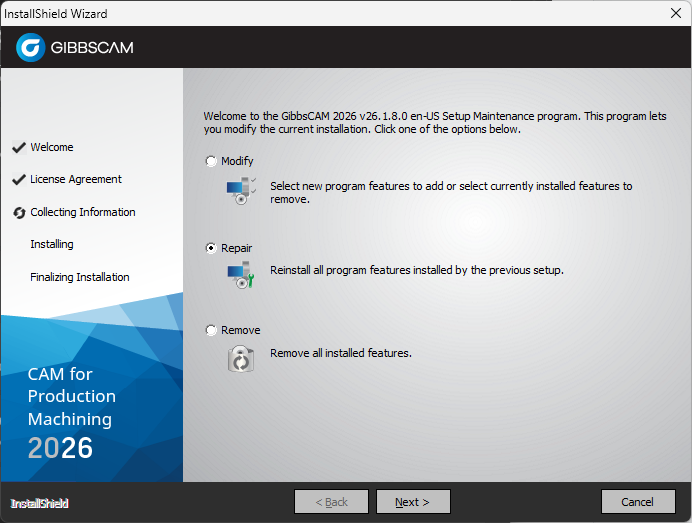
Complete the repair process.
Restart the computer.
Expected Result
Any missing or damaged program files are restored.
Step 4 – Perform a Clean Reinstallation
If repairing the installation does not resolve the problem:
Uninstall GibbsCAM.
Delete the User Preferences folder located in:
%APPDATA% \Gibbs\GibbsCAM\<version>
C:\Users\<username>\AppData\Roaming\Gibbs\GibbsCAM\<version>Restart Windows.
Temporarily disable antivirus or endpoint security software (if permitted by your IT department).
Reinstall GibbsCAM using the latest installation media.
Restart the computer after installation.
Important: Do not run the Migration Tool until you have confirmed that GibbsCAM starts successfully.
Expected Result
GibbsCAM launches without displaying the error.
Step 5 – Verify Antivirus or Endpoint Security Software
Some security applications can prevent GibbsCAM from accessing or registering required program files.
If your organization uses endpoint protection software:
Verify that GibbsCAM has not been quarantined.
Restore any blocked files.
Configure exclusions for the GibbsCAM installation folder if recommended by your IT department.
Expected Result
GibbsCAM is able to access all required program resources during startup.
Expected Result
GibbsCAM starts normally without displaying the "UseResFileCk = -193" error.
Additional Information
Common Causes
The UseResFileCk = -193 error is typically associated with one of the following:
Corrupted or missing program resource files.
An incomplete GibbsCAM installation.
Antivirus or endpoint security software blocking application files.
Insufficient Windows permissions.
Disk or file system corruption.
If the Problem Persists
If the error continues after completing the procedures above:
Verify that Windows is fully updated.
Run the Windows System File Checker (SFC) and DISM utilities.
Confirm that your installation media is not damaged.
Contact CAMCO Technical Support if the error persists after a clean installation.
Related Articles
- Troubleshooting GibbsCAM Crashes, Freezes, or Unexpected Closures
- Run Windows System File Checker (SFC) and DISM Repair
- How to Reset GibbsCAM to the Default Settings
- How to Install GibbsCAM
Explore More from CAMCO
Visit the CAMCO website to learn more about:
Technical & Post Support
- Downloads & Helpful Resources
Keywords
UseResFileCk, UseResFileCk = -193, -193, Startup Error, Launch Error, Resource File, Installation Error, Repair Installation, Recovery Tool, GibbsCAM Won't Start