
Summary
If GibbsCAM displays Application Error 0xC0150004 during installation or startup, Windows is unable to load one or more required runtime components or Dynamic Link Library (DLL) files.
This error is typically caused by corrupted Windows system files, missing runtime components, incomplete Windows updates, or security software preventing the application from installing or loading required files.
This article outlines the recommended troubleshooting steps to restore the required Windows components and successfully install or launch GibbsCAM.
Table of Contents
Procedure
Step 1 – Run the Windows DISM Repair Tool
Corrupted Windows component files are one of the most common causes of this error.
Open the Start menu.
Search for Command Prompt.
Right-click Command Prompt and select Run as administrator.
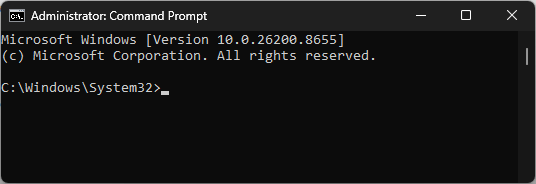
Run the following commands one at a time, pressing Enter after each command:
DISM /Online /Cleanup-Image /CheckHealth
DISM /Online /Cleanup-Image /ScanHealth
DISM /Online /Cleanup-Image /RestoreHealth
Allow each command to complete before running the next one.
Restart the computer.
Expected Result
Windows repairs any damaged component store files required by GibbsCAM and other applications.
Step 2 – Run System File Checker (SFC)
After DISM completes successfully:
Open Command Prompt as Administrator.
Run:
sfc /scannow
Wait for the scan to complete.
Restart the computer if repairs were made.
Expected Result
Windows repairs any remaining corrupted operating system files.
Step 3 – Install All Windows Updates
Incomplete Windows updates can leave required runtime components missing.
Open Settings > Windows Update.
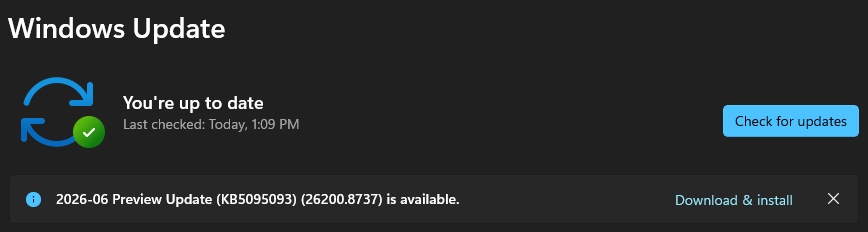
Select Check for Updates.
Install all available updates.
Restart the computer.
Repeat until Windows reports there are no remaining updates.
Note: Windows updates are often installed in multiple stages and may require several restart cycles.
Expected Result
Windows is fully updated.
Step 4 – Temporarily Disable Security Software
Some antivirus or endpoint security products can prevent installers from copying required files.
If permitted by your organization's IT policies:
Temporarily disable antivirus or endpoint security software.
Install or launch GibbsCAM again.
Re-enable security software immediately after testing.
Important: If the software installs successfully after disabling security software, consider adding exclusions for the GibbsCAM installation directory rather than leaving protection disabled.
Expected Result
GibbsCAM installs or launches successfully.
Step 5 – Test the Installation in Safe Mode
If security software or third-party services continue to interfere with installation:
Restart Windows into Safe Mode.
Run the GibbsCAM installer.
Restart Windows normally after installation.
Expected Result
The installation completes without interference from third-party software.
Step 6 – Repair or Reinstall GibbsCAM
If the error persists:
Uninstall GibbsCAM.
Restart the computer.
Verify Windows has completed all updates.
Install the latest supported version of GibbsCAM.
Do not migrate user settings until you have confirmed that GibbsCAM launches successfully.
Expected Result
GibbsCAM installs and launches normally.
Expected Result
GibbsCAM installs and launches without displaying Application Error 0xC0150004.
Additional Information
Common Causes
Application Error 0xC0150004 is commonly associated with:
Corrupted Windows component store.
Missing or corrupted DLL files.
Incomplete Windows updates.
Security software blocking installation files.
Damaged Microsoft runtime components.
Corrupted GibbsCAM installation.
Best Practices
Keep Windows fully updated.
Run DISM and SFC before reinstalling Windows.
Install GibbsCAM using an Administrator account.
Temporarily disable endpoint protection only when permitted by your organization's IT policies.
Restart Windows after completing major updates before installing GibbsCAM.
Troubleshooting
Problem: The installer continues to fail with Application Error 0xC0150004.
Possible Causes
Corrupted Windows component store.
Security software blocking installation files.
Resolution
Run the DISM and SFC repair tools, verify Windows is fully updated, and temporarily disable antivirus software during installation if permitted.
Problem: The error occurs after installation instead of during installation.
Possible Causes
Missing Windows runtime components.
Corrupted application files.
Resolution
Repair the GibbsCAM installation and rerun the Windows DISM and SFC utilities.
Problem: The error persists after reinstalling GibbsCAM.
Possible Causes
Operating system corruption.
Third-party software conflict.
Resolution
Perform a Clean Boot or Safe Mode installation. If the issue continues, contact CAMCO Technical Support.
Related Articles
- Run Windows System File Checker (SFC) and DISM Repair
- Troubleshooting GibbsCAM Crashes, Freezes, or Unexpected Closures
- Error: Exception Code 0xC0000005 (Access Violation)
- Error: Exception Code 0xE06D7363 or 0xE0434352
- How to Install GibbsCAM
Explore More from CAMCO
Visit the CAMCO website to learn more about:
Technical & Post Support
- Downloads & Helpful Resources
Keywords
0xC0150004, Application Error, DLL Error, Missing DLL, DISM, SFC, Windows Component Store, Installation Error, Runtime Error, Windows Update