
Summary
If GibbsCAM displays Application Error 0xC0000045 during startup or operation, Windows has encountered an application failure that prevented the program from launching or continuing to run.
This error is not specific to GibbsCAM and is typically caused by operating system issues such as corrupted system files, damaged device drivers, third-party software interference, malware, or Windows updates. In some cases, a damaged GibbsCAM installation can also contribute to the problem.
This article provides recommended troubleshooting steps to identify and resolve the issue.
Table of Contents
Before You Begin
Important: This is a Windows application error rather than a GibbsCAM-specific error. The underlying cause is typically found within the operating system or supporting software.
Procedure
Step 1 – Repair or Reinstall GibbsCAM
Begin by verifying that the GibbsCAM installation is not damaged.
Open Settings > Apps.
Select GibbsCAM.

Choose Modify > Repair.
If the problem persists, uninstall GibbsCAM.
Restart the computer.
Install the latest supported version of GibbsCAM.
Do not migrate user settings until you have confirmed that the application launches successfully.
Expected Result
GibbsCAM installs and launches normally.
Step 2 – Scan the Computer for Malware
Malware and other unwanted software can interfere with Windows applications.
Run a full system scan using Microsoft Defender or your organization's approved antivirus software.
Remove any detected threats.
Restart the computer.
Expected Result
The system is confirmed free of malware or unwanted software.
Step 3 – Install All Windows Updates
Microsoft regularly releases updates that resolve operating system issues affecting application compatibility.
Open Settings > Windows Update.
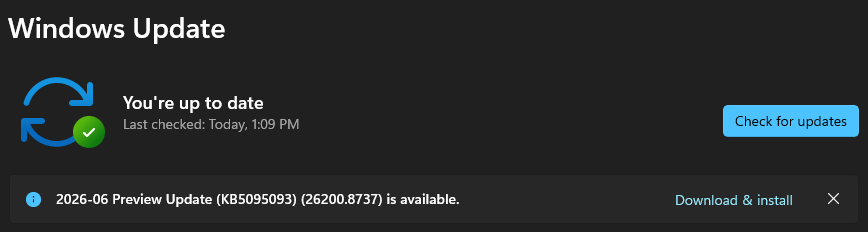
Select Check for Updates.
Install all available updates.
Restart the computer.
Repeat until Windows reports that no further updates are available.
Note: Windows updates are often delivered in multiple stages and may require several restart cycles.
Expected Result
Windows is fully updated.
Step 4 – Update the Graphics Driver
Outdated or corrupted graphics drivers can cause application startup failures.
Open Display Settings.
Select Advanced Display.
Open Display Adapter Properties.
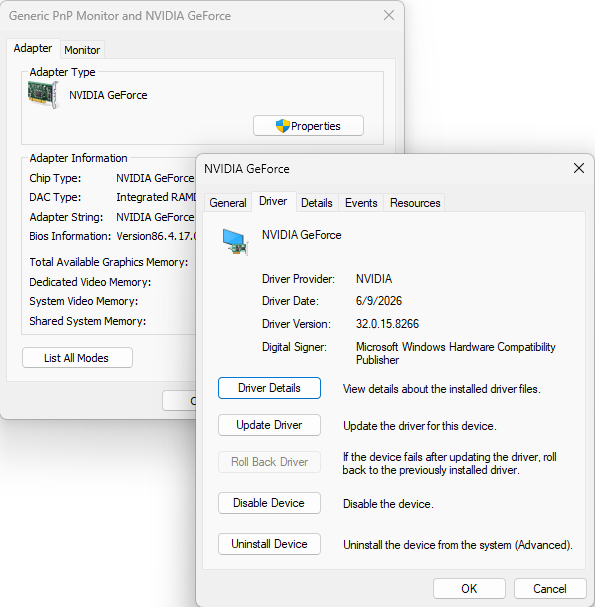
Verify the graphics adapter.
A supported NVIDIA or AMD dedicated graphics adapter is recommended.
If necessary:
Download the latest graphics driver directly from the graphics card manufacturer.
Install the updated driver.
Restart Windows.
Expected Result
The graphics subsystem loads correctly and GibbsCAM launches successfully.
Step 5 – Run Windows System File Checker (SFC) and DISM
Corrupted Windows system files can also generate application errors.
Open Command Prompt as Administrator.
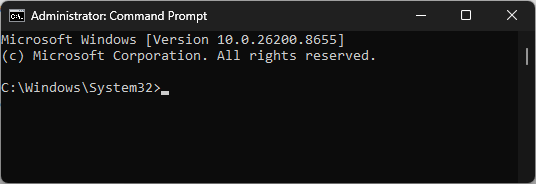
Run:
sfc /scannow
If Windows reports files that cannot be repaired, run the DISM repair procedure described in the Windows System File Checker (SFC) and DISM Repair article.
Restart the computer.
Expected Result
Corrupted Windows system files are repaired.
Step 6 – Perform a Windows Reset (Last Resort)
If all previous troubleshooting steps have failed and multiple applications are experiencing similar issues, Windows itself may be damaged.
Use the Windows Reset this PC feature to reinstall Windows while preserving personal files, if appropriate for your organization's policies.
Important: Consult your IT department before resetting a managed workstation.
Expected Result
Windows is restored to a healthy operating state.
Expected Result
GibbsCAM launches successfully without displaying Application Error 0xC0000045.
Additional Information
Common Causes
Application Error 0xC0000045 may be caused by:
Corrupted Windows system files.
Damaged or outdated graphics drivers.
Malware or potentially unwanted software.
Third-party security software conflicts.
Corrupted Windows updates.
Damaged GibbsCAM installation.
Operating system corruption.
Best Practices
Keep Windows fully updated.
Install graphics drivers directly from NVIDIA or AMD.
Regularly scan the computer for malware.
Run SFC and DISM periodically to verify Windows integrity.
Install GibbsCAM using an Administrator account.
Note: Earlier documentation sometimes attributed this error to "registry corruption" or an "overloaded registry." Modern versions of Windows manage the registry differently, and registry corruption is rarely the root cause. Focus on repairing Windows system files, updating drivers, and eliminating software conflicts before considering more invasive troubleshooting.
Troubleshooting
Problem: The error only occurs in GibbsCAM.
Possible Causes
Damaged GibbsCAM installation.
Corrupted user preferences.
Resolution
Repair or reinstall GibbsCAM and, if necessary, run the GibbsCAM Recovery Tool.
Problem: Multiple applications display similar errors.
Possible Causes
Windows system corruption.
Malware.
Faulty Windows update.
Resolution
Run SFC and DISM, install all Windows updates, perform a malware scan, and verify system stability.
Problem: The error began after installing a new driver.
Possible Causes
Driver incompatibility.
Resolution
Roll back or update the affected driver and test the application again.
Related Articles
- Run Windows System File Checker (SFC) and DISM Repair
- Troubleshooting GibbsCAM Crashes, Freezes, or Unexpected Closures
- Error: Application Error 0xC0150004
- Error: Exception Code 0xC0000005 (Access Violation)
- How to Reset GibbsCAM to the Default Settings
Explore More from CAMCO
Visit the CAMCO website to learn more about:
Technical & Post Support
- Downloads & Helpful Resources
Keywords
0xC0000045, Application Error, Startup Error, Windows Error, Graphics Driver, Malware, Windows Update, SFC, DISM, System Repair