
Summary
If GibbsCAM displays an error indicating that MFC140U.dll or MSVCP140.dll is missing or could not be found, the Microsoft Visual C++ 2015–2022 Redistributable is either missing, corrupted, or was not installed correctly.
These DLL files are part of Microsoft's Visual C++ Runtime Library and are required for GibbsCAM to start. The issue can also occur if antivirus or endpoint security software prevents the runtime components from being installed.
This article explains how to restore the required Microsoft runtime components.
Important: Do not download individual DLL files from third-party websites. Always install the official Microsoft Visual C++ Redistributable package.
Table of Contents
Symptoms
You may experience one or more of the following:
Windows reports MFC140U.dll is missing.
Windows reports MSVCP140.dll is missing.
GibbsCAM will not start.
Procedure
Step 1 – Reinstall the Microsoft Visual C++ Redistributable
The most common cause of these errors is a damaged Microsoft Visual C++ runtime installation.
Open Settings > Apps.
Locate any installed versions of Microsoft Visual C++ v14 Redistributable.
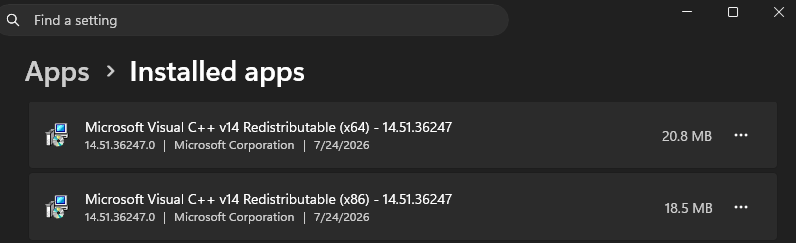
Uninstall the redistributable package(s).
Restart the computer.
Reinstall the latest supported Microsoft Visual C++ Redistributable.
Latest Supported Visual C++ Redistributable Downloads | Microsoft Learn
Expected Result
The required runtime libraries, including MFC140U.dll and MSVCP140.dll, are restored.
Step 2 – Reinstall GibbsCAM
After reinstalling the Microsoft runtime:
Launch the GibbsCAM installer.
Allow the installer to complete.
Restart the computer if prompted.
Launch GibbsCAM.
The installer will verify that all required runtime components are present.
Expected Result
GibbsCAM launches without displaying DLL errors.
Step 3 – Replace a Corrupted MSVCP140.dll File (If Necessary)
If reinstalling the Visual C++ Redistributable does not resolve the problem, the existing DLL file may be corrupted.
Open:
C:\Windows\System32
Locate:
MSVCP140.dll
Rename the file to:
MSVCP140_OLD.dll
Run the GibbsCAM installer again or reinstall the Microsoft Visual C++ Redistributable.
Important: Administrator privileges are required to rename files within the Windows System32 directory.
Expected Result
A new copy of the DLL is installed.
Step 4 – Temporarily Disable Security Software
Some antivirus and endpoint protection products can prevent Microsoft runtime files from being installed correctly.
If permitted by your organization's IT policies:
Temporarily disable antivirus or endpoint security software.
Reinstall the Microsoft Visual C++ Redistributable.
Latest Supported Visual C++ Redistributable Downloads | Microsoft LearnReinstall GibbsCAM.
Re-enable your security software immediately after testing.
If this resolves the issue, configure an exclusion for the GibbsCAM installer and installation directory.
Expected Result
The runtime files install successfully.
Step 5 – Install Windows Updates
Microsoft runtime libraries are updated through Windows Update.
Open Settings > Windows Update.
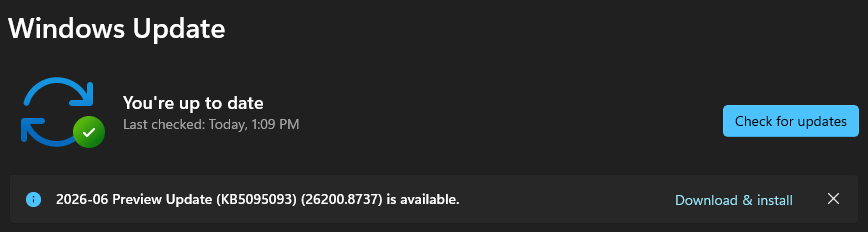
Select Check for Updates.
Install all available updates.
Restart the computer.
Repeat until no further updates are available.
Expected Result
Windows installs the latest runtime and security updates.
Step 6 – Run Windows System File Checker (SFC)
If DLL errors continue after reinstalling the runtime:
Open Command Prompt as Administrator.
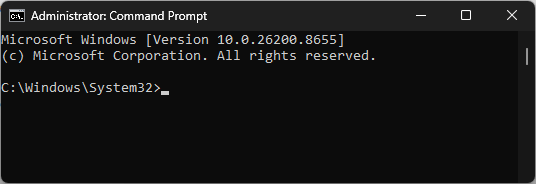
Run:
sfc /scannow
Allow the scan to complete.
Restart Windows.
If Windows reports files that cannot be repaired, perform the DISM repair procedure described in the Windows System File Checker (SFC) and DISM Repair article.
Expected Result
Corrupted Windows system files are repaired.
Expected Result
GibbsCAM launches successfully without reporting MFC140U.dll, MSVCP140.dll, or related Microsoft Visual C++ runtime errors.
Additional Information
Common Causes
DLL errors involving MFC140U.dll or MSVCP140.dll are commonly caused by:
Corrupted Microsoft Visual C++ Redistributable installation.
Incomplete GibbsCAM installation.
Antivirus or endpoint security software blocking runtime installation.
Corrupted Windows system files.
Interrupted Windows updates.
Best Practices
Always install Microsoft Visual C++ Redistributables from Microsoft.
Keep Windows fully updated.
Install GibbsCAM using an Administrator account.
Avoid downloading DLL files individually from unofficial websites.
Configure antivirus exclusions if endpoint protection interferes with installation.
Troubleshooting
Problem: The DLL error appears immediately after installing GibbsCAM.
Possible Causes
Microsoft Visual C++ Redistributable failed to install.
Security software blocked installation.
Resolution
Reinstall the Visual C++ Redistributable and temporarily disable security software during installation if permitted.
Problem: Reinstalling the runtime does not resolve the error.
Possible Causes
Corrupted Windows system files.
Damaged DLL already exists in the Windows System directory.
Resolution
Rename the existing DLL (if appropriate), reinstall the Visual C++ Redistributable, and run SFC/DISM.
Problem: Multiple applications report missing MFC140U.dll or MSVCP140.dll.
Possible Causes
Corrupted Microsoft runtime installation.
Windows system corruption.
Resolution
Repair the Microsoft Visual C++ Redistributable and verify Windows integrity using SFC and DISM.
Related Articles
- Run Windows System File Checker (SFC) and DISM Repair
- Error: Application Error 0xC0150002
- Error: Application Error 0xC0150004
- How to Install GibbsCAM
- Troubleshooting GibbsCAM Crashes, Freezes, or Unexpected Closures
Explore More from CAMCO
Visit the CAMCO website to learn more about:
Technical & Post Support
- Downloads & Helpful Resources
Keywords
MFC140U.dll, MSVCP140.dll, Missing DLL, Visual C++, Microsoft Visual C++ Redistributable, Runtime Error, DLL Error, Application Failed to Start, Windows Runtime