
Summary
If GibbsCAM displays an error similar to:
Unhandled Exception
An entry with the same key already exists.
MPDCDTab.Setup(MPSolutionManager mgr)
the software has encountered duplicate data while initializing the Multi-Part (MP) environment. This typically indicates that duplicate Multi-Part solution data, a conflicting custom plug-in or macro, or corrupted user configuration files are preventing GibbsCAM from completing startup or loading the part.
This article outlines the recommended troubleshooting steps to identify and resolve the issue.
Table of Contents
Before You Begin
Important: This error is most commonly associated with Multi-Part functionality or custom extensions. Before making changes, determine whether the error occurs with a single part file or with every GibbsCAM session.
Symptoms
You may experience one or more of the following:
GibbsCAM displays the error:
Unhandled Exception – An entry with the same key already exists
MPDCDTab.Setup(MPSolutionManager mgr)
GibbsCAM crashes while opening a Multi-Part file.
GibbsCAM crashes during startup.
The error only occurs with one specific part.
The error began after installing a custom plug-in or macro.
Procedure
Step 1 – Determine Whether the Issue Is Part-Specific
First, determine whether the error occurs with:
Only one GibbsCAM part, or
Every part you attempt to open.
If only one part produces the error, the part's Multi-Part data may be corrupted.
If every part produces the error, continue with the remaining troubleshooting steps.
Expected Result
You have identified whether the issue is isolated to a specific part or affects the entire installation.
Step 2 – Disable Custom Plug-ins and Macros
Custom plug-ins or macros may attempt to register duplicate Multi-Part objects during startup.
Close GibbsCAM.
Temporarily remove or disable any custom plug-ins.
Temporarily disable any custom macros or third-party extensions.
Restart GibbsCAM.
If the error no longer occurs, restore the custom components one at a time until the conflicting extension is identified.
Expected Result
GibbsCAM launches normally if a custom extension was responsible.
Step 3 – Run the GibbsCAM Recovery Tool
Corrupted user configuration files can also generate duplicate object registration errors.
Close GibbsCAM.
Launch the Recovery Tool for your installed version from the Windows Start menu.
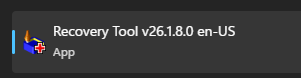
Alternatively, run the tool directly from:
C:\Program Files\Gibbs\GibbsCAM\<version>\Bin\Recovery Tool.exe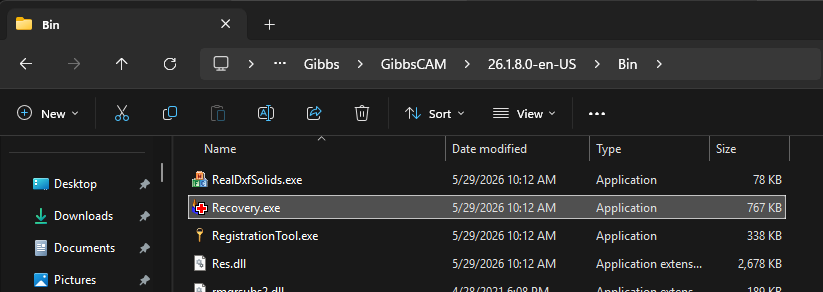
Allow the utility to reset GibbsCAM user preferences.
Restart GibbsCAM.
Expected Result
Corrupted user configuration files are reset to their default values.
Step 4 – Update GibbsCAM
Install the latest maintenance release available for your supported version of GibbsCAM.
https://online.gibbscam.com/software_downloads.php
Software updates frequently include fixes for stability issues involving Multi-Part functionality.
Expected Result
Known software defects are corrected.
Step 5 – Install All Windows Updates
Ensure Windows is fully updated.
Open Settings > Windows Update.
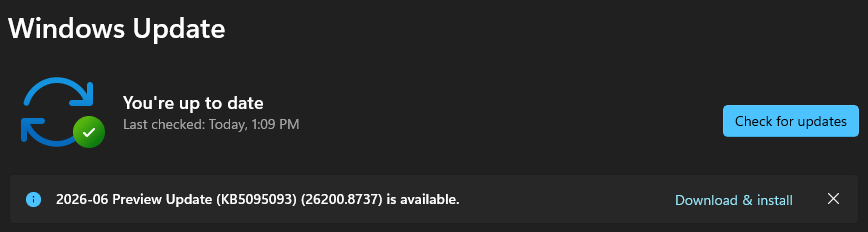
Select Check for Updates.
Install all available updates.
Restart the computer.
Repeat until Windows reports no further updates are available.
Note: Some Windows updates require multiple restart cycles before all components are installed.
Expected Result
Windows is fully updated.
Step 6 – Perform a Clean Reinstallation (If Necessary)
If the issue continues after completing the previous steps:
Close GibbsCAM.
Delete the GibbsCAM User Preferences folder:
C:\Users\<username>\AppData\Roaming\Gibbs\GibbsCAM\<version>
Uninstall GibbsCAM.
Restart Windows.
Reinstall the latest supported version.
Do not run the Migration Tool until the software has been verified to function correctly.
Expected Result
A clean installation eliminates corrupted configuration files that could be causing duplicate entries.
Expected Result
GibbsCAM opens successfully without displaying the "An entry with the same key already exists" exception.
Additional Information
Common Causes
This exception is commonly associated with:
Duplicate Multi-Part solution data.
Corrupted Multi-Part configuration.
Conflicting custom plug-ins.
Conflicting macros.
Corrupted user preference files.
Outdated GibbsCAM builds.
Because the exception references MPDCDTab.Setup(MPSolutionManager mgr), it generally indicates a problem while initializing the Multi-Part solution manager.
Best Practices
Keep GibbsCAM updated to the latest supported maintenance release.
Test custom plug-ins after software upgrades.
Only install trusted third-party extensions.
Back up custom configurations before installing updates.
Run the Recovery Tool before performing a complete reinstall.
Troubleshooting
Problem: The error occurs with only one part.
Possible Causes
Corrupted Multi-Part data within that part.
Resolution
Test with another part. If only one file is affected, recreate or repair the Multi-Part setup for that file if possible.
Problem: The error occurs during every GibbsCAM startup.
Possible Causes
Corrupted user preferences.
Conflicting plug-ins.
Duplicate initialization data.
Resolution
Run the Recovery Tool and temporarily remove all custom plug-ins and macros.
Problem: The error appeared after installing a custom extension.
Possible Causes
Duplicate object registration by the extension.
Resolution
Disable the extension and contact its developer for an updated version compatible with your GibbsCAM release.
Related Articles
- How to Reset GibbsCAM to the Default Settings
- How to Transfer User Settings Between Workstations
- Troubleshooting GibbsCAM Crashes, Freezes, or Unexpected Closures
- Error: Unhandled Exception – Error in XML Document (0,0)
Explore More from CAMCO
Visit the CAMCO website to learn more about:
Technical & Post Support
- Downloads & Helpful Resources
Keywords
Unhandled Exception, An entry with the same key already exists, MPDCDTab.Setup, MPSolutionManager, Multi-Part, Multipart, Duplicate Key, Plug-in, Macro, Crash on Startup