
Summary
Graphical issues in GibbsCAM can include display corruption, missing or flickering geometry, black or blank viewports, screen artifacts, slow redraw performance, or unexpected behavior when rotating or zooming a model.
Most graphical problems are related to the workstation's graphics hardware, graphics driver, Windows display settings, or remote desktop environment rather than GibbsCAM itself.
This article provides a systematic approach to diagnosing and resolving common graphics-related issues.
Table of Contents
Symptoms
You may experience one or more of the following:
Display corruption or graphical artifacts.
Missing or invisible geometry.
Black or blank graphics window.
Flickering geometry.
Slow screen redraws.
Crashes while rotating, zooming, or panning.
Toolpaths or solid models display incorrectly.
User interface elements render incorrectly.
Procedure
Step 1 – Verify the Graphics Hardware
GibbsCAM requires a dedicated graphics processor.
Open Settings > System > Display.

Select Advanced Display.
Open Display Adapter Properties.
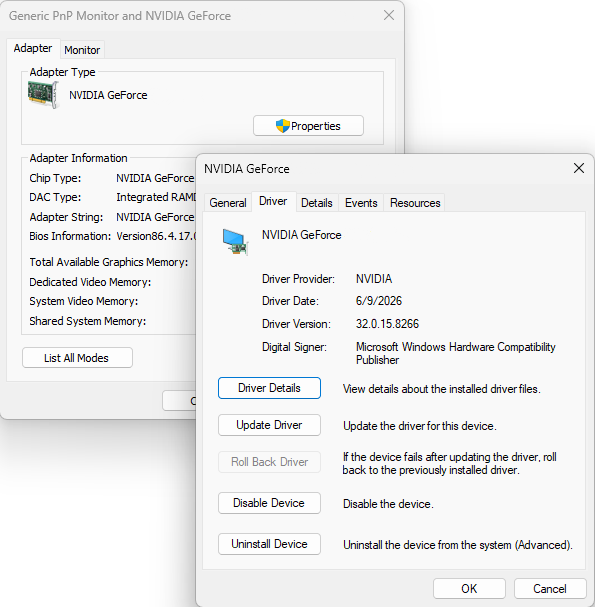
Verify the installed graphics adapter.
Supported graphics hardware should be a dedicated:
NVIDIA GPU
AMD GPU
If Windows reports an Intel integrated graphics adapter as the active device, GibbsCAM may not perform correctly.
Expected Result
GibbsCAM is using a supported dedicated graphics processor.
Step 2 – Update the Graphics Driver
Outdated or corrupted graphics drivers are the most common cause of display issues.
Determine the graphics card manufacturer.
Download the latest certified driver directly from:
NVIDIA
AMD
Install the updated driver.
Restart Windows.
Important: Avoid relying solely on Windows Update for graphics drivers. The manufacturer's latest driver is generally recommended.
Expected Result
Graphics rendering issues are resolved after the driver update.
Step 3 – Verify Windows Is Fully Updated
Graphics subsystem improvements are frequently included in Windows updates.
Open Settings > Windows Update.
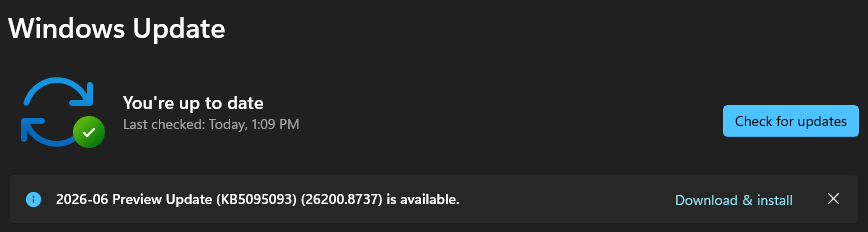
Select Check for Updates.
Install all available updates.
Restart the computer.
Repeat until Windows reports that no additional updates are available.
Expected Result
Windows graphics components are fully updated.
Step 4 – Verify Display Resolution and Scaling
Improper display settings can cause rendering or interface issues.
Verify that:
The monitor is using its Recommended resolution.
Windows display scaling is set to an appropriate value.
Text scaling has not been excessively increased.
If using multiple monitors, test GibbsCAM using only the primary display.
Expected Result
The interface displays correctly.
Step 5 – Disconnect Remote Desktop or Docking Stations
Some remote access applications and docking stations may prevent GibbsCAM from accessing the dedicated graphics processor.
If using:
Windows Remote Desktop (RDP)
Third-party remote desktop software
USB docking stations
Display adapters
Disconnect the remote session or docking station and test locally.
Expected Result
Graphics performance returns to normal.
Step 6 – Run the GibbsCAM Recovery Tool
Corrupted user interface preferences can occasionally produce display problems.
Close GibbsCAM.
Launch the Recovery Tool for your installed version from the Windows Start menu.
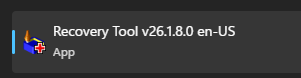
Alternatively, run the tool directly from:
C:\Program Files\Gibbs\GibbsCAM\<version>\Bin\Recovery Tool.exe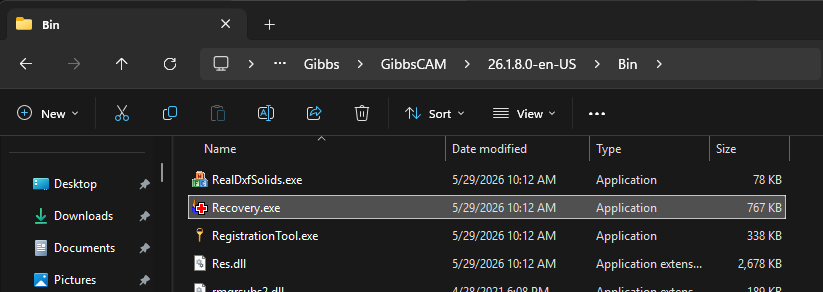
Restart GibbsCAM.
Note: The Recovery Tool resets GibbsCAM user preferences to their default settings.
Expected Result
Display configuration files are reset.
Step 7 – Test with a New Part
Determine whether the issue is limited to one file.
Open a new blank part.
Open another known-good part.
If only one file exhibits graphical issues, the original part may be corrupted.
Expected Result
You determine whether the problem is file-specific or system-wide.
Step 8 – Repair or Reinstall GibbsCAM
If all previous troubleshooting steps have been completed:
Repair the GibbsCAM installation.
If necessary:
Uninstall GibbsCAM.
Delete the User Preferences folder.
Restart Windows.
Reinstall GibbsCAM.
Do not run the Migration Tool until normal operation has been verified.
Expected Result
GibbsCAM installs with a clean configuration.
Expected Result
Graphics display normally without artifacts, missing geometry, flickering, or display corruption.
Additional Information
Common Causes
Graphical issues are commonly caused by:
Outdated graphics drivers.
Unsupported integrated graphics hardware.
Windows display scaling issues.
Corrupted user preferences.
Remote Desktop sessions.
Docking stations or USB display adapters.
Corrupted part files.
Damaged GibbsCAM installation.
Best Practices
Use a dedicated NVIDIA or AMD graphics adapter.
Keep graphics drivers current.
Install Windows updates regularly.
Use the monitor's recommended native resolution.
Avoid running GibbsCAM on unsupported integrated graphics whenever possible.
Test locally before troubleshooting remote graphics issues.
Troubleshooting
Problem: Geometry flickers or disappears.
Possible Causes
Outdated graphics driver.
Unsupported graphics hardware.
Resolution
Update the graphics driver and verify that GibbsCAM is using a dedicated GPU.
Problem: Only one part displays graphical problems.
Possible Causes
Corrupted part file.
Resolution
Test with another part. If the issue is isolated, recreate or repair the affected file.
Problem: The interface appears distorted or text is clipped.
Possible Causes
Windows display scaling.
High-DPI display settings.
Resolution
Verify Windows display scaling and monitor resolution.
Problem: Graphics problems only occur during Remote Desktop sessions.
Possible Causes
Remote session is using Microsoft's virtual graphics adapter.
Integrated graphics are being used instead of the dedicated GPU.
Resolution
Test locally and review the recommendations in Using GibbsCAM Remotely with Windows RDP.
Related Articles
- Troubleshooting GibbsCAM Crashes, Freezes, or Unexpected Closures
- Error: LoadLibrary Failed with Error 126
- Error: LoadLibrary Failed with Error 87
- Text Does Not Fit in GibbsCAM Dialog Windows
- Using GibbsCAM Remotely with Windows Remote Desktop (RDP)
- How to Reset GibbsCAM to the Default Settings
Explore More from CAMCO
Visit the CAMCO website to learn more about:
Technical & Post Support
- Downloads & Helpful Resources
Keywords
Graphics, Display Issues, Rendering, Artifacts, Flickering, Missing Geometry, Black Screen, Viewport, Graphics Driver, NVIDIA, AMD, GPU, Display Scaling, Remote Desktop