
Summary
If GibbsCAM displays the error "LoadLibrary failed with error 87: The parameter is incorrect." during startup, Windows was unable to initialize a required graphics library.
This error is most commonly associated with outdated or incompatible graphics drivers, Windows updates that have not been fully applied, graphics driver conflicts, docking stations, or Remote Desktop sessions.
This article outlines the recommended troubleshooting steps to resolve the issue.
Table of Contents
Symptoms
You may experience one or more of the following:
GibbsCAM displays "LoadLibrary failed with error 87" during startup.
GibbsCAM immediately closes after the error appears.
The error occurs after updating graphics drivers or Windows.
The error only occurs while using a docking station.
The error only occurs during a Remote Desktop session.
Procedure
Step 1 – Install All Windows Updates
Windows updates are often released in multiple stages. Installing all available updates can resolve graphics compatibility issues.
Open Settings > Windows Update.
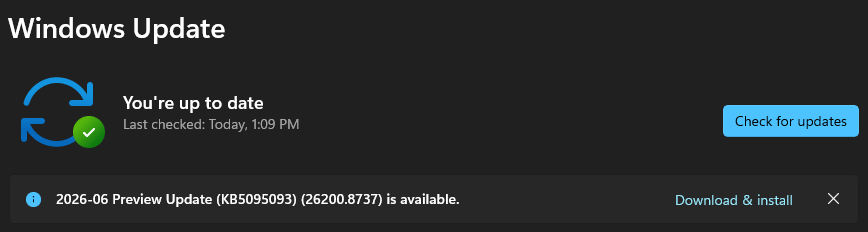
Select Check for Updates.
Install all available updates.
Restart the computer if prompted.
Repeat the process until Windows reports that no further updates are available.
Note: If your organization manages Windows updates, contact your IT administrator if updates cannot be installed.
Expected Result
Windows is fully updated with the latest system components.
Step 2 – Verify the Graphics Adapter and Driver
Outdated graphics drivers are one of the most common causes of this error.
Open Display Settings.
Select Advanced Display.
Open Display Adapter Properties.
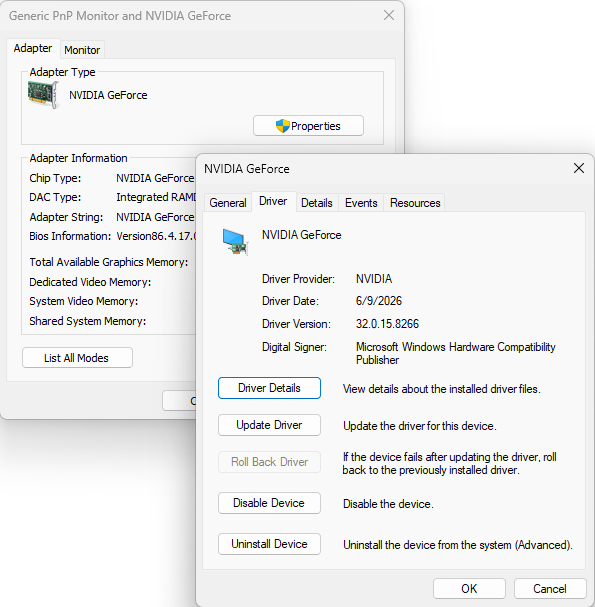
Verify the Adapter Type.
GibbsCAM is designed to run on a supported NVIDIA or AMD dedicated graphics adapter.
If the system is using Intel integrated graphics, verify that the dedicated graphics card is enabled and being used.
Next:
Select Properties.
Open the Driver tab.
Review the Driver Date.
If the driver is outdated, download and install the latest version directly from the graphics card manufacturer.
Expected Result
The system is running a current, supported graphics driver.
Step 3 – AMD Graphics Driver Workaround
If the latest AMD graphics driver does not resolve the issue, an earlier driver version may be more compatible with your system.
If instructed by CAMCO Technical Support:
Open the Windows Start menu.
Search for:
atig6pxx.dll
Right-click the file and select Open File Location.
The file is typically located in:
C:\Windows\System32
Rename:
atig6pxx.dll
to
atig6pxx.dll.bak
Approve the Windows security prompt if prompted.
Restart the computer.
Test GibbsCAM again.
Important: Renaming Windows system files should only be performed if recommended by CAMCO Technical Support or your IT department.
Expected Result
The graphics library initializes successfully.
Step 4 – Test Without a Docking Station
Docking stations can introduce graphics driver conflicts, particularly when external monitors are connected.
Disconnect the laptop from the docking station.
Restart the computer.
Launch GibbsCAM before reconnecting the docking station.
If this resolves the issue:
Check for firmware updates for the docking station.
Install the latest graphics drivers.
Install any available BIOS updates from the computer manufacturer.
Expected Result
GibbsCAM launches successfully without the docking station connected.
Step 5 – Verify Remote Desktop Configuration
If the error only occurs while connected through Windows Remote Desktop (RDP):
Verify that the session is using the dedicated graphics adapter.
Update the graphics drivers on the remote workstation.
Test launching GibbsCAM directly from the workstation.
Expected Result
The error no longer occurs during remote sessions.
Expected Result
GibbsCAM launches successfully without displaying the "LoadLibrary failed with error 87" message.
Additional Information
Common Causes
This error is commonly caused by:
Outdated graphics drivers.
Corrupted graphics drivers.
Windows updates that have not been fully installed.
AMD graphics driver compatibility issues.
Laptop docking stations.
Remote Desktop graphics initialization.
Incorrect graphics adapter selection.
Best Practices
Keep Windows fully updated.
Install graphics drivers directly from NVIDIA or AMD.
Keep docking station firmware up to date.
Use the dedicated graphics adapter whenever possible.
Verify BIOS and chipset drivers are current on laptop systems.
Troubleshooting
Problem: The error only occurs while connected to a docking station.
Possible Causes
Docking station graphics or firmware incompatibility.
Resolution
Disconnect the docking station, restart the computer, and verify whether GibbsCAM launches normally. Update the docking station firmware if necessary.
Problem: The error began after updating the graphics driver.
Possible Causes
The installed graphics driver is incompatible with the system.
Resolution
If using an AMD graphics adapter, test an earlier driver version. Contact CAMCO Technical Support before modifying Windows system files.
Problem: The error only occurs during Remote Desktop sessions.
Possible Causes
Windows Remote Desktop is not initializing the dedicated graphics adapter.
Resolution
Verify that the remote workstation is using the dedicated graphics processor and test running GibbsCAM locally.
Related Articles
- Error: LoadLibrary Failed with Error 126
- Error: LoadLibrary Failed With Error 1114
- Using GibbsCAM Remotely with Windows Remote Desktop (RDP)
- Troubleshooting GibbsCAM Crashes, Freezes, or Unexpected Closures
- Run Windows System File Checker (SFC) and DISM Repair
- Hardware and System Requirements
Explore More from CAMCO
Visit the CAMCO website to learn more about:
Technical & Post Support
- Downloads & Helpful Resources
Keywords
LoadLibrary Failed, LoadLibrary Error 87, Error 87, The Parameter Is Incorrect, Graphics Driver, AMD, NVIDIA, Docking Station, Remote Desktop, RDP, Atig6pxx.dll, GPU,