
Summary
If GibbsCAM displays the error:
Failed to load Adv3D.DLL
the application was unable to load one of its required program libraries during startup. This is typically caused by a missing or corrupted program file, an incomplete installation, or missing Microsoft Visual C++ runtime components.
This article explains the recommended steps to restore the required files and dependencies.
Table of Contents
Procedure
Step 1 – Install All Windows Updates
Missing Windows components can prevent required runtime libraries from loading.
Open Settings > Windows Update.
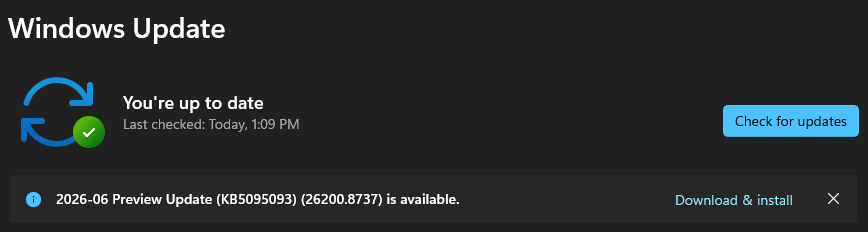
Select Check for Updates.
Install all available updates.
Restart the computer.
Repeat until Windows reports that no additional updates are available.
Expected Result
Windows is fully updated with the latest runtime and security components.
Step 2 – Install or Repair the Microsoft Visual C++ Redistributable
GibbsCAM depends on the Microsoft Visual C++ runtime libraries.
Download and install the latest supported Microsoft Visual C++ 2015–2022 Redistributable (x64).
Latest Supported Visual C++ Redistributable Downloads | Microsoft Learn
After installation:
Restart the computer.
Launch GibbsCAM again.
Expected Result
Required runtime components are restored.
Step 3 – Run the GibbsCAM Recovery Tool
If GibbsCAM previously launched successfully, corrupted user configuration files may be contributing to the issue.
Close GibbsCAM.
Launch the Recovery Tool for your installed version from the Windows Start menu.
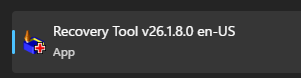
Alternatively, run the tool directly from:
C:\Program Files\Gibbs\GibbsCAM\<version>\Bin\Recovery Tool.exe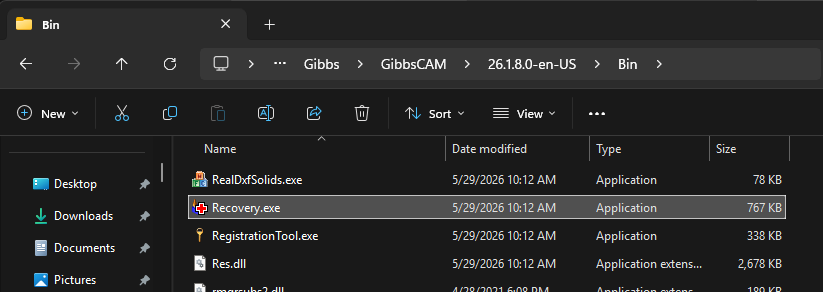
Restart GibbsCAM.
Expected Result
User configuration files are reset to their default values.
Step 4 – Perform a Clean Reinstallation
If the error persists, perform a clean reinstall.
Close GibbsCAM.
Delete the User Preferences folder:
C:\Users\<username>\AppData\Roaming\Gibbs\GibbsCAM\<version>
Uninstall GibbsCAM using Settings > Apps.

Restart the computer.
Temporarily disable antivirus or endpoint security software if permitted by your organization's IT policies.
Reinstall GibbsCAM.
Verify that the installation completes successfully.
Do not run the Migration Tool until GibbsCAM has been verified to launch normally.
Important: The Migration Tool can restore corrupted user settings into a new installation. Verify that the application operates correctly before migrating any previous settings.
Expected Result
All required program files, including Adv3D.DLL, are correctly installed.
Step 5 – Verify Security Software Is Not Blocking Installation
Some antivirus or endpoint protection products can quarantine or prevent DLL files from being installed.
If permitted by your organization's IT policies:
Review any recent security software detections.
Restore quarantined files if appropriate.
Add exclusions for the GibbsCAM installation directory before reinstalling.
Expected Result
Required program files are installed without interference.
Expected Result
GibbsCAM launches successfully without displaying the Failed to load Adv3D.DLL error.
Additional Information
Common Causes
This error is commonly caused by:
Missing Adv3D.DLL.
Corrupted GibbsCAM installation.
Missing Microsoft Visual C++ runtime libraries.
Interrupted installation.
Antivirus or endpoint security software blocking installation files.
Corrupted Windows runtime components.
Best Practices
Keep Windows fully updated.
Install the latest supported Microsoft Visual C++ Redistributable packages.
Temporarily disable endpoint protection during installation if approved by your IT department.
Verify GibbsCAM launches successfully before migrating previous user settings.
Keep endpoint security exclusions up to date for the GibbsCAM installation folder when appropriate.
Troubleshooting
Problem: The error appeared immediately after installation.
Possible Causes
Installation was interrupted.
Required runtime components were not installed.
Security software blocked installation files.
Resolution
Install the latest Visual C++ Redistributable and perform a clean reinstall.
Problem: The error persists after reinstalling.
Possible Causes
Corrupted Windows runtime files.
Antivirus quarantined Adv3D.DLL.
Windows system corruption.
Resolution
Review security software logs, perform Windows SFC/DISM repairs, and reinstall GibbsCAM.
Problem: The error began after a Windows update.
Possible Causes
Corrupted runtime libraries.
Missing Visual C++ components.
Resolution
Repair or reinstall the Microsoft Visual C++ Redistributable and verify Windows updates completed successfully.
Related Articles
- Error: MFC140U.dll or MSVCP140.dll Is Missing
- Run Windows System File Checker (SFC) and DISM Repair
- Troubleshooting GibbsCAM Crashes, Freezes, or Unexpected Closures
- Error: LoadLibrary Failed with Error 126
- Error: LoadLibrary Failed With Error 1114
- How to Reset GibbsCAM to the Default Settings
Explore More from CAMCO
Visit the CAMCO website to learn more about:
Technical & Post Support
- Downloads & Helpful Resources
Keywords
Adv3D.DLL, Failed to Load Adv3D.DLL, DLL Error, Startup Error, Visual C++, Redistributable, Missing DLL, Runtime Error, Application Startup, Installation Repair