
Summary
If GibbsCAM displays a Holder DB Error, the software is unable to access or initialize the Holder Database. This is typically caused by a missing, corrupted, or incompatible Windows component, corrupted user settings, or an installation issue.
In most cases, the issue can be resolved by updating Windows, repairing required Microsoft components, resetting the GibbsCAM user profile, or performing a clean reinstall of the software.
Table of Contents
Before You Begin
Before performing the troubleshooting steps:
Close GibbsCAM.
Ensure you have administrator rights on the computer.
Back up any custom User Preferences if they need to be preserved.
If your organization manages Windows updates or software deployments, coordinate with your IT department before removing Microsoft components.
Symptoms
You may experience one or more of the following:
GibbsCAM displays a Holder DB Error during startup.
GibbsCAM fails to launch.
The Holder Database cannot be accessed.
The error persists after reinstalling GibbsCAM.
Procedure
Step 1 – Update Windows
Outdated or missing Windows components are one of the most common causes of this error.
Open Settings > Windows Update.
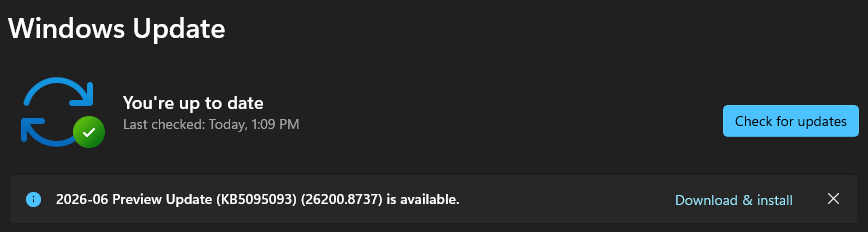
Select Check for Updates.
Install all available updates.
Restart the computer.
Repeat the update process until Windows reports that no further updates are available.
Note: Some organizations manage Windows updates centrally. If updates are controlled by your IT department, contact them for assistance.
Step 2 – Repair Microsoft Components
The Holder Database depends on Microsoft components that may become corrupted or incompatible.
If the issue persists:
Remove and reinstall the Microsoft .NET Framework 4 components.
Restart the computer.
Important: Only remove Microsoft components if you understand their impact or are working with your IT department, as other applications may depend on them.
Step 3 – Perform a Clean GibbsCAM Reinstallation
If Windows components are healthy, perform a complete reinstall of GibbsCAM.
Back up any custom settings if necessary.
Delete the User Preferences folder:
C:\Users\<username>\AppData\Roaming\Gibbs\GibbsCAM\<version>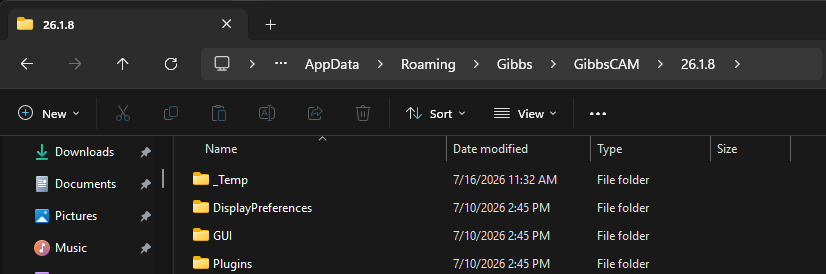
Uninstall GibbsCAM from Apps & Features (or Programs and Features).

Restart the computer.
Temporarily disable antivirus or endpoint security software during installation.
Reinstall GibbsCAM.
Do not run the Migration Tool during the reinstall, as it may restore corrupted settings.
Step 4 – Check for a Corrupted Windows User Profile
If the error continues after reinstalling GibbsCAM, the issue may be caused by a corrupted Windows user profile or registry settings.
Known cases have been resolved by creating or resetting the affected Windows user profile.
To verify:
Sign in with a different Windows user account, or create a new test profile.
Launch GibbsCAM.
If the error no longer occurs, the original Windows user profile is likely corrupted.
Cases have been traced to corruption within the Current User Registry, potentially related to changes in Windows user profile configuration or certificate updates.
Expected Result
GibbsCAM launches successfully and the Holder Database initializes without displaying a Holder DB Error.
Common Causes
A Holder DB Error is commonly caused by:
Missing or corrupted Windows components.
Damaged Microsoft .NET Framework installation.
Corrupted Microsoft SQL Server components.
Corrupted GibbsCAM User Preferences.
Security software interfering with installation.
Corrupted Windows user profile or Current User Registry.
Incomplete or damaged GibbsCAM installation.
Support investigations identified cases where the error was caused by corruption within the Current User Registry. In affected environments, recreating or replacing the Windows user profile resolved the issue, while reinstalling GibbsCAM alone did not.
Best Practices
Keep Windows fully updated.
Install GibbsCAM with administrator privileges.
Exclude GibbsCAM installation folders from antivirus scanning when appropriate.
Avoid migrating user settings if troubleshooting installation or startup issues.
Regularly back up custom user preferences before making major system changes.
Troubleshooting
Problem: The error persists after reinstalling GibbsCAM.
Possible Causes
Corrupted Windows components.
Damaged Microsoft runtime components.
Corrupted Windows user profile.
Resolution
Repair Microsoft components and test with a new Windows user profile.
Problem: The error only occurs for one Windows user.
Possible Cause
The Current User Registry or Windows profile is corrupted.
Resolution
Create a new Windows user profile or work with your IT department to repair the existing profile.
Problem: The error appeared after a Windows update or certificate change.
Possible Cause
The Current User Registry became corrupted.
Resolution
Test with another Windows profile and repair or recreate the affected user profile if necessary.
Related Articles
- Troubleshooting GibbsCAM Crashes, Freezes, or Unexpected Closures
- How to Reset GibbsCAM to the Default Settings
- Run Windows System File Checker (SFC) and DISM Repair
- Error: Failed to Load Adv3D.DLL
- Error: MFC140U.dll or MSVCP140.dll Is Missing
Explore More from CAMCO
Visit the CAMCO website to learn more about:
Technical & Post Support
- Downloads & Helpful Resources
Keywords
Holder DB Error, Holder Database, Holder DB, .NET Framework, Microsoft SQL Server, Current User Registry, User Profile, Registry Corruption, Startup Error, Installation Error