
Summary
If the Contour Trace function is not working in GibbsCAM, the most common cause is that the system is not utilizing hardware acceleration from a supported dedicated graphics card.
Contour Trace relies on hardware-accelerated graphics. If GibbsCAM is using integrated graphics instead of a dedicated NVIDIA or AMD graphics processor, or if hardware acceleration is unavailable, Contour Trace may not function correctly.
Table of Contents
Before You Begin
Before performing the troubleshooting steps:
Verify that your computer meets the GibbsCAM system requirements.
Ensure you have administrator privileges if updating graphics drivers.
Close GibbsCAM before making graphics or driver changes.
Note: Contour Trace requires hardware acceleration provided by a supported dedicated graphics card.
Procedure
Step 1 – Verify the Graphics Adapter
Determine which graphics processor Windows is using.
For Windows 10 or Windows 11:
Open Settings.
Navigate to System > Display.
Select Advanced Display.
Select Display adapter properties.

Verify that GibbsCAM is using a dedicated graphics adapter, such as:
NVIDIA
AMD
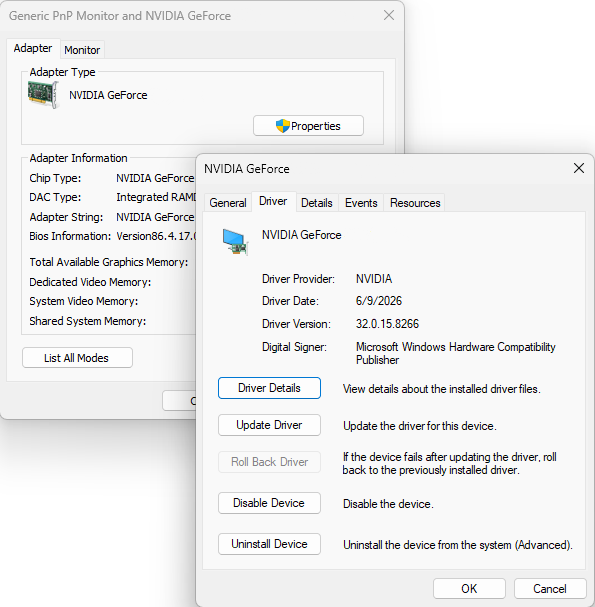
Step 2 – Check for Integrated Graphics
If the adapter reports Intel Graphics or another integrated graphics device, GibbsCAM may not have access to the hardware acceleration required by Contour Trace.
If your computer includes both integrated and dedicated graphics, configure Windows or your graphics control panel to run GibbsCAM using the dedicated GPU.
Step 3 – Update the Graphics Driver
Download and install the latest graphics driver directly from your graphics card manufacturer.
Avoid relying solely on drivers provided through Windows Update.
After updating the driver, restart the computer.
Step 4 – Test Contour Trace
Launch GibbsCAM and test the Contour Trace function.
Expected Result
Contour Trace functions correctly after GibbsCAM is using a supported hardware-accelerated graphics processor.
Additional Information
Why Does This Happen?
Contour Trace uses hardware-accelerated graphics functions provided by the system's graphics processor.
If GibbsCAM cannot access a supported graphics card, or if hardware acceleration is unavailable, Contour Trace cannot perform the calculations required for the feature to operate correctly.
This commonly occurs when:
The system is using integrated Intel graphics.
The dedicated graphics card is disabled.
Graphics drivers are outdated or corrupted.
Remote desktop software forces GibbsCAM to use software rendering or an unsupported graphics adapter.
Common Causes
This issue is commonly caused by:
Integrated graphics being used instead of a dedicated GPU.
Outdated graphics drivers.
Missing or disabled hardware acceleration.
Graphics configuration changes after Windows or driver updates.
Best Practices
Use a dedicated NVIDIA or AMD graphics card when running GibbsCAM.
Keep graphics drivers up to date using the manufacturer's latest certified drivers.
Configure laptops with hybrid graphics to always use the high-performance GPU for GibbsCAM.
Verify graphics settings after major Windows updates.
Troubleshooting
Problem: The system is using Intel integrated graphics.
Possible Cause
Windows is not using the dedicated graphics processor.
Resolution
Configure Windows or the graphics control panel to launch GibbsCAM using the high-performance GPU.
Problem: Contour Trace stopped working after updating Windows.
Possible Cause
The graphics driver was replaced or reset.
Resolution
Install the latest graphics driver from the GPU manufacturer and restart the computer.
Related Articles
- Troubleshooting Graphical Issues in GibbsCAM
- Error: LoadLibrary Failed with Error 126
- Error: LoadLibrary Failed with Error 87
- Error: LoadLibrary Failed With Error 1114
- Troubleshooting GibbsCAM Crashes, Freezes, or Unexpected Closures
Explore More from CAMCO
Visit the CAMCO website to learn more about:
Keywords
Contour Trace, Hardware Acceleration, Graphics Card, GPU, NVIDIA, AMD, Intel Graphics, Graphics Driver, Display Adapter, Graphical Issues