
Summary
The "No Bodies in Part" error indicates that the solid body data within the part file is missing or has become corrupted. When this error occurs, the solid model information was either not successfully saved or has become too damaged for GibbsCAM to recognize.
In most cases, the solid body cannot be recovered. The underlying cause is typically related to a system-level issue rather than the GibbsCAM file itself.
- Before You Begin
- Cause
- Procedure
- Can the Missing Solid Be Recovered?
- Best Practices
- Troubleshooting
- Related Articles
Before You Begin
Before troubleshooting:
Determine whether the issue affects a single part file or multiple files.
If possible, restore the file from a recent backup or autosave before proceeding.
Note: If the solid body data was not successfully written to the file, there may be no recoverable solid geometry.
Symptoms
You may experience one or more of the following:
Opening a part displays the "No Bodies in Part" error.
Solid models are missing from the file.
Wireframe geometry may still be present while solids are missing.
Previously saved solid models cannot be accessed.
Cause
This error indicates that the solid body data could not be read because it was not successfully saved or became corrupted.
Possible causes include:
A severely corrupted GibbsCAM installation.
Faulty or unstable system memory (RAM).
A failing hard drive or solid-state drive.
Corruption of Windows system files.
Unexpected system shutdowns during file operations.
Procedure
Step 1 - Test Another Part File
Open a different GibbsCAM part.
If other part files open normally, the issue may be isolated to a single damaged file.
Expected Result
Determine whether the problem affects one file or multiple files.
Step 2 - Run the Windows System File Checker
Open Command Prompt as an administrator.
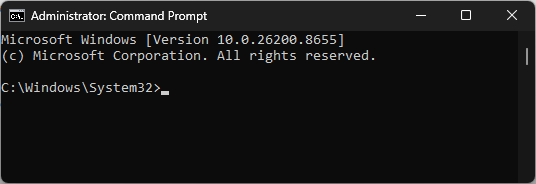
Figure 1 - Administrator Command Prompt
Run the following command:
sfc /scannow
Allow the scan to complete.
If Windows repairs any system files, restart the computer.
Expected Result
Windows verifies and repairs any corrupted operating system files.
Step 3 - Check System Hardware
If the problem continues, perform hardware diagnostics on the workstation.
Recommended tests include:
Memory (RAM) diagnostics.
Hard drive or SSD health tests.
Manufacturer hardware diagnostic utilities.
Expected Result
Any failing hardware components are identified.
Step 4 - Verify the GibbsCAM Installation
If hardware tests pass, perform a complete reinstall of GibbsCAM.
During the reinstall:
Remove the User Preferences folder.
Uninstall GibbsCAM.
Reinstall using the latest installer.
Temporarily disable antivirus software during installation if appropriate.
Do not migrate previous user preferences until the issue has been resolved.
Expected Result
A clean GibbsCAM installation is created.
Expected Result
Windows system files have been verified, system hardware has been tested, and GibbsCAM has been reinstalled if necessary. If the issue was caused by system corruption or failing hardware, the error should no longer occur on newly created files.
Additional Information
Can the Missing Solid Be Recovered?
Unfortunately, when the "No Bodies in Part" error occurs, the solid body data is typically no longer recoverable. The solid information was either never successfully written to the file or has become too severely corrupted to be recognized.
If backup files or Auto Save files are available, they may contain an earlier version of the model.
Common Issues
This error is most commonly associated with:
Corrupted Windows system files.
Faulty RAM.
Storage device failures.
Corrupted GibbsCAM installation files.
Unexpected shutdowns while saving.
Best Practices
Enable Auto Save and Backup Files whenever possible.
Keep Windows fully updated.
Regularly monitor storage device health.
Run periodic memory diagnostics on engineering workstations.
Maintain regular backups of important part files.
Troubleshooting
Problem: The error only occurs with one part file.
Possible Causes
The file became corrupted during a save operation.
Resolution
Attempt to recover the part from an Auto Save, backup, or previous revision.
Problem: Multiple part files display the same error.
Possible Causes
Corrupted Windows system files.
Hardware failure.
Corrupted GibbsCAM installation.
Resolution
Run SFC, perform hardware diagnostics, and reinstall GibbsCAM if necessary.
Problem: The issue continues after reinstalling GibbsCAM.
Possible Causes
Faulty RAM.
Failing storage device.
Underlying Windows corruption.
Resolution
Perform comprehensive hardware diagnostics and repair the Windows installation before reinstalling GibbsCAM again.
Related Articles
- How to Recover a Corrupted GibbsCAM Part File
- Configure Auto Save and Backup Files
- Run Windows System File Checker (SFC) and DISM Repair
- Troubleshooting GibbsCAM Crashes, Freezes, or Unexpected Closures
Explore More from CAMCO
Visit the CAMCO website to learn more about:
Keywords
No Bodies in Part, Missing Solid, Corrupted Solid, Solid Model Missing, File Corruption, SFC, System File Checker, RAM Failure, Hard Drive Failure, SSD Failure