
Summary
This article explains how to make GibbsCAM Probing available by confirming the required license and post processor, enabling the GibbsCAM Generic Probing plug-in when Generic Probing is needed, restarting GibbsCAM, and verifying the probing tools and process interface. Enabling the plug-in does not add a license or make an existing post probing-capable.
Before You Begin
Confirm whether the workstation uses a hardware-locked license or a Network License (NLO), and verify that the required Probing option is available to the user.
Determine whether the job requires Basic Probing, Generic Probing, or a vendor-provided probing package. The GibbsCAM Generic Probing plug-in does not enable third-party products such as Renishaw Productivity+.
Obtain an approved probing-capable post processor for the machine and control. The official GibbsCAM Probing documentation states that Probing requires a post upgrade.
Save all open parts before changing plug-in settings because GibbsCAM must be restarted before Plug-In Manager changes take effect.
Important: Do not use the appearance of the Probing interface as proof that the posted program is correct. Verify the selected probe format, posted cycles, clearances, results, alarms, and offsets with the approved post and the machine-control documentation before running the program.
Probing Options at a Glance
Key distinction: The license determines which probing product can run, the plug-in determines whether the Generic Probing interface is active, and the post determines what control-specific code is produced. All three must match the intended machine workflow.
Procedure
Step 1 - Verify the Probing License
Review the options available on the active GibbsCAM license and confirm that Probing is included.
If the workstation uses NLO, confirm that the required Probing option has an available seat and is selected in the License Checkout window.
If Generic Probing cycles are required, confirm that the Generic Probing entitlement is included rather than assuming the Basic Probing option provides every generic cycle.
Update the license or contact CAMCO Support when the expected Probing option is missing before changing the plug-in configuration.
Step 2 - Confirm the Post Is Probing-Capable
Identify the exact machine, control, GibbsCAM version, active MDD, and post processor that will run the probe program.
Confirm with CAMCO, your reseller, or the Gibbs Post Department that the post has been upgraded for the intended probing product and cycles.
Install the approved post using the supplied instructions and retain the last proven post so the change can be reversed if required.
Do not copy probing output from another machine or manually modify an unapproved production post to bypass this requirement.
Step 3 - Enable the Generic Probing Plug-In
Open the Plug-Ins menu and select Plug-In Manager.
Locate GibbsCAM Generic Probing Support (GibbsCAM.Probing.Generic.dll) in the plug-in list.
Select the Enabled checkbox for the plug-in.
Close Plug-In Manager after confirming that the checkbox remains selected.
Close and restart GibbsCAM. Plug-In Manager activation changes take effect the next time GibbsCAM starts.
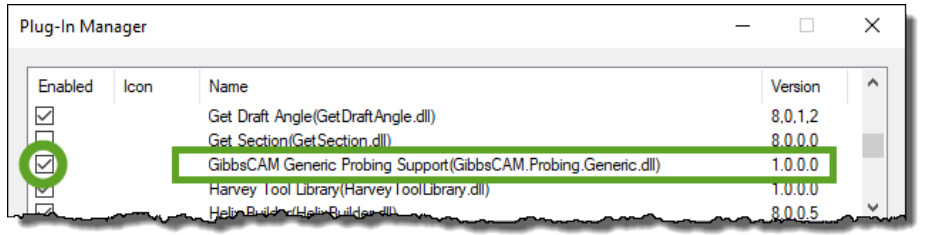
Figure 1 - Enable GibbsCAM Generic Probing Support in Plug-In Manager.
Step 4 - Verify the Probing Interface
Open a test part that uses the intended MDD and the approved probing-capable post.
Open the tool-type selection and confirm that the expected probing tools are available: Ball, Disc, Cylinder, 2D Form, and 3D Form.
Open the Select Process Type window and choose a Probing process.
Open the process dialog. Basic Probing displays the Basic Probing page; licensed Generic Probing with the plug-in enabled displays the Probe Shape (Generic) interface and additional generic parameters.
For Generic Probing, confirm that the required cycle type is available, such as Single Surface, Rectangle Pocket, Circular Pocket, Rectangle Boss, or Circular Boss.
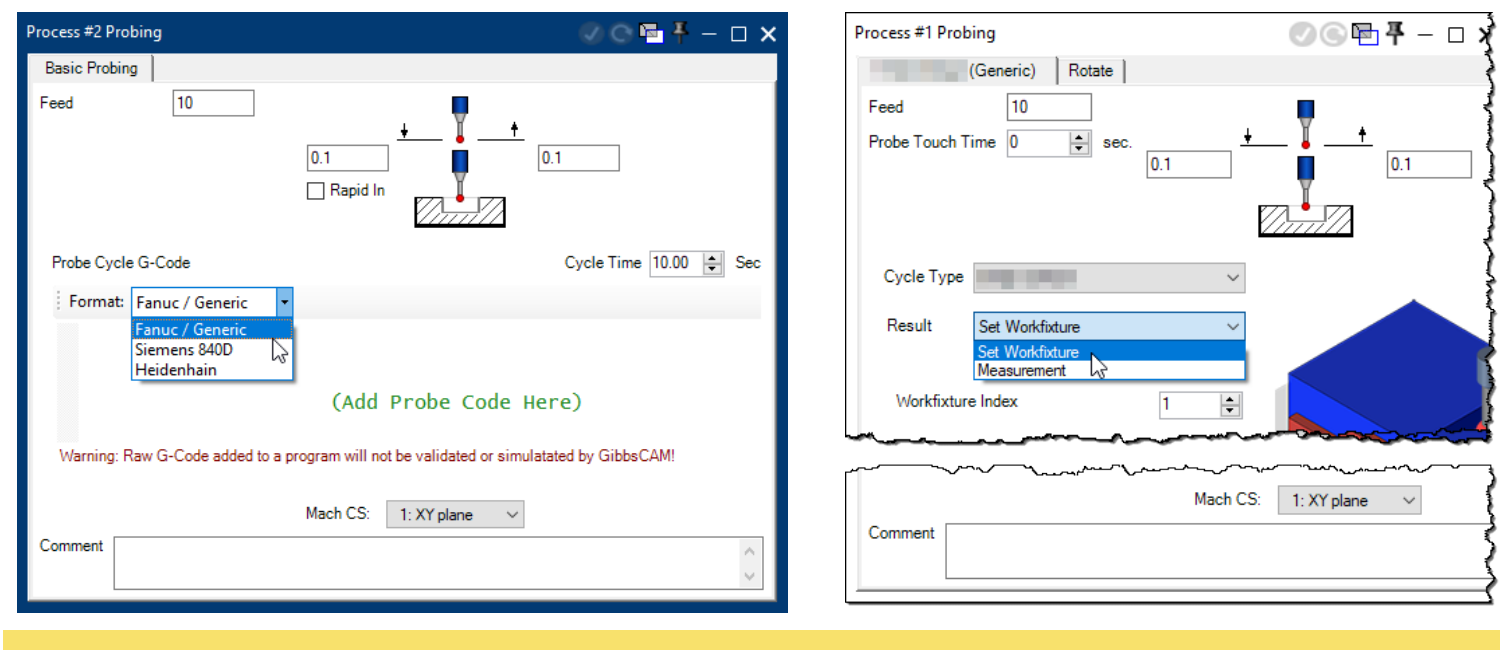
Figure 2 - Basic Probing and Generic Probing process interfaces.
Step 5 - Validate a Test Probe Operation
Create a nonproduction test operation with the correct probe tool, machining coordinate system, feed, entry clearance plane, exit clearance plane, and safe probe depth.
For Generic Probing, choose the intended result behavior, workfixture index or measurement action, tolerance response, and cycle-specific parameters.
Generate the operation and run Machine Simulation with the probe, stock, fixtures, holder, and machine components visible.
Post the test operation and compare the cycle calls, coordinates, offsets, result handling, alarms, and cancellation behavior with the machine-control and probe documentation.
Follow the shop's single-block, dry-run, graphics, and prove-out procedure before releasing any probing program to production.
Expected Result
After GibbsCAM restarts, the licensed probing tools and Probing process are available. When Generic Probing is licensed and GibbsCAM.Probing.Generic.dll is enabled, the Generic Probing interface and supported generic cycle types appear. A test operation generates, simulates, and posts with the approved machine post, and its control-specific behavior is verified before production use.
Additional Information
GibbsCAM Probing was introduced as a product option with GibbsCAM 14. The supplied documentation applies to GibbsCAM 2026 and distinguishes Basic, Generic, and vendor-provided capabilities.
Generic Probing is enabled by the plug-in named GibbsCAM.Probing.Generic.dll. The plug-in provides Basic capability plus generic Single Surface, Rectangle Pocket, Circular Pocket, Rectangle Boss, and Circular Boss cycle types when the license permits them.
The Basic Probing page can include a probe-cycle G-code entry area. Raw G-code entered there is not validated or simulated by GibbsCAM, so the posted program must be checked separately.
The Rotate page appears only when the part's DCD supports a suitable programmable rotary axis.
A vendor may provide additional cycles, options, plug-ins, or macros. Those products require their own installation, license, version compatibility, and post instructions.
Plug-In Manager can activate or deactivate plug-ins globally. Its changes take effect the next time GibbsCAM starts.
Source documentation: GibbsCAM 2026 Probing, Introduction to Probing and GibbsCAM Generic Probing Cycles, pages 4-5; Interface and Probe Tab, pages 8-10. GibbsCAM Common Reference, The Plug-Ins Menu, pages 104-105.
Troubleshooting
Problem: Probing does not appear after the plug-in is enabled.
Possible Causes
GibbsCAM was not restarted after the Plug-In Manager change.
The active license does not include Probing, or an NLO seat was not checked out.
The plug-in was enabled in a different GibbsCAM installation or version.
Resolution
Save all work, restart the same GibbsCAM installation, and review the active license options. For NLO, confirm that a Probing seat is available and selected. Reopen Plug-In Manager and verify that the Generic Probing plug-in remains enabled.
Problem: The Basic Probing page appears instead of the Generic Probing interface.
Possible Causes
The license includes Basic Probing but not Generic Probing.
GibbsCAM.Probing.Generic.dll is disabled or did not load during startup.
The current user did not check out the required Generic Probing option from NLO.
Resolution
Confirm the Generic Probing license entitlement and seat checkout, enable GibbsCAM.Probing.Generic.dll, and restart GibbsCAM. If the Generic interface still does not appear, collect the license and GibbsCAM version information and contact CAMCO Support.
Problem: GibbsCAM.Probing.Generic.dll is not listed in Plug-In Manager.
Possible Causes
The selected GibbsCAM installation is incomplete or damaged.
A different GibbsCAM version is running than the version that contains the plug-in.
The required capability is a vendor product rather than GibbsCAM Generic Probing.
Resolution
Confirm the GibbsCAM version and product being configured. Repair or update the GibbsCAM installation only through the approved installer, or follow the vendor's installation guide for a third-party probing package. Contact CAMCO Support if the GibbsCAM plug-in remains absent.
Problem: The probing interface is available, but the posted code is missing or incorrect.
Possible Causes
The post processor has not been upgraded for probing.
The wrong post, MDD, probe format, or cycle type is active.
The selected cycle belongs to a vendor package that requires different post support.
Resolution
Stop the release process and verify the active MDD, post, probe format, and cycle. Restore the last proven post if necessary and request a probing-capable post upgrade from CAMCO, your reseller, or the Gibbs Post Department. Do not compensate by hand-editing unverified production code.
Problem: Simulation looks acceptable, but the machine alarms or the probe motion is unsafe.
Possible Causes
Raw probe G-code, control-side macros, or vendor cycles were not evaluated by GibbsCAM simulation.
The entry or exit clearance, probe depth, work offset, result behavior, or control setting is incorrect.
The simulated machine, fixture, probe, holder, or MDD does not match the physical setup.
Resolution
Stop the machine and review the alarm and posted blocks. Correct the setup and operation values, compare the code with the control and probe documentation, then repeat simulation and the shop's full prove-out procedure. Treat simulation as one verification layer, not as a substitute for posted-code review and machine prove-out.
Related Articles
Explore More from CAMCO
Visit the CAMCO website to learn more about:
Keywords
GibbsCAM Probing, Enable Probing, Generic Probing, Basic Probing, GibbsCAM.Probing.Generic.dll, Plug-In Manager, Probe Shape, Probe Tool, Ball Probe, Disc Probe, Cylinder Probe, Probe Cycle, Probing License, Probing Post, Machine Simulation