
Summary
This article explains how to view the options included with your current GibbsCAM license.
Reviewing your licensed features can help verify that purchased modules have been activated and determine whether a specific machining function is available in your installation.
Table of Contents
- Hardware Key Licenses
- Network License (NLO)
- If a Feature Is Missing
- Updating Your License
- Troubleshooting
- Best Practices
- Related Articles
Hardware Key Licenses
Step 1 – Launch the Registration Tool
Connect the GibbsCAM hardware key to the workstation.
Launch the Registration Tool directly from:
Start Menu → GibbsCAM → Registration Tool
or run:
RegistrationTool.exe
Select: Run Registration Tool...
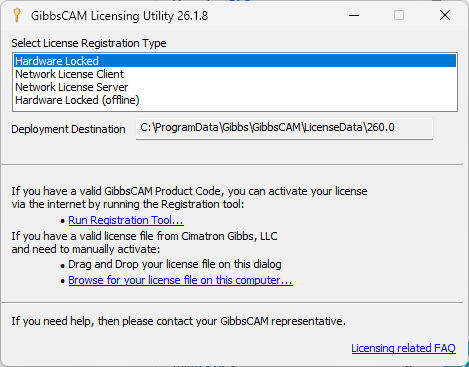
Step 2 – Enter Your Product Code
Ensure the correct Product Code is entered.
Click the Info button.
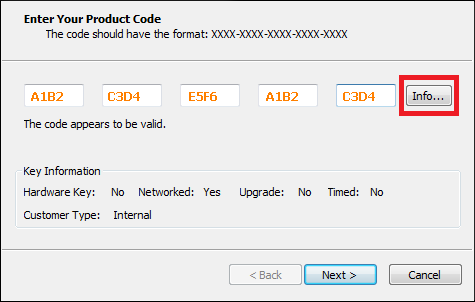
Step 3 – Review License Options
The license information displays the modules and options currently available with your license.
Network License (NLO)
Server
Step 1 – Open the Reprise Webpage
Open a web browser.
Navigate to:
http://localhost:5054
If accessing remotely, replace localhost with the server hostname or IP address.
Step 2 – Navigate to the Server Status Chart
Click the 'Status' button on the left.
Click the 'Gibbsnet' button underneath "Server Status".
Scroll down to the "License Pool Status" chart.
This will show you the name of the option, the "Count" of how many seats you have total.
The "In Use" column which shows how many are currently in use.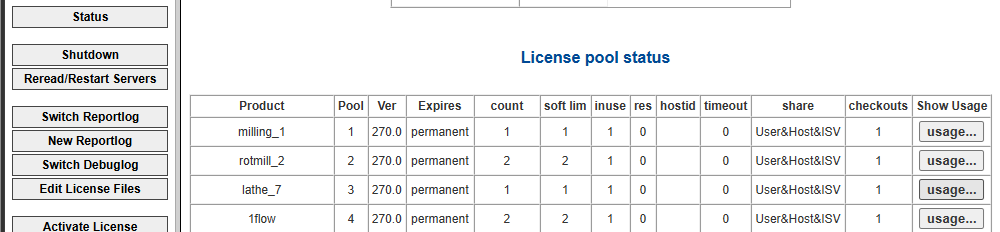
Note:
Click the 'Usage' button on the right column to see who has that option checked out.
Manually removing licenses from a user will kick them out of GibbsCAM and may lose any unsaved work.
Workstation
Step 1 – Start GibbsCAM
Launch GibbsCAM normally.
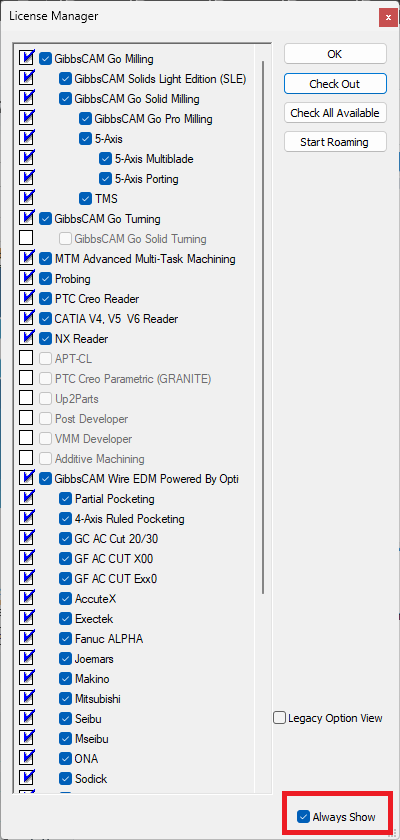
If the License Checkout window does not open, navigate to:
File > Preferences > License Update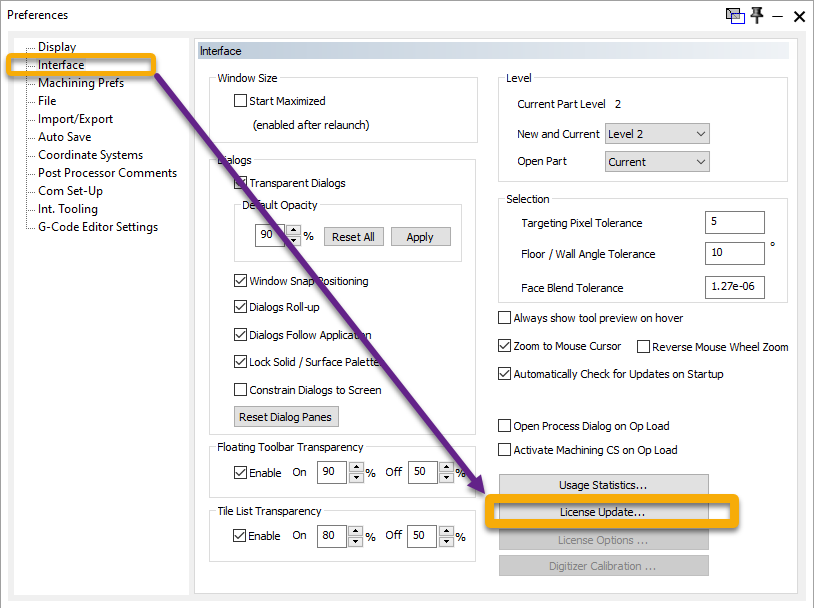
Step 2 – Review Selected Options
The license information displays the modules and options currently selected to be checked out from your server.
The Always Show checkbox at the bottom determines if this window will appear when launching GibbsCAM or if it will remember the last selections.
Relaunch GibbsCAM after any license option selection changes.
If a Feature Is Missing
If an expected license option is not listed:
Verify that the correct license/hardware key/product code is being used.
Update the license file by running the Registration Tool on your workstation (hardware-locked) or server (NLO).
Restart GibbsCAM after installing a new license.
If using a Network License (NLO), verify that the module has seats available to be checked out on your server computer.
See: My License Is Missing Options
If the feature is still unavailable, contact CAMCO Support.
Updating Your License
If you recently purchased additional modules:
Run the Registration Tool on your server (NLO) or workstation (Hardware-locked)
Relaunch GibbsCAM
If using NLO, check out new options in the checkout window.
Troubleshooting
Problem: Purchased Feature Does Not Appear
Possible Causes
License update has not been completed.
Incorrect license is installed.
Network license feature is unavailable.
The new license has not yet been issued.
Resolution
Run Registration Tool, restart GibbsCAM, and verify that the updated license has been installed.
Problem: Different Computers Show Different Features
Possible Causes
Different license files.
Different hardware keys.
Different network license pools.
Resolution
Compare the active licenses and verify that each workstation is using the intended license.
Problem: License Information Cannot Be Opened
Possible Causes
License not installed.
Registration incomplete.
Resolution
Complete the appropriate registration procedure before attempting to review the license.
Best Practices
Verify your licensed features after purchasing additional modules.
Keep a record of your Product Code and license information.
Restart GibbsCAM after performing a license update.
For network environments, periodically verify that users are checking out the expected license features.
Related Articles
- Online Registration Guide (Hardware-Locked Licenses)
- Offline Registration Guide (Hardware-Locked Licenses)
- Network License (NLO) Server Setup
- How to Update Your GibbsCAM License
- My License Is Missing Options
Keywords
License Features, Licensed Modules, License Options, License Information, License Update, Product Code, Hardware-Locked License, Network License, RLM License